

You’re mid-conversation in ChatGPT, working through a plan or a set of notes, and the next step lives on monday AI Workspace. Normally that means stopping to go do it yourself. But with monday’s Model Context Protocol (MCP) connected to ChatGPT, you can update the status or pull the report right from where you’re already working.
This guide covers how to use monday MCP with ChatGPT and how to set it up the connection in under 5 minutes.
Get startedKey takeaways
- Connect ChatGPT to your monday AI Workspace in minutes: the monday MCP app is free on all plans and gives ChatGPT the ability to read, create, and update your work.
- Use conversational language to manage real work: create items, update deals, build dashboards, and generate reports by typing plain-English prompts into ChatGPT.
- Keep your data secure by design: MCP inherits your existing monday AI Workspace permissions, so ChatGPT can only access what you’re already allowed to see, and nothing more.
- Let monday agents handle the repetitive work automatically: while MCP responds to your prompts on demand, monday agents run 24/7 to score leads, triage tickets, and update statuses without you lifting a finger.
- Start small, then scale: test prompts on non-critical boards first, confirm the results, then roll out to your full team with admin controls to govern access.
What is the monday MCP and how does it work with ChatGPT?
The Model Context Protocol (MCP) is an open standard that gives AI assistants a secure way to connect to external software platforms so they can read data and take actions. Think of MCP as a universal translator. It lets an AI assistant like ChatGPT speak the same language as your work platform, so the two can exchange information and execute workflows without needing custom integrations for every app.
MCP isn’t proprietary to monday AI Workspace. It’s supported by multiple AI assistants and platforms, including:
- Claude
- Cursor
- Microsoft Copilot Studio
- le Chat (Mistral AI)
- Figma Make
- Gemini CLI
The same open protocol that connects ChatGPT to your monday AI Workspace can also connect other AI assistants, giving you flexibility in how you work.
Why connect monday MCP to ChatGPT
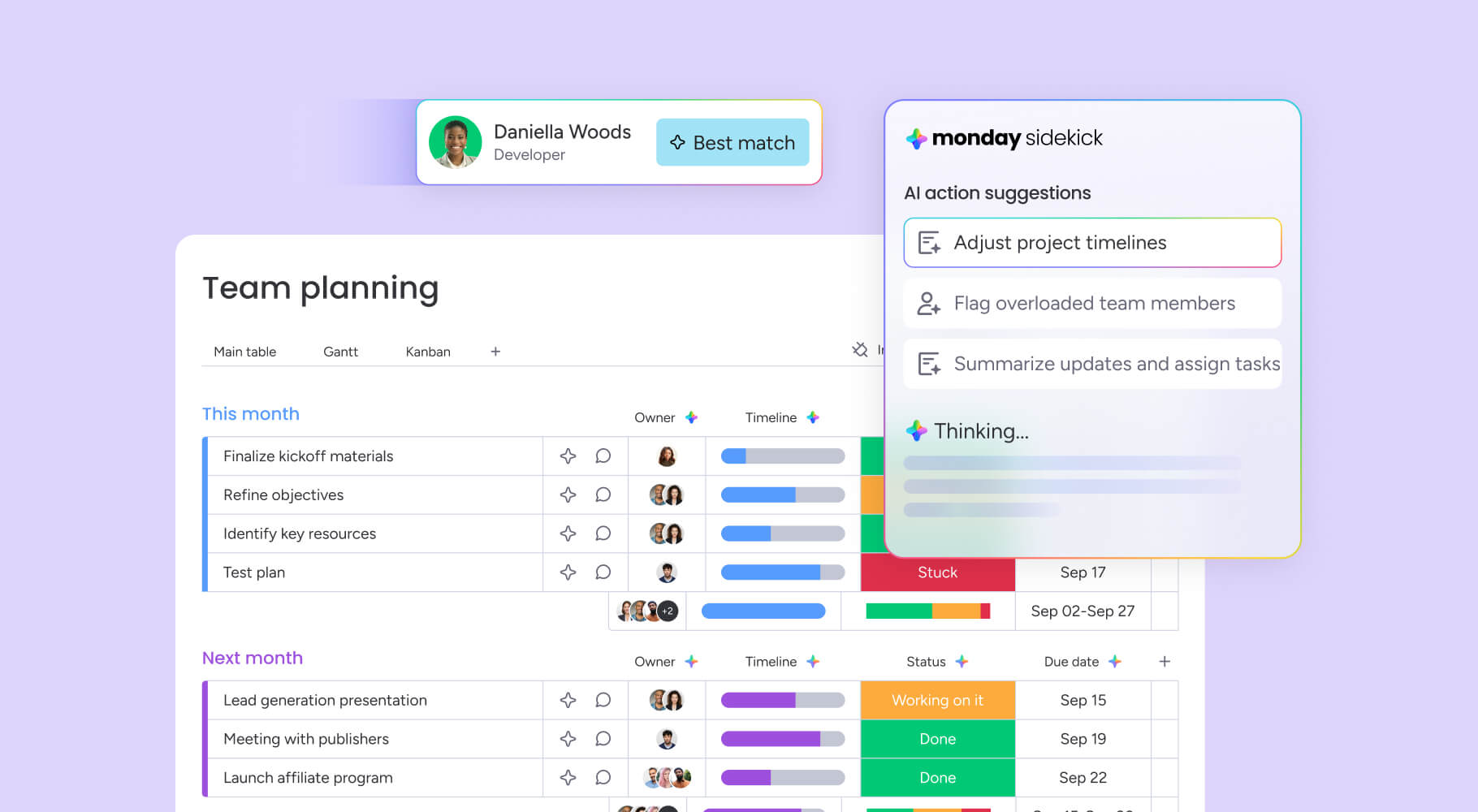
Once connected, you can use ChatGPT to handle a wide range of workspace operations. Here’s what you can do when your AI assistant has direct access to your structured work data:
- Project reporting: Generate sprint summaries, team performance reports, and deadline tracking from your boards, including dev sprints. Instead of manually compiling status updates before a meeting, ask ChatGPT to scan your boards and produce a structured report in seconds — a meaningful time reclaim given that 72% of organizations spend half a day or more each month collating project reports alone.
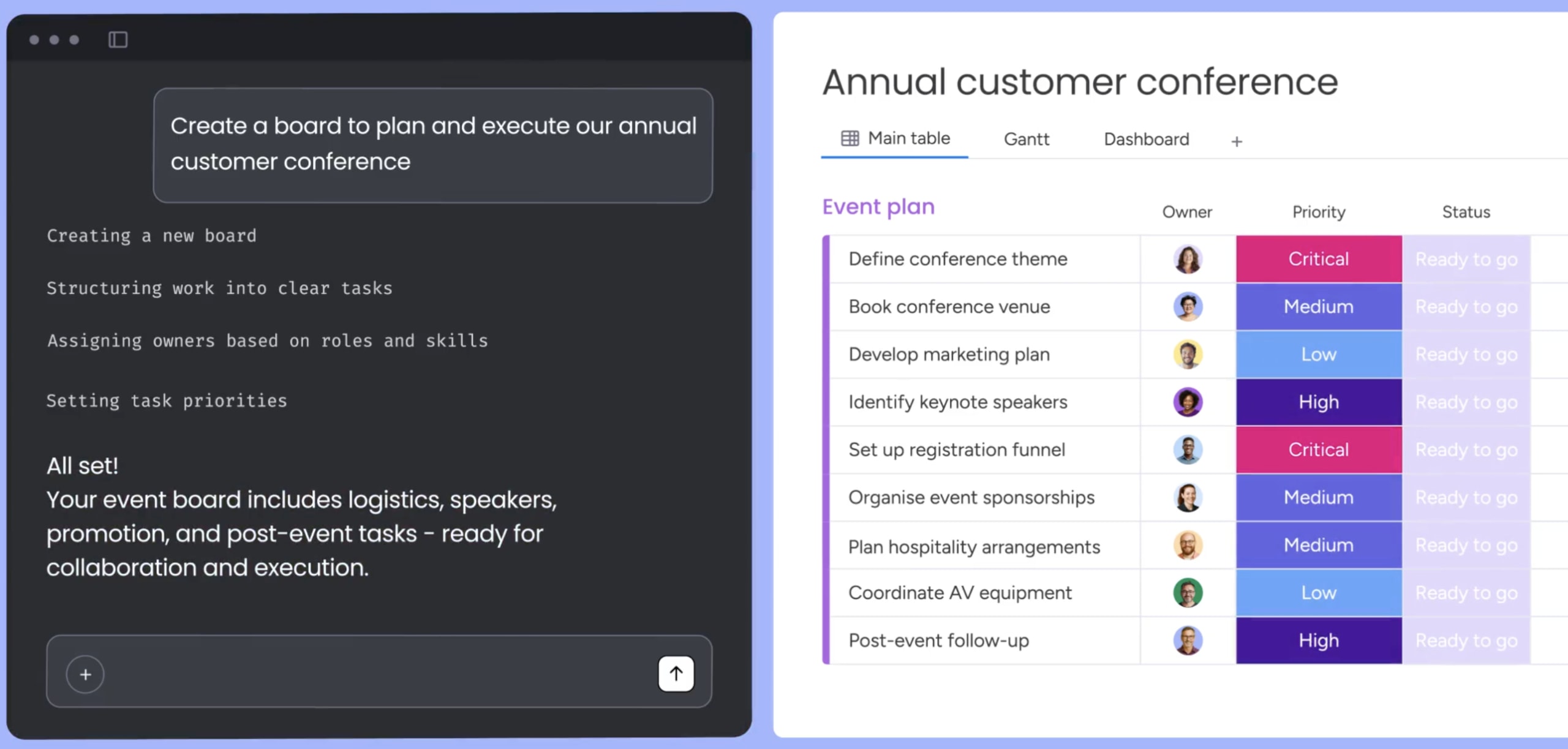
- Smart workflow management: Convert meeting notes into structured items, assign team members, and update statuses simply by talking to it. Paste raw notes from a call and ChatGPT extracts action items, creates items with owners and due dates, and posts updates in one prompt.
- Cross-team visibility: Ask rollup questions across multiple boards spanning different departments. A prompt like “What’s blocking the launch across Product, Marketing, and Sales boards?” returns a consolidated view that’d otherwise require opening each board individually.
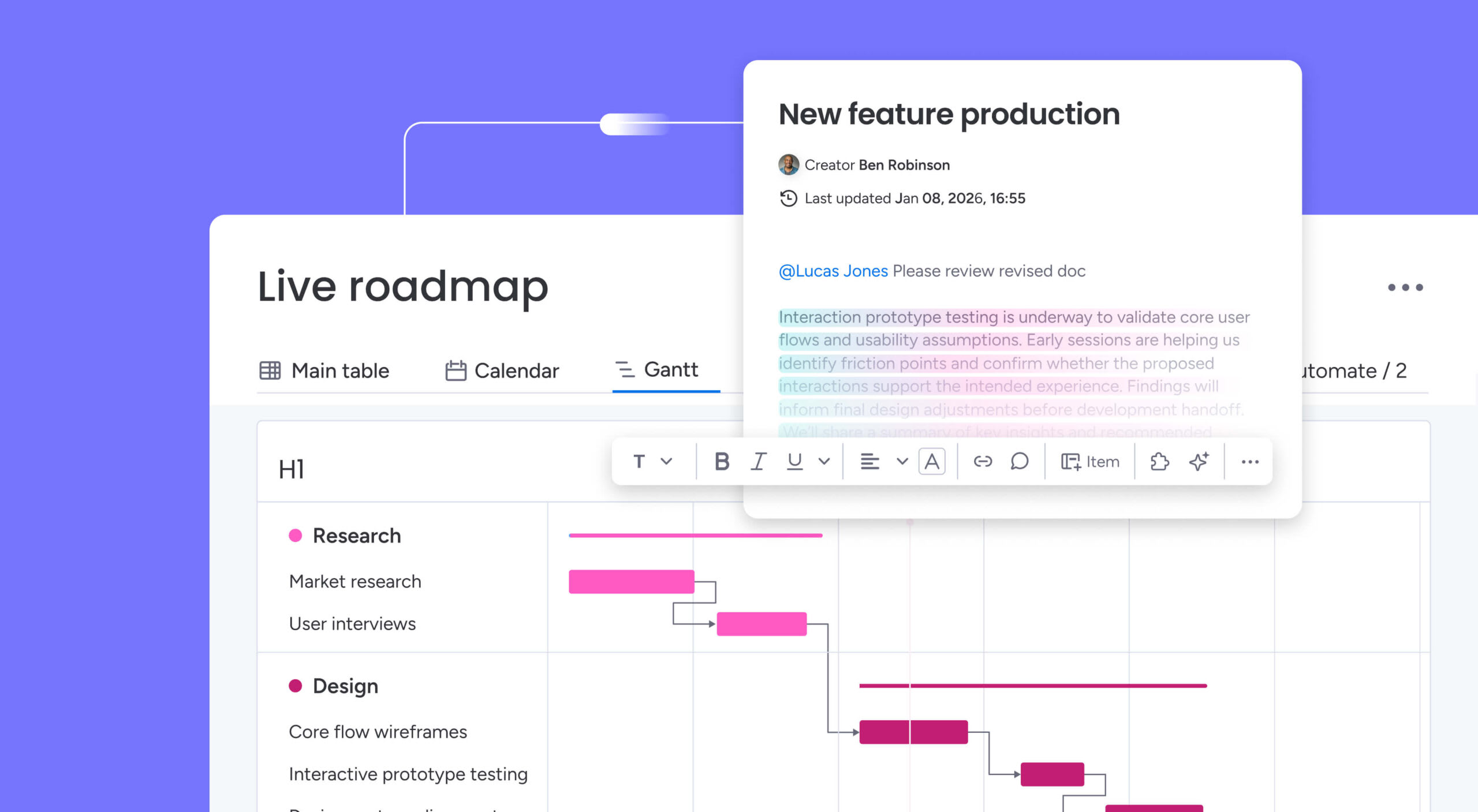
- Docs and knowledge workflows: Create specs, SOPs, and retros as monday docs, either in a workspace or attached to a specific item. ChatGPT drafts the document structure and content based on your prompt and board data.
- Dashboards and insights: Build dashboards and widgets, and answer questions using board data such as status distribution, workload, and throughput. You describe the dashboard you need, and ChatGPT creates it.
- Workspace discovery: Find the right board, doc, form, or folder across large workspaces. In organizations with hundreds of boards, this saves significant time navigating the workspace manually.
What you need before connecting monday MCP to ChatGPT
Before diving into setup, confirm you have the right access and settings in place on both the monday AI Workspace and ChatGPT sides.
monday AI Workspace account and admin requirements
Here’s what you need for a smooth setup:
- Active monday AI Workspace account: Any plan works, including Free, Standard, Pro, or Enterprise. MCP is included at no additional cost across all tiers.
- Admin permissions: Installing the monday MCP app from the marketplace requires account admin permissions. If you’re not an admin, ask your admin to install the app on your behalf. The installation takes less than a minute.
- AI features enabled: AI capabilities must be turned on in the account’s Administration section. To verify, go to Administration > Customization > Features and confirm that “Enable or disable AI features” is set to “Enabled.” If an admin has disabled AI features, MCP won’t function even after installation.
ChatGPT plan requirements
The platform holds SOC 2 Type II, ISO/IEC 27001, and ISO/IEC 27701 certifications. At rest, data is encrypted using AES-256, and in transit with TLS 1.3. You’ll find developer mode on ChatGPT Plus, Pro, and Team plans.
ChatGPT also offers a native monday AI Workspace connector that provides read-only access on select plan tiers. If you only need to query data without modifying anything, the native connector may be sufficient. The next section covers the differences between these options in detail.
Native connector vs. full MCP connector
ChatGPT offers two distinct ways to connect to monday AI Workspace. Choosing the right one depends on whether you need read-only access or full read-write capabilities. Making this decision before you start setup saves time and helps you configure the right connection for your workflow.
| Feature | Native monday AI Workspace connector | Full MCP connector |
|---|---|---|
| Access type | Read-only | Full read-write |
| Setup complexity | Simple OAuth through built-in apps menu | Developer mode + server URL + OAuth |
| Capabilities | View board data, find items, summarize changes | Create/update/delete items, build dashboards, create docs, run multi-step workflows |
| ChatGPT plan requirement | Varies by tier; check current availability | Plus, Pro, or Team (developer mode required) |
| When to use | Quick data lookups and status checks | Full workspace management through natural language |
When to use the native read-only connector
The native connector is the simpler option. It connects through ChatGPT’s built-in apps and connectors menu without requiring developer mode, and allows ChatGPT to read your monday AI Workspace data: viewing board statuses, finding items, or summarizing recent changes. But it can’t create, update, or delete items.
This option works well for team members who want quick access to query their workspace data without modifying anything. If your primary need is pulling reports or checking statuses from within ChatGPT, the native connector handles that without any additional configuration.
When to use the full MCP connector with developer mode
The full MCP connector gives ChatGPT both read and write access to your monday AI Workspace. ChatGPT can create items, update statuses, assign people, build dashboards, create docs, and run multi-step workflows. This is the option most team members will want for day-to-day work.
You’ll need to enable developer mode in ChatGPT settings and enter the monday MCP server URL. If you want to manage your workspace through regular language, not just view it, the full MCP connector is the way to go.
How to connect the native monday AI Workspace connector in ChatGPT
Setting up the native connector takes just two steps and requires no developer mode. Here’s how to get it running.
Step 1: Open ChatGPT settings and find apps and connectors
Open ChatGPT, click on your profile icon or the settings menu, and navigate to the “Apps and connectors” or “Connected apps” section. You’ll see a list of available third-party connectors that ChatGPT can integrate with.
Step 2: Select monday.com and authorize with OAuth
Search for or scroll to the monday MCP connector in the list, then click to connect. ChatGPT will redirect you to a monday AI Workspace login page. Log into your account if you’re not already logged in, then grant ChatGPT permission to read your workspace data. Once authorized, the connector is active and can be used in any new ChatGPT conversation.
This connector is read-only. Want full read-write access to create items, update statuses, build dashboards, and run workflows? Proceed to the full MCP connector setup in the next section.
How to set up the full MCP connector in ChatGPT
Here’s the complete setup for the full-capability MCP connector, which allows ChatGPT to both read and write to your monday AI Workspace. The entire process takes approximately 5 minutes.
Step 1: Install the monday MCP app from the marketplace
Go to the monday.com marketplace — accessible from within your monday AI Workspace account — search for “MCP,” and install the monday MCP app. This step requires account admin permissions. If you’re not an admin, ask your admin to complete this step. It takes under a minute.
Installing the app registers the MCP server for your account, making it available for external AI assistants to connect. You won’t need any additional configuration on the monday side after installation.
Step 2: Enable developer mode in ChatGPT settings
Open ChatGPT, go to Settings, find the “Developer” or “Developer mode” toggle, and enable it. Developer mode unlocks the ability to add custom MCP connectors, which isn’t available in the standard ChatGPT interface.
Don’t see a developer mode toggle? Confirm that your ChatGPT plan supports MCP connectors. This feature is available on Plus, Pro, and Team plans.
Step 3: Create a new MCP connector with the monday server URL
Inside ChatGPT’s developer settings:
- Click “Add MCP connector” (or the equivalent button).
- Enter a name (e.g., “monday.com”).
- Paste the monday MCP server URL:
https://mcp.monday.com/mcp
The server URL points to monday AI Workspace’s hosted MCP server. This handles the secure connection between ChatGPT and your workspace. Copy the URL exactly as shown. Any typos will prevent the connection from completing.
Step 4: Complete OAuth authentication with monday AI Workspace
After adding the server URL, ChatGPT prompts you to authenticate with monday AI Workspace via OAuth. You’ll be redirected to monday’s login page, where you log in and grant permissions. ChatGPT can access and modify data within the workspaces you have access to, respecting your existing monday AI Workspace permission level.
Review the permission scopes before approving. The OAuth consent screen shows exactly what ChatGPT can do on your behalf. MCP only has access to the data that you, as an individual team member, can access on monday AI Workspace.
Step 5: Enable the connector in a new conversation
After OAuth is complete, start a new ChatGPT conversation and enable the monday MCP connector for that conversation. Look for the MCP connector icon or menu in the conversation toolbar, click it, and toggle the monday AI Workspace connector on.
The connector must be enabled per conversation. It doesn’t automatically activate in every chat. This is a common point of confusion for first-time team members. If ChatGPT doesn’t seem to recognize your monday AI Workspace data, check that the connector is toggled on in the current conversation.
How to verify your monday MCP connection is working
Once setup is complete, run a quick test to confirm everything’s connected before you start using it for real work. Type a test prompt into ChatGPT with the MCP connector enabled to confirm the connection is active.
A successful response returns actual board names, item names, or project status information from your workspace. If ChatGPT returns an error or says it cannot access monday AI Workspace, check the troubleshooting section later in this article.
The following test prompts help you confirm everything is working correctly:
- “List all boards in my monday.com workspace.”
- “What items are currently in progress on my board?”
- “Show me the most recently updated items across all my boards.”
If you see real data from your workspace in the response, the connection’s working. You’re ready to start using prompts for your work.
Get started3 quick wins to try after connecting
Once your connection is verified, you can immediately start getting value from the integration. These prompts demonstrate the practical impact of having ChatGPT connected to your workspace data:
- Project lead: “Show all overdue launch items by owner” — Get instant visibility into which items need attention and who needs support.
- Sales manager: “Move Acme deal to Proposal Sent and create a follow-up for Friday” — Update your pipeline and schedule next steps in one prompt.
- Ops lead: “Create action items from these meeting notes and assign owners” — Paste your notes and let ChatGPT structure them into trackable work.
Ready-to-use monday MCP prompts for ChatGPT
The prompts below are starting points you can adapt to your own boards and workflows.
Starter prompts for board management and item creation
These prompts cover everyday board and item operations. Copy them directly into ChatGPT and replace board or item names with your own:
- “Create a board called ‘Website Refresh’ with columns for status, assignee, priority, and due date.”
- “Add a new item called ‘Update homepage content’ to the Marketing board.”
- “Change the status of the ‘Homepage redesign’ item to ‘Done’.”
- “Assign the ‘API documentation’ item to Sarah.”
- “Set the due date for ‘Q4 planning meeting’ to next Friday.”
- “Add a comment to the blog post creation item: ‘Waiting for final copy from the content team.'”
- “Find all items in the Development board that contain ‘bug’ in the name.”
- “Reassign all items assigned to John in the ‘Customer Onboarding’ board to Alice.”
For accurate results, use exact board and item names. Can’t find a board? Ask ChatGPT to list all boards first, then reference the correct name in your follow-up prompt.
Advanced prompts for project setup and reporting
These prompts demonstrate multi-step capabilities where ChatGPT handles several actions in sequence:
- “Set up a complete product launch project: create a board called ‘Product Launch Q3’, add columns for status, assignee, priority, due date, and budget, then create initial items for research, design, development, and marketing phases.”
- “Generate a weekly activity report for my Development board showing what happened in the last 7 days.”
- “Search for all items containing ‘security audit’ across my Development and QA boards, then create a summary report of their current status.”
- “Create a project specification document attached to the client onboarding automation item with sections for overview, requirements, timeline, and deliverables.”
- “Show me all overdue items across my project boards and group them by assignee.”
- “Create a client onboarding board with custom columns for client name, contact info, onboarding stage, and next action required.”
- “For all items due this week in the ‘Launch plan’ board, set Status to ‘In Progress’ and add an update asking owners for blockers.”
For complex requests, break them into sequential steps. Start with “Create the board,” then follow up with “Now add these columns,” then “Add these items.” ChatGPT handles each step more accurately when you keep instructions specific and sequential.
Examples for different teams using monday MCP
MCP does more than manage individual boards. Because monday AI Workspace works across departments, ChatGPT can query and act on data that spans product development, marketing campaigns, customer support, and operations. You get cross-functional visibility from a single chat interface.
Turn project briefs into structured work items
Here’s a common scenario: you receive a project brief or feature request via email or Slack. Instead of manually creating items across multiple boards, paste the brief into ChatGPT. Ask it to extract key requirements, dependencies, and deliverables, then create structured items on your product roadmap, development sprint, and marketing launch boards with the appropriate columns filled in.
Here’s how to turn unstructured briefs into structured work:
- “Here’s the brief for our Q2 mobile app feature: [paste brief]. Create items on my Product Roadmap board for each deliverable, assign initial owners, and set priority based on the requirements outlined.”
- “I just received this customer feature request from our enterprise client: [paste request]. Create a feature item on my Development board, link it to the customer account on my Support board, and set the status to ‘Under Review’.”
Coordinate cross-team launches without switching contexts
Product and marketing teams can coordinate launches, update task statuses, and log progress across multiple boards without opening monday AI Workspace. You tell ChatGPT what changed, and it executes the update through MCP in the same conversation where you’re already working.
This eliminates the context-switching that happens when teams need to stop what they’re doing, open the workspace, find the right board, and manually update fields. Here’s cross-team coordination through conversational language:
- “Update the homepage redesign item to ‘In Review’ on the Design board, create a corresponding QA task on the Development board, and notify the Marketing team that assets will be ready by Friday.”
- “The product launch date moved to March 15. Update all related items across Product, Marketing, and Sales boards, and add a note explaining the timeline shift due to additional testing requirements.”
Ask questions that span product, support, and operations boards
Because MCP gives ChatGPT access to your entire workspace within your permissions, you can ask cross-board questions that would otherwise require opening multiple boards and manually comparing data.
This cross-team visibility comes from monday AI Workspace, where all departments work within the same system. A question about customer satisfaction can pull from Support tickets, Product feedback, and Operations metrics simultaneously.
Here are cross-functional queries in action:
- “What are the top three customer pain points mentioned in Support tickets that relate to features currently in development on the Product board?”
- “Show me all high-priority items across my Development, QA, and Operations boards that are due this week.”
- “Which product features launched in Q4 are generating the most positive feedback in our Customer Success board?”
How to enable interactive monday UI components in ChatGPT
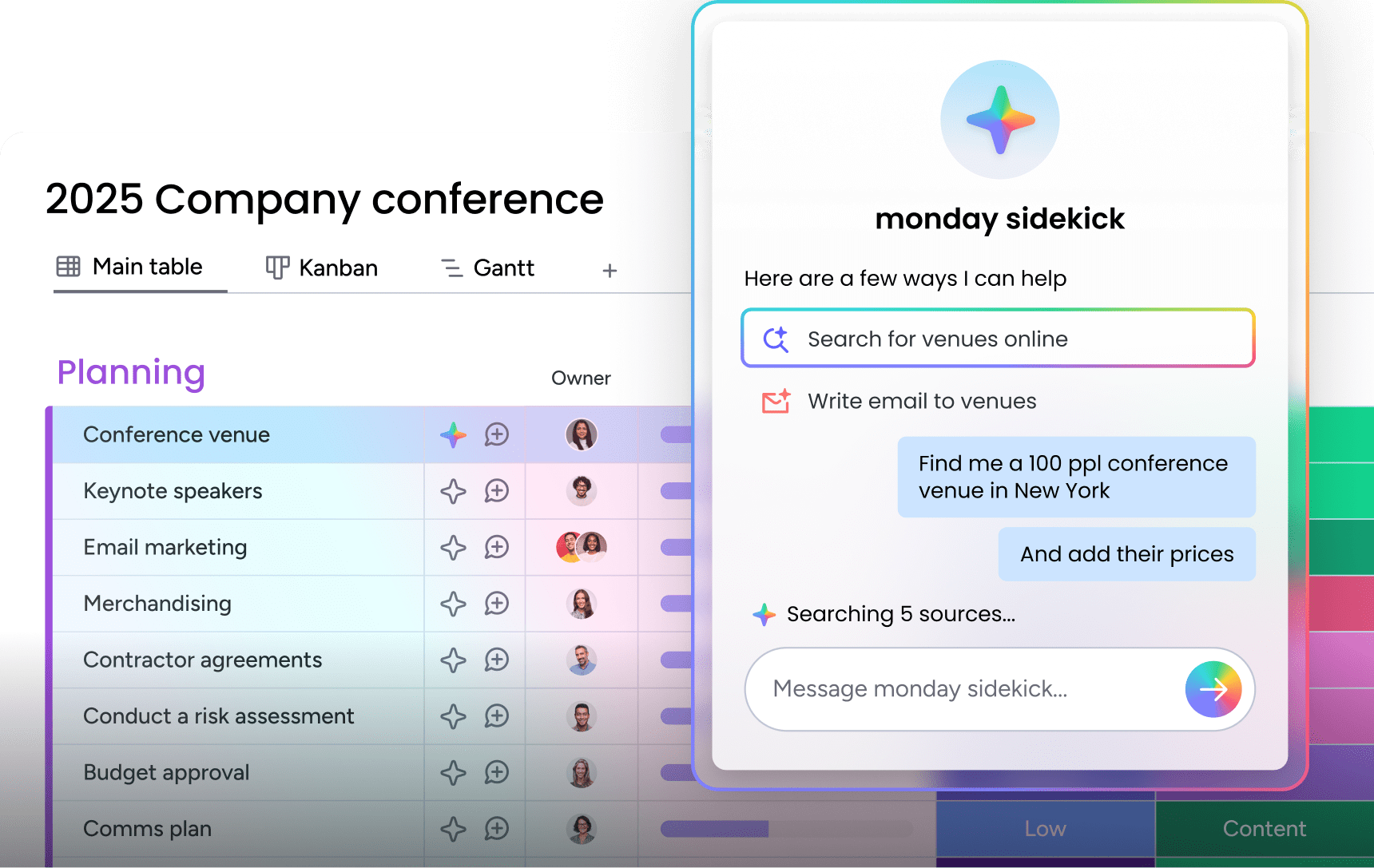
monday MCP can render interactive UI components directly within ChatGPT responses: clickable board views, item cards, or status indicators. Here’s what these components do and how to activate them.
Why UI components make ChatGPT responses more actionable
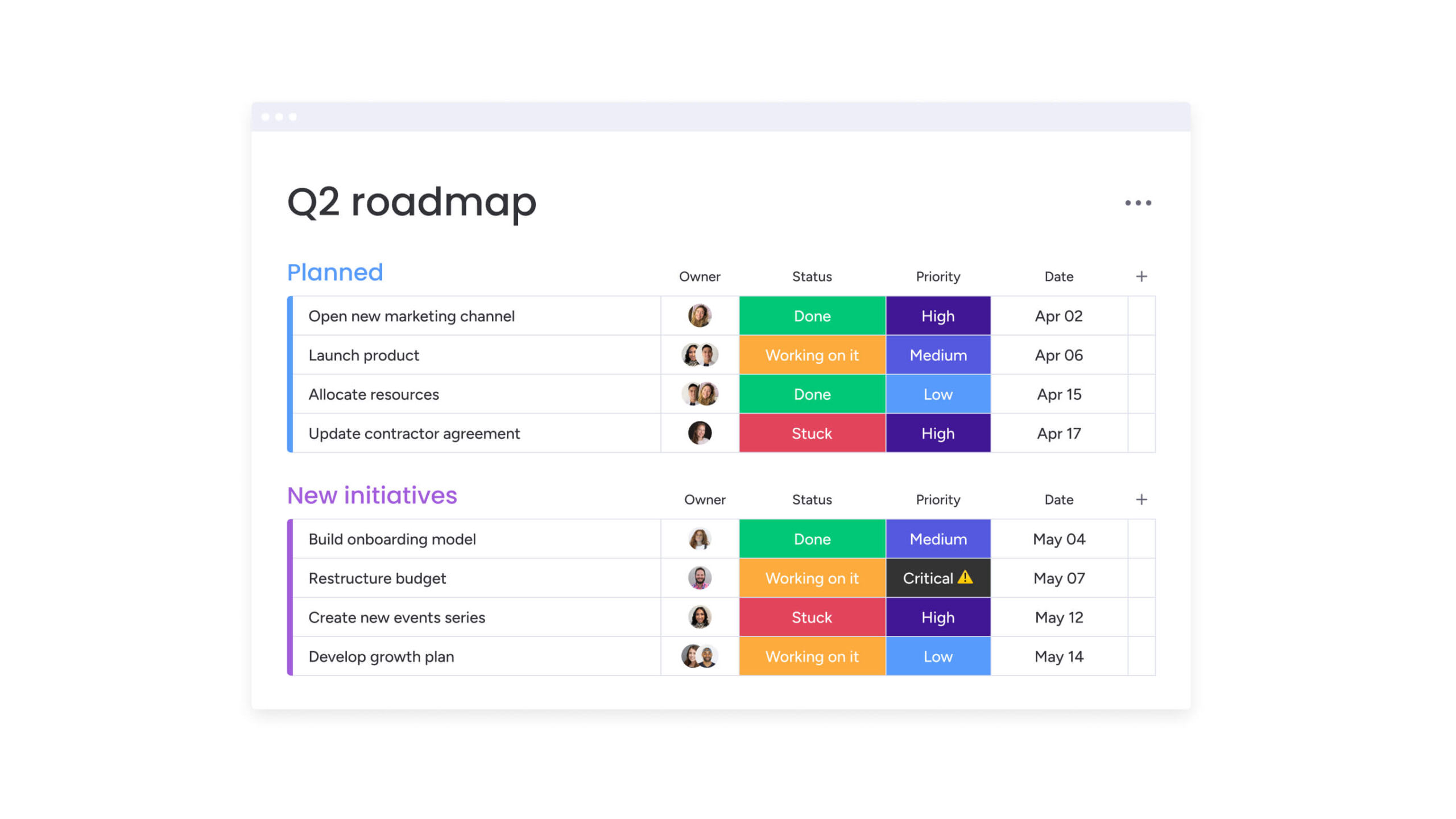
Instead of plain-text answers, UI components give you structured, visual representations of your monday AI Workspace data that you can interact with directly in the chat. When ChatGPT returns a list of overdue items, you see formatted cards with status colors and assignee names instead of a wall of text.
These components make it faster to review, confirm, and act on ChatGPT’s suggestions without switching to AI Workspace.
How to activate monday UI in your conversations
UI components typically render automatically when you enable the MCP connector and ChatGPT returns monday AI Workspace data. You can also explicitly request visual formatting by including phrases like “show this as a board view” or “display these items with their status” in your prompts.
A few things to keep in mind:
- Desktop web app: UI components work most reliably here.
- Mobile app: Support may vary — check your specific ChatGPT client if components aren’t appearing as expected.
- Other interfaces: Components may not render in all ChatGPT environments.
How monday MCP keeps your workspace data secure
Security is a core consideration when connecting any AI assistant to business data. In fact, nearly two-thirds of organizations cite security and risk concerns as the top barrier to scaling agentic AI. MCP is built with industry-standard security protocols and inherits the permission model you already have in place, so there are no new risks to manage.
OAuth authentication and permission inheritance
monday MCP uses industry-standard OAuth for authentication. You grant permission during setup and can revoke it anytime. Key security behaviors include:
- Permission inheritance: MCP inherits your existing monday AI Workspace permissions. ChatGPT can only access and modify data that you’re already authorized to see and change. It can’t escalate permissions or access restricted workspaces.
- Encryption in transit: All data transfers between ChatGPT and monday AI Workspace use TLS encryption.
- Encryption at rest: At rest, data is encrypted using AES-256, and in transit with TLS 1.3.
Workspace scoping and admin controls
Account admins can scope MCP access to specific workspaces, limiting what the AI assistant can reach. Admins can monitor AI-driven activity, restrict which workspaces are accessible via MCP, and enforce governance policies. This means an organization can allow MCP for the sales team’s workspace while keeping sensitive HR or finance workspaces off-limits.
The platform holds SOC 2 Type II, ISO/IEC 27001, and ISO/IEC 27701 certifications, is GDPR compliant, and supports HIPAA compliance. These certifications apply to all data processed through MCP, giving you the same level of protection as the core monday AI Workspace.
How to revoke or disable MCP access
You can revoke MCP access from either side of the connection, and it takes effect immediately:
- From monday AI Workspace: Navigate to the marketplace app settings and uninstall or disable the MCP app. This removes the MCP server registration from your account.
- From ChatGPT: Go to Settings, find the MCP connector, and disconnect or delete it. This removes ChatGPT’s ability to authenticate with your workspace.
Revoking access from either side immediately stops ChatGPT from being able to read or modify workspace data. No residual access remains after disconnection.
How to troubleshoot monday MCP and ChatGPT connection issues
Most connection issues fall into a few common categories. Use this section as a quick-reference guide to resolve problems without contacting support.
Issue 1: Developer mode toggle not visible
This typically means your ChatGPT plan does not support MCP connectors. Check your plan tier — developer mode is available on Plus, Pro, and Team plans.
Developer mode may also be rolling out gradually and might not be available in all regions simultaneously. Check OpenAI’s release notes if you’re on a supported plan but don’t see the toggle.
Issue 2: OAuth authorization fails
The most common causes are account mismatches or missing prerequisites. Run through this checklist:
- Confirm the MCP app is installed: Check the marketplace apps section on monday AI Workspace. If the app isn’t listed, ask your account admin to install it.
- Verify AI features are enabled: Go to Administration > Customization > Features and confirm AI is set to “Enabled.”
- Try a different browser: Clear cookies or use an incognito window to rule out session conflicts. OAuth redirects can sometimes fail when multiple monday.com sessions are active.
Issue 3: monday MCP connector not appearing in conversations
The MCP connector must be manually enabled in each new ChatGPT conversation. Look for the connector toggle in the conversation toolbar. If it still doesn’t appear after toggling, try disconnecting and reconnecting the MCP connector in ChatGPT settings, then start a fresh conversation.
Issue 4: Permission errors when querying boards
Permission errors mean the connected monday AI Worksapce team member doesn’t have access to the board or workspace being queried. MCP respects your existing permissions — it cannot access boards you don’t have permission to view.
Verify your access level on monday AI Workspace and, if needed, ask your admin to grant appropriate permissions for the boards you want to query through ChatGPT.
Best practices for effective prompting
Getting consistent results from ChatGPT + MCP depends on how you structure your prompts. The most effective prompts share a few characteristics that improve accuracy and reduce errors:
- Use exact board names: Reference boards by their precise names as they appear in monday AI Workspace. If ChatGPT can’t find a board, ask it to list all boards first, then use the correct name.
- Reference real column names: When updating fields, use the column names from your board. “Set Priority to High” works when your board has a column called “Priority.”
- Give one major instruction at a time for sensitive changes: For actions that modify data, break complex requests into steps — “Create the board” first, then “Add these columns,” then “Create these items.”
- Ask for preview before write actions: When making bulk updates, ask ChatGPT to show you what it plans to change before confirming. This gives you a chance to catch errors.
- Start with list/summary before bulk updates: Before asking ChatGPT to update multiple items, ask it to list them first. Confirm the list is correct, then proceed with the update.
- Test on sandbox or trial boards first: When trying new prompt patterns, use a test board to verify the results before applying them to production data.
These practices reduce support friction and improve success rates, especially for team members who are new to working with AI assistants.
Work through this enterprise governance checklist for your monday + ChatGPT rollout
For IT and compliance teams evaluating MCP adoption, the following checklist provides a structured approach to controlled rollout. Working through these steps before a broad deployment helps organizations maintain oversight and reduce risk.
- Enable AI Connectors only for approved teams: Use admin settings to control which teams can access MCP functionality.
- Scope MCP to specific workspaces: Limit AI assistant access to workspaces that align with your data classification policies.
- Start with read-heavy workflows: Begin with reporting and analysis prompts before enabling write operations.
- Test on non-critical boards first: Validate prompt patterns and review AI behavior before applying to production data.
- Document approved prompt patterns: Create internal libraries of tested, effective prompts for common workflows.
- Review write access before broad rollout: Establish review processes for actions that modify sensitive or production data.
- Revoke access via ChatGPT or monday admin settings: Ensure your team knows how to disconnect MCP access from both sides if needed.
With everything in place, you can start using ChatGPT as a direct interface to your monday AI Workspace — creating items, updating statuses, building dashboards, and generating reports without leaving your conversation. Setup takes minutes, works on all monday.com plans at no additional cost, and respects your existing security and permission models. Start with the workflows that matter most, measure the value, and expand as your teams build confidence in AI-assisted execution.
Get startedFAQs about using monday MCP with ChatGPT
Can I use monday MCP with ChatGPT on the free monday AI Workspace plan?
Yes, monday MCP is available on all monday AI Workspace plans, including the Free plan, at no additional cost. However, you will need a ChatGPT plan that supports MCP connectors (such as Plus, Pro, or Team) to use the full read-write integration.
Does ChatGPT store or retain my monday AI Workspace data?
Only you and your AI assistant can see the data exchanged through MCP during a conversation; The platform does not review or access the content of your conversations. Refer to both monday.com's AI Trust Center and OpenAI's data usage policies for full details on data handling and retention.
Can multiple team members connect their own ChatGPT accounts to the same monday AI Workspace?
Yes, each team member can individually authorize MCP via OAuth and connect their own ChatGPT account, with each connection inheriting that specific team member's monday AI Workspace permissions. This means each person only sees and modifies data they are already authorized to access within the workspace.
Which other AI assistants work with monday MCP besides ChatGPT?
monday MCP also works with Claude (Anthropic), Cursor (AI code editor), Microsoft Copilot Studio, le Chat (Mistral AI), Figma Make, and Gemini CLI, as well as any other AI assistant that supports the Model Context Protocol standard. Setup steps may vary by assistant, so check monday AI Workspace's support documentation for client-specific guides.

 Get started