


New projects, recurring meetings, deadlines, appointments, and personal tasks can pile up quickly. Without a clear calendar system, it’s easy to miss important dates or lose track of what needs attention next.
A Google Docs calendar template gives you a simple way to manage multiple projects, organize dates, tasks, events, and reminders in a familiar document format. It can work well for personal planning, lightweight project scheduling, or sharing a basic calendar with others.
In this article, we’ll explain what a Google Docs calendar template is, why teams use one, and which types of calendar templates are most useful. We’ll also show how monday.com’s AI Work Platform can help teams move beyond a static calendar into a more connected workspace with calendar views, dashboards, automations, integrations, and real-time collaboration.
Key takeaways
- A Google Docs calendar template helps you organize dates, tasks, events, and deadlines in a simple document format
- Google Docs calendars work best for personal planning, lightweight schedules, and simple shared calendars
- Digital calendars can improve organization with reminders, easy sharing, and clearer visibility into upcoming work
- For complex projects, a static Google Docs calendar may become harder to maintain because it lacks real-time project tracking, automations, dashboards, and task ownership
- monday.com’s AI Work Platform helps teams manage calendars, tasks, timelines, dashboards, automations, and project updates in one connected workspace
What is a Google Docs calendar template?
A Google Docs calendar template is a pre-formatted document you can use to organize meetings, calls, deadlines, events, and personal or work tasks. You can add dates, notes, links, task details, and supporting files so the calendar is easier to use and share.
A digital calendar may look like a paper calendar at first, but it offers more flexibility. You can access it from a computer, tablet, or smartphone, share it with others, and update it without recreating the entire calendar.
For example, in monday.com, teams can connect calendar views directly to projects, tasks, owners, statuses, timelines, and dashboards.
As teams manage more work across locations, tools, and schedules, digital calendars have become an important part of staying organized.
Why use a Google Docs calendar template?
Paper calendars can still be useful, but they don’t offer the same flexibility as a digital calendar template. Here are just three of the many benefits of using a Google Docs calendar template:
1. Automated reminders, so you never forget
Digital calendars can help you set reminders for recurring events, deadlines, meetings, and appointments. Notifications by email or on your device make it easier to stay on top of your schedule without checking the calendar manually all day.
2. Boosts productivity
Digital calendars make it easy to divide your day or week into smaller segments dedicated to specific tasks (and let your team members know not to disturb you). This technique, known as time blocking, allows you to dedicate all your focus to each task, boosting productivity.
You can also set aside time slots for meetings, appointments, or focused work. When your availability is clear, it’s easier for others to schedule time with you without interrupting your most important work.
3. Facilitates collaboration and communication
Interactive calendars help bridge the gap between team members in different locations. You can share them with your team or clients to streamline communication and enable collaboration.
While Google Docs offers comments and sharing, monday.com’s AI Work Platform can connect calendars to the work behind them. Teams can update tasks in real time, track progress, assign owners, and view timelines without switching between disconnected documents.
Having a single interactive platform for communication prevents problems caused by working in silos, where everyone is isolated and disconnected. You can even share the calendar with clients and stakeholders to keep up with important milestones.
What are some examples of Google Docs calendar templates?
Calendar templates can support many planning needs, from personal schedules to project timelines and budget reminders. Here are a few common Google Docs calendar template examples, along with how to use them.
1. Personal planning calendar
Keeping a personal calendar helps you plan ahead and provides much-needed structure to your daily life. Having structure reduces stress and makes you more productive. A month-to-month calendar is best for short-term planning, while a year calendar helps you see the bigger picture and plan further in advance.
For example, you can schedule all your upcoming to-dos and appointments on your monthly calendar. Then you can use your yearly calendar to map out birthdays, trips, or anything else that you want to schedule further in advance.
2. Project calendar
No matter how complex your project’s scope is, project calendars are designed to help you manage every aspect of scheduling and task management. Having a schedule to track all the moving parts of your project ensures you know where everything stands and can meet each deadline with ease.
For example, monday.com’s calendar view helps you visualize where everything stands.

You can also use a timeline view to track your project and then switch to the Kanban view to map out your tasks.
3. Budget calendar
A budget calendar helps you manage cash flow and keep track of important financial dates. You can use it to plan bill payments, subscription renewals, payroll dates, invoices, and recurring expenses.
It gives you a visual view of upcoming expenses, reminds you about important payments, and helps you plan purchases in the weeks or months ahead.
monday.com’s calendar template
Sometimes, you need a calendar that does more than show dates. You may need to plan a campaign, manage deadlines, assign owners, track project progress, or share updates with stakeholders.
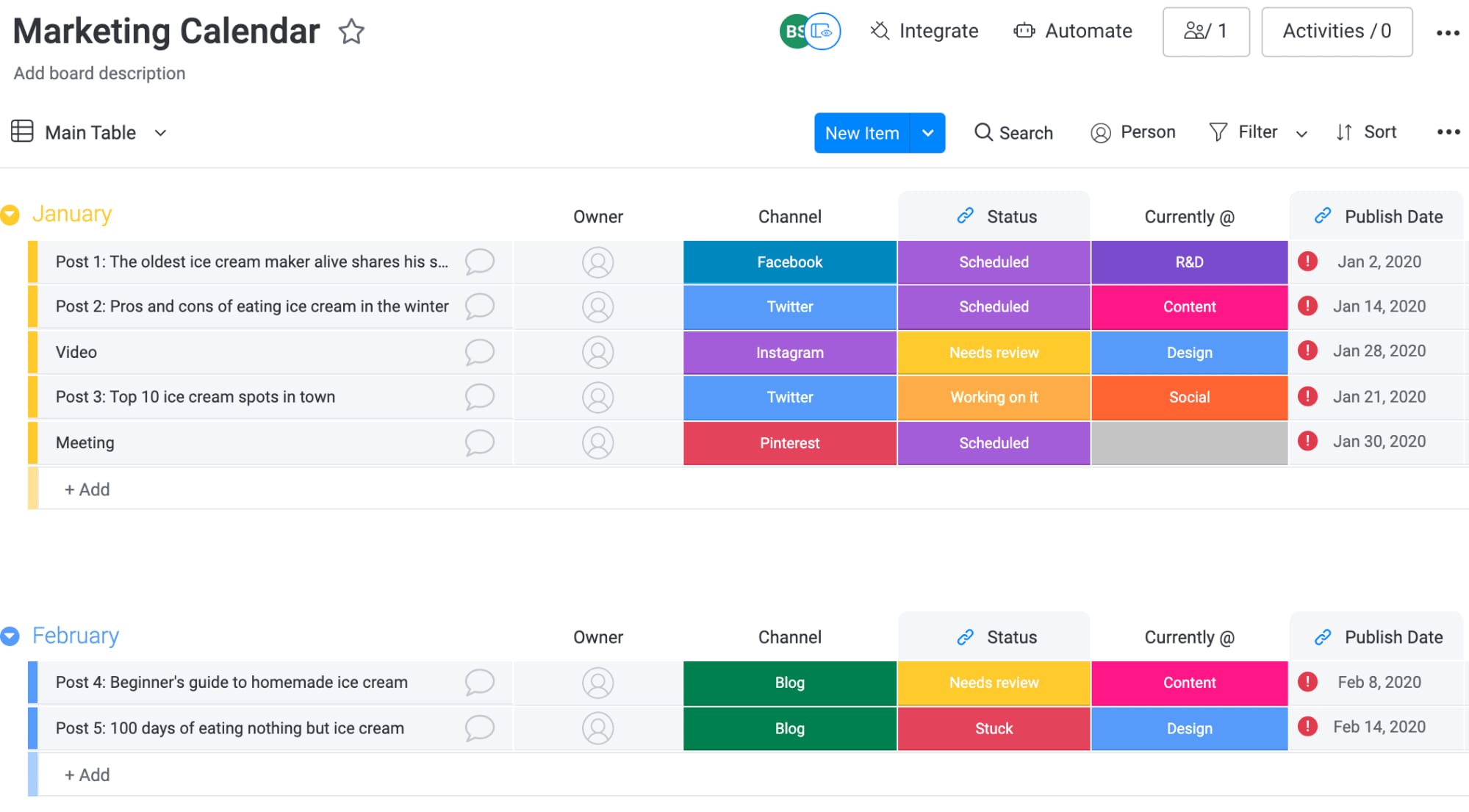
monday.com’s calendar template can be customized to fit different workflows, from content planning to project scheduling. Teams can use color-coded statuses, owners, dates, and views to organize work in an easy-to-understand way.
Using monday.com’s ready-made template means you don’t have to waste time creating a calendar from scratch in Google Docs.
In monday.com’s AI Work Platform, teams can adapt the calendar template to fit their processes and connect dates directly to tasks, owners, updates, dashboards, and automations.
- Keep everyone aligned. Give your team access to the calendar template. See who’s working on what, assign tasks, share feedback, and keep everyone aligned at all times.
- Customize it. From marketing to social media calendars, you can transform your template into any type of calendar you need. You can also choose how to visualize your data; switch between a standard calendar format, Gantt chart, timeline, and more.
- Automate routine work. You’ll never miss another meeting or deadline when you set up customizable automations, like due-date reminders.
- Sync your calendar. Have an external Google Calendar, Outlook Calendar, or Apple Calendar full of meetings and appointments? With our calendar integration, you can sync them with your monday.com template so everything is in one place.
Related templates
If you’re looking for something more specific, here are two calendar-related templates that can help teams organize content, availability, and project schedules.
1. Content calendar template
monday.com’s content calendar template helps you plan, execute, and publish your upcoming content. If you’re planning your next social media campaign, you can quickly transform this template into your very own social media content calendar, as we’ve done here:
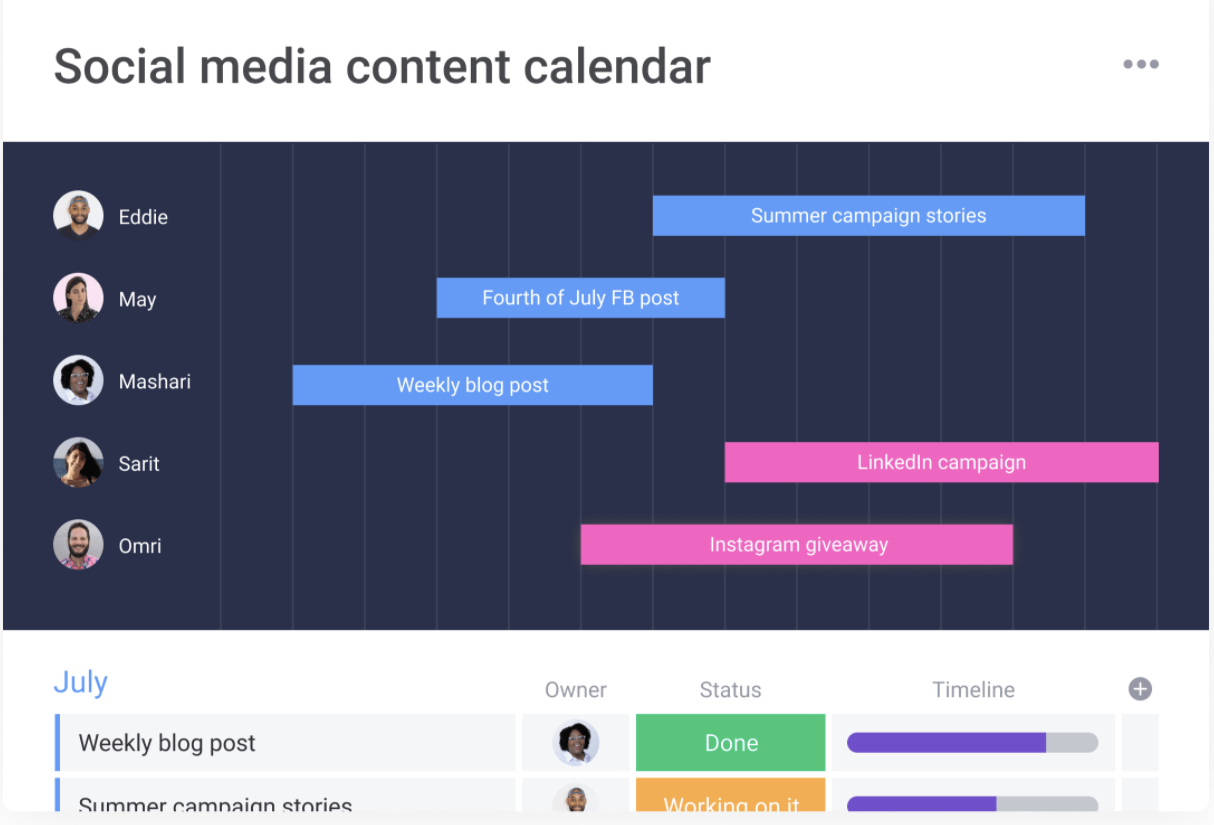
The template also has a variety of integrations to have everything in one centralized location. For example, you can directly link to ideas, templates, or finished social media posts in Google Docs or Microsoft Word online.
2. Working from home (WFH) calendar template
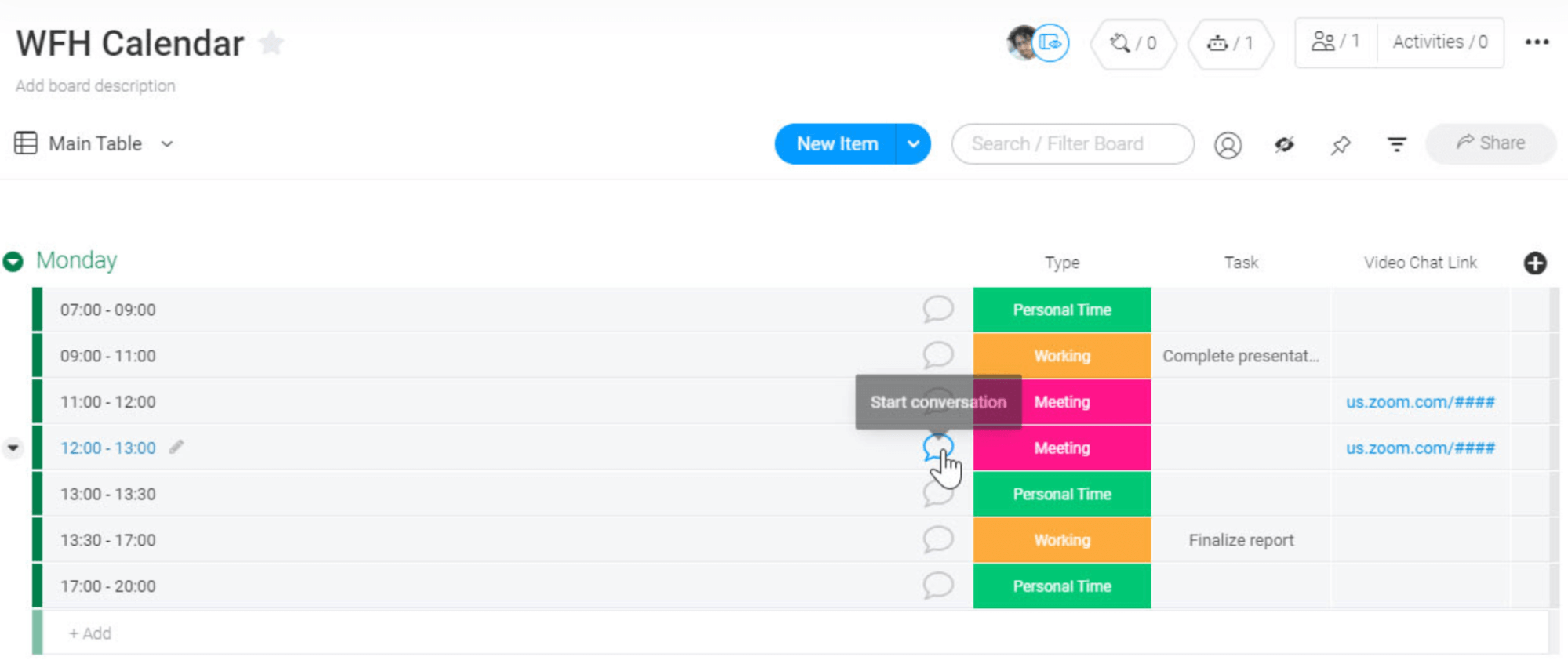
As more people work remotely, project managers and leaders need the right tools to manage teams and move projects forward. This easy-to-use WFH calendar template helps you and your team work from anywhere. You can share your availability, stay updated with your team’s work, and even attach documents to meetings.
FAQs
Is there a calendar template in Google Docs?
Google Docs does not always offer the same built-in calendar template experience as spreadsheet or calendar apps, but you can create a calendar manually using tables or start with a downloadable template. For simple planning, Google Docs can work well, but teams managing active projects may need a more connected calendar view.
How do I create a calendar in Google Docs?
To create a calendar in Google Docs, open a blank document, insert a table, and format the columns and rows to match the days and weeks you need. Then add dates, events, deadlines, notes, and links. You can also duplicate the table to create additional months.
Can I make a monthly calendar in Google Docs?
Yes, you can create a monthly calendar in Google Docs by creating a seven-column table for the days of the week and adding enough rows to cover the full month. Once the layout is set, you can customize it with events, tasks, reminders, color coding, and notes.
What should a Google Docs calendar template include?
A Google Docs calendar template should include dates, days of the week, events, deadlines, meetings, reminders, notes, and any important links or files. For work calendars, you may also want to include task owners, project names, priorities, and status updates.
How does monday.com help with calendar planning?
monday.com’s AI Work Platform helps teams manage calendar planning with customizable templates, calendar views, timelines, dashboards, automations, integrations, and AI-powered support. Teams can connect calendar dates to tasks, owners, updates, files, and project workflows in one place.
 Get started