

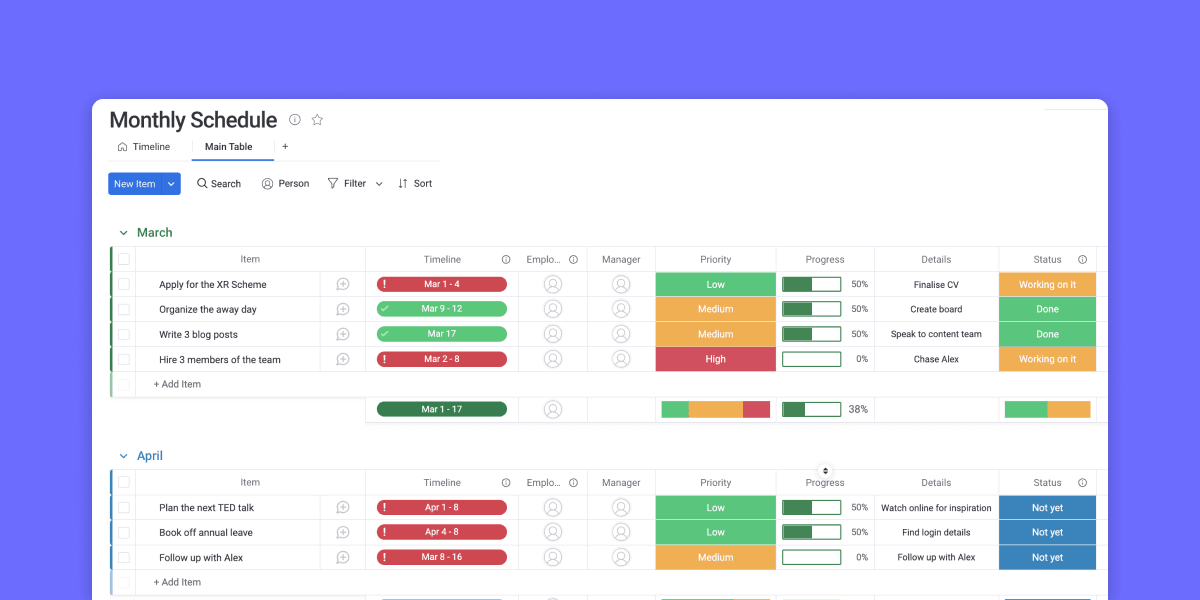
Most teams don’t fall behind because they lack a plan. They fall behind because the plan lives in someone’s head, a chat thread, and three different spreadsheets. A free monthly schedule template for Excel fixes the first part of that problem fast. It gives you a ready-made grid for dates, deadlines, and recurring work without building a calendar from scratch.
This guide shows you where to get a free downloadable Excel template, the layout options worth knowing, and the exact steps to build a monthly schedule yourself. You’ll also see what every schedule should include, five common template types, and when a static spreadsheet stops keeping up. At that point, a connected workspace like monday AI Workspace keeps your schedule tied to the work behind it, with real-time updates, automated reminders, and AI agents that flag conflicts before they derail your month—so the plan maintains itself while your team stays in control.
Key takeaways
- A monthly schedule template helps you organize meetings, deadlines, recurring tasks, project milestones, and events in one clear view
- Free Excel monthly schedule templates are a fast, familiar starting point for simple planning and printable calendars
- A complete monthly schedule includes dates, tasks, deadlines, owners, priorities, recurring items, and notes.
- Static spreadsheets lack real-time updates, automated reminders, and clear task ownership, so they break down when scheduling becomes collaborative
- monday AI Workspace connects monthly schedules to tasks, owners, dashboards, and automations in one workspace where people and agents work together
What is a monthly schedule template for Excel?
A blank printable monthly schedule template is a structured spreadsheet that organizes upcoming events, meetings, deadlines, recurring tasks, and project milestones in one place.
A typical monthly schedule template includes a calendar-style layout for each month, either on a single worksheet or across separate monthly tabs. Each month is usually divided into weeks and days, with space for notes, tasks, deadlines, meetings, and other important details. Unlike a plain wall calendar, an Excel version lets you sort, filter, and color-code your work.
Tracking events and schedules helps teams plan ahead, coordinate work, and stay aware of upcoming deadlines. It can also support project management by giving teams a clearer view of what needs to happen and when.
Why use a monthly schedule template?
A monthly schedule gives you a clear view of upcoming important dates, meetings, deadlines, and priorities. Used well, it can also help teams manage project timelines, coordinate workloads, and stay on top of client commitments.
Because scheduling is central to task and project management, a monthly schedule can help teams turn broad goals into a more realistic plan for the weeks ahead.
An Excel monthly schedule template divides each month into weeks and days. This makes it easy to see major upcoming dates at a glance while still leaving room for daily tasks, notes, or reminders.
With a monthly schedule template in place, you’re less likely to be caught off guard by deadlines, meetings, or recurring responsibilities. Reviewing the schedule regularly helps you keep an eye on the bigger picture while still managing the day-to-day work that keeps projects moving.
Scattered planning comes at a real cost: lost focus. Microsoft’s 2025 Work Trend Index special report, which draws on aggregated Microsoft 365 telemetry alongside a survey of 31,000 knowledge workers, found the average employee is interrupted by a ping, meeting, email, or chat roughly every two minutes during an eight-hour workday. A single monthly view that gathers dates, owners, and deadlines in one place gives you a reference point that reduces those scattered check-ins.
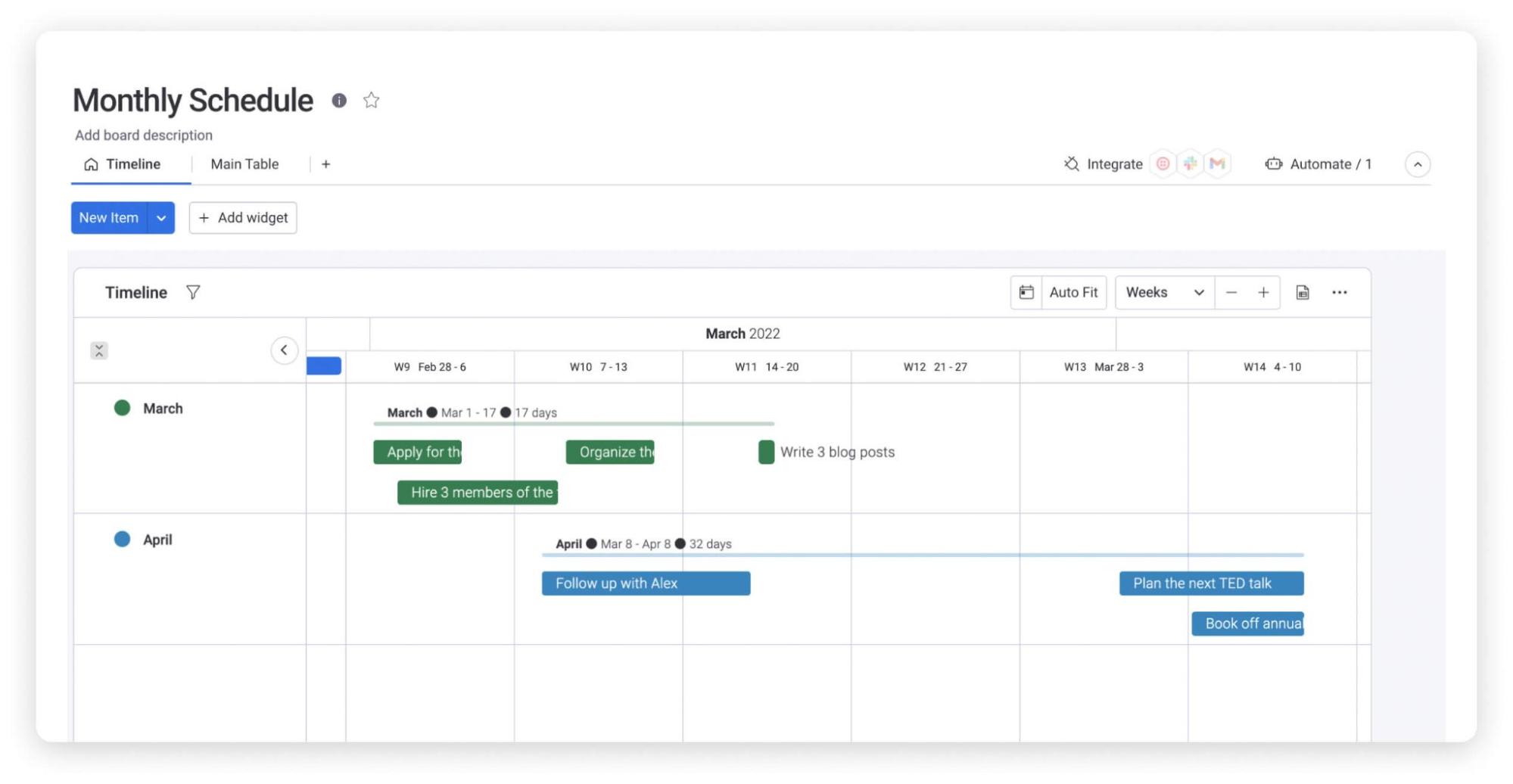
You can also share a monthly schedule with your team so everyone has a clearer view of upcoming work. For more collaborative planning, teams may need a connected platform that keeps schedules, tasks, owners, updates, and deadlines in sync.
Monthly schedule templates can look different depending on the team, project, or workflow. Here are a few common examples.
What to include in a monthly schedule template
A monthly schedule should include dates, deadlines, recurring tasks, owners, priorities, milestones, and notes. Those seven fields cover the questions most people ask of a schedule: what is happening, when, who owns it, and how urgent it is. Everything else you add refines that core.
Before you download or build a template, it helps to know which fields actually earn their place. The list below breaks down the essentials, so you can check any template against it or add columns your team needs.
- Dates and days: a full month grid, with a clear choice of a Sunday or Monday week start to match how your team reads the calendar
- Tasks and deadlines: the specific work and its due date, so nothing sits without a finish line
- Owners: the person responsible for each item, which prevents shared work from slipping between people
- Priorities and status: a simple high, medium, or low marker plus a status like not started, in progress, or done
- Recurring items: standing meetings, reports, or reviews that repeat every week or month
- Milestones: the checkpoints that signal real progress, such as a launch date or a client sign-off
- Notes: a free column for context, links, or reminders that don’t fit anywhere else
A monthly work schedule template for a team will often add shifts, availability, and hours to that list. Keep the layout consistent from month to month so the schedule stays easy to scan.
Match the fields to the job rather than adding every column you can think of. A personal planner rarely needs a status column, while a project deadline tracker lives or dies by owners and priorities. Start with the seven essentials, then trim or extend so each column earns its place. A schedule you actually keep updated beats a detailed one you abandon by week two.
Five types of monthly schedule templates
Monthly schedule templates aren’t one-size-fits-all. The right structure depends on whether you’re planning campaigns, meetings, project deadlines, staff shifts, or a study term. The five types below cover the most common needs, and you can adapt any of them in Excel.
1. Marketing monthly schedule template
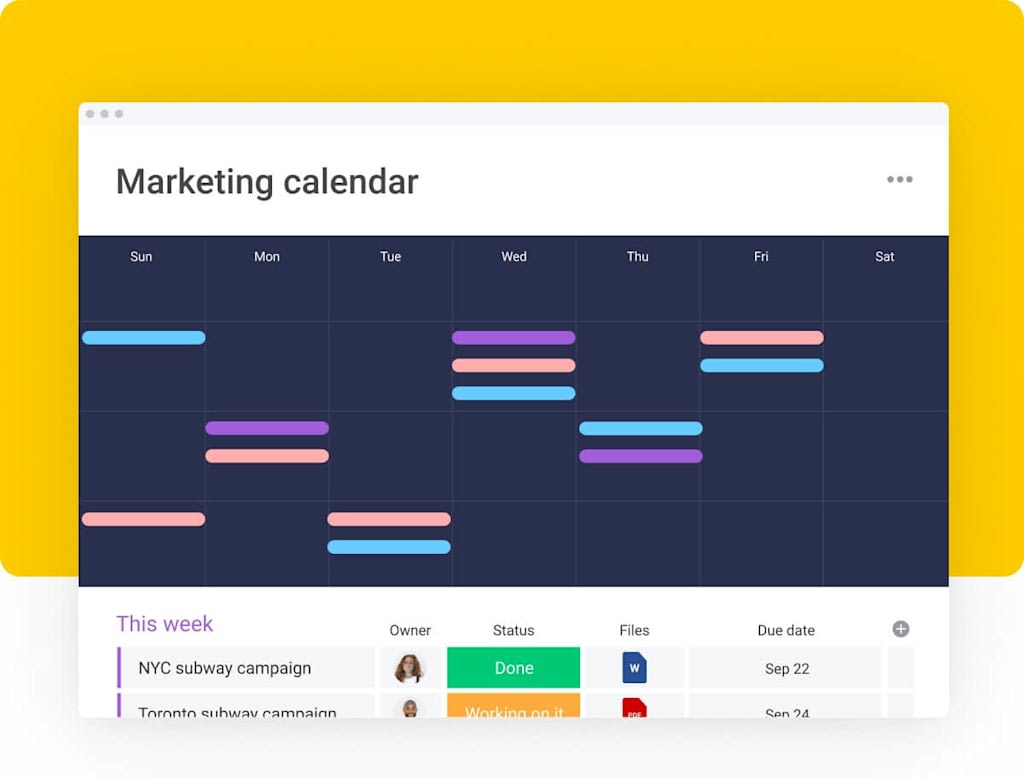
Use the marketing monthly employee schedule to outline your strategy for each marketing channel. If you’re planning to invest resources in social media marketing, for example, this template can help you allocate the necessary human and financial capital. It can also help you track month-to-month progress.
2. Meeting monthly schedule template
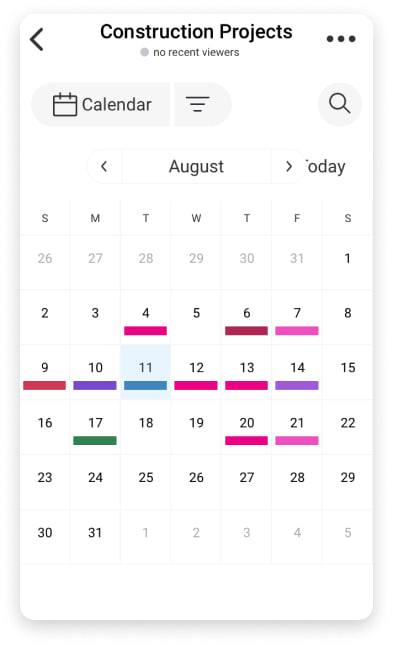 With a monthly meeting schedule, you can map out all your upcoming meetings. A visual aid like this can serve as a useful reminder of what’s to come, one you can check in on regularly. Using it with automatic reminders is a powerful way to stay on top of your work responsibilities. If you’re prone to forgetting a particular event, writing it down on a schedule like this and setting it as a reminder is a surefire way to keep it in mind.
3. Monthly schedule template for project deadlines

Deadlines can creep up on you if your focus lies elsewhere. It’s easy to develop tunnel vision when you’re focused on a single project. To ensure you never miss a deadline again, set up a monthly deadline tracking system like this one, and you’ll have a visual reminder of important upcoming due dates.
4. Employee and shift monthly schedule template
An employee monthly work schedule template answers a single question at a glance: who works when. It maps each person against the days of the month, with columns for shift times, hours, and availability. Rotating shifts, on-call weeks, and time-off requests all fit into the same grid, so managers can spot gaps or double-bookings before they become a problem. Add an owner and total hours per person, and the template doubles as a lightweight monthly capacity check. If you manage rotating rosters, a dedicated set of employee schedule templates gives you a stronger starting point than a blank grid.
5. Student and academic monthly schedule template
A student and academic monthly schedule template turns a busy term into something you can plan against. Block out classes and lectures as recurring items, then layer in assignment due dates, reading deadlines, and exam windows. A priority column helps you see which weeks are heaviest, so you can start long assignments early instead of racing the deadline. Students juggling a part-time job can add work shifts to the same monthly view and keep study and income in balance. Color-coding by subject makes it easy to see where the term is front-loaded, so you can plan revision around the heaviest weeks.
How to make a monthly schedule in Excel
To make a monthly schedule in Excel, start with a blank spreadsheet or a pre-built template, then add days, dates, tasks, deadlines, and owners. A pre-built file is faster because the calendar grid is already drawn. The steps below work either way, and they take about ten minutes for a first draft.
Many free monthly schedule template files download as .xlsx and open directly in Google Sheets if your team works there. Follow these six steps to build or customize your own.
- Choose a layout: decide between portrait or landscape, and pick a Sunday- or Monday-start week before you enter any data
- Add days and dates: lay out the days of the week across the top and fill the month grid with dates for each week
- Add rows for tasks, owners, and status: under each date, leave space for the work, who owns it, and its current status
- Color-code priorities: use conditional formatting to shade high, medium, and low-priority items so busy days stand out
- Add a notes and reminders column: capture context, links, and follow-ups that don’t belong in the date cells
- Save, print, or export: save the file as .xlsx, print it for a physical copy, or export to PDF to share a fixed version
Once the structure works, save it as your reusable template and copy it forward each month. That way you customize the layout once and reuse it all year.
If you’d rather not build from a blank sheet, downloading a free template is the quickest route. Most libraries offer several layouts, so you can pick a portrait grid for printing or a landscape view for wider notes. After downloading, delete the sample data, apply your own color codes, and freeze the header row so the days stay visible as you scroll. These small formatting habits keep a long schedule readable across an entire month. If your plan is more about sequence than dates, an Excel timeline template maps milestones and deadlines in the same familiar spreadsheet.
When to move beyond Excel to a connected schedule
Excel is a strong starting point, but a static file has clear limits once more than one person depends on it. A spreadsheet can’t tell you when something changed, remind an owner about a due date, or show two people the same live version at once. As soon as scheduling becomes a team activity, those gaps start to cost time. The spreadsheet that felt efficient for one planner quietly becomes a bottleneck for five, because every update depends on someone remembering to make it and share it. That friction is widespread: Microsoft’s 2025 Work Trend Index annual report found nearly half of employees (48%) say their work feels chaotic and fragmented. Purpose-built work calendar templates close that gap by keeping the schedule and the work in one place.
Watch for these signs that a spreadsheet is holding your team back:
- No real-time updates: people edit different copies, and the “current” schedule is never quite current
- No automated reminders: deadlines depend on someone remembering to check the file
- Unclear ownership: a task sits in a cell with no owner, so it stalls
- Version sprawl: “schedule_final_v3” lands in an inbox while the real work moves on
This is where a connected work platform helps. Rather than a fixed grid, platforms like the monday AI Workspace keep the schedule tied to the work behind it, with calendar and timeline views that update in real time and automated reminders that reach owners without anyone chasing them. You keep the familiar monthly view and lose the manual upkeep.
The move usually isn’t sudden. Many teams start with a spreadsheet, then hit a month where a missed handoff or a stale copy causes real friction. That’s the signal to connect the schedule to the work rather than manage two versions of the truth. A good rule of thumb: once three or more people edit the same schedule regularly, or deadlines depend on reminders no one is sending, a static file has done its job and it’s time for something that keeps itself current.
Learn more: AI close schedule agent
How monday AI Workspace supports monthly scheduling
When a monthly schedule needs to stay in sync across a team, monday AI Workspace keeps the plan connected to the tasks, owners, and updates behind it. Instead of copying a spreadsheet forward each month, you work from one live schedule everyone can see, and the platform handles the manual upkeep a static file can’t.
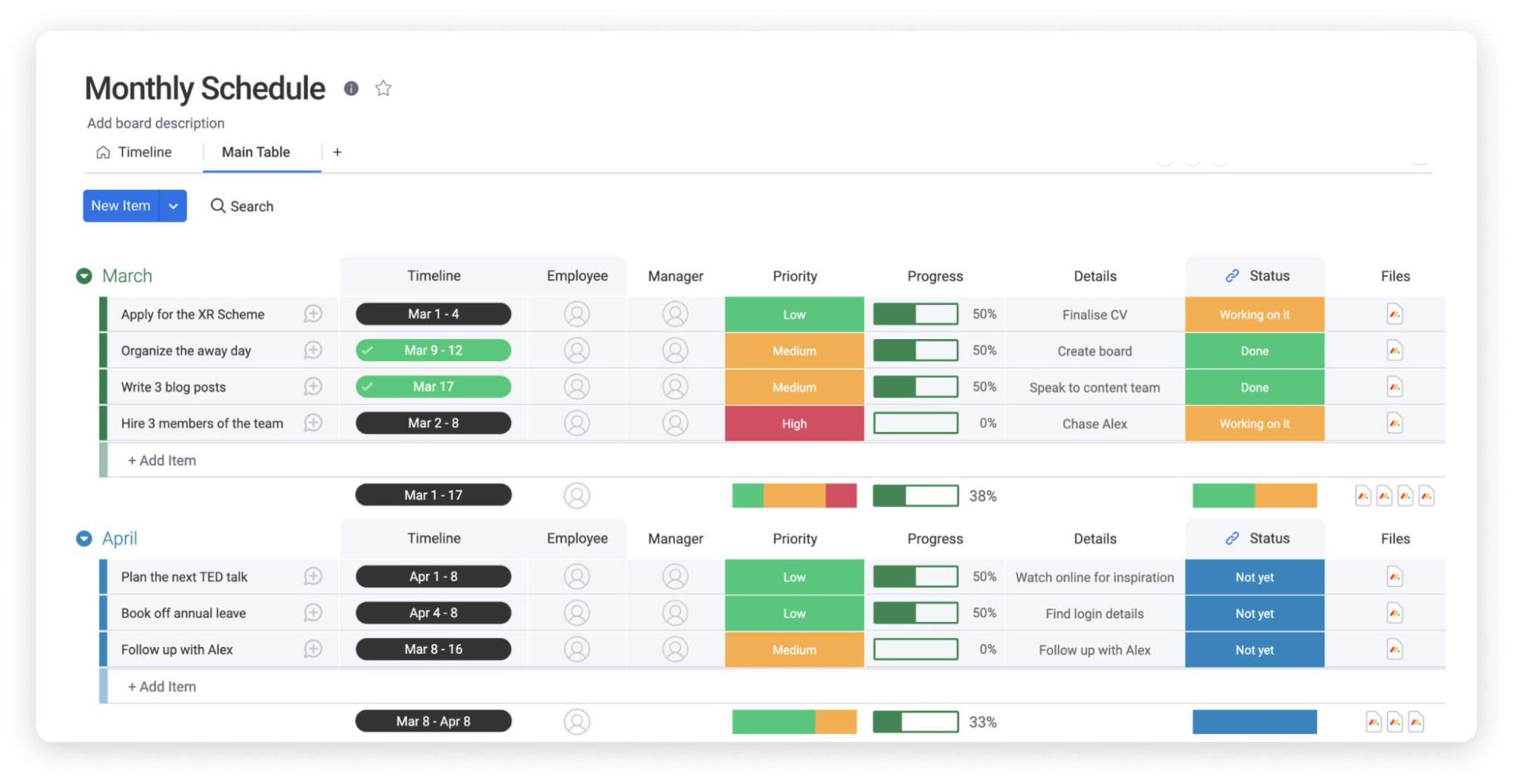
The same schedule can be viewed several ways, so each person reads it the way they work:
- Calendar and timeline views: see upcoming dates at a glance or track deadlines across weeks and teams
- Gantt and Kanban views: map dependencies for project deadlines or move work through stages
- Dashboards and reporting: roll up workloads, due dates, and progress into one live picture
Automations replace the reminders a spreadsheet can’t send. You can set recurring task creation for standing meetings and reports, due-date reminders that reach the owner, and status-change notifications that keep the team aligned. On top of that, monday agents work alongside your team as task-specific AI workers while people keep control of priorities and decisions. The Nudger Agent sends timely deadline reminders and follow-ups. The Team Scheduler rebalances workloads when someone is over capacity. The Calendar Agent audits the calendar and flags conflicts or overloaded days. The Personal Assistant tracks tasks and drafts reminders. Each of these Agents works alongside the team, not in place of it, so people stay in control of priorities and decisions.
Beyond scheduling, monday sidekick is a context-aware assistant that suggests next steps and analyses your data, and Sidekick stays available inside the workspace as you plan. If your team needs something a template doesn’t cover, monday vibe lets you describe a need and builds a custom work app with no code, such as a social media content calendar connected to your existing data. Once built, Vibe apps read from the same source as the rest of your schedule. Through monday MCP and 200+ integrations, you can connect Google Calendar, Outlook, and Slack, and connect external agents such as Claude, ChatGPT, Copilot, and Gemini, all running on mondayDB as one connected data layer. That single data layer matters for scheduling because every view, automation, and Agent reads from the same source of truth. When a date shifts, it shifts everywhere at once, so a change made in the calendar view shows up on the dashboard and in the timeline without anyone re-keying it.
You can also start from ready-made templates instead of a blank grid. Pair the monthly schedule with the remote work schedule template, the weekly schedule template, the content calendar template, or the daily work schedule template to cover different planning horizons from one workspace.
In practice, a monthly schedule on the platform runs like this: you set the month’s dates and owners once, automations create the recurring items and send the reminders, and the Agents flag conflicts or overloaded days before they derail the plan. A dashboard rolls the whole picture up for a manager, while each owner works from the view that suits them. Nothing about the monthly grid changes for the reader. What changes is that the plan now maintains itself.
Hundreds of thousands of organizations worldwide trust this connected approach, including over 60% of the Fortune 500. The point isn’t to replace Excel for a quick personal calendar. It’s to give collaborative teams a schedule that updates itself.
Turning a static schedule into connected execution
A free monthly schedule template for Excel does one job well: it gets your month out of your head and onto a page you can plan against. For a single person or a light workload, that’s often all you need, and a printable grid with dates, owners, and priorities will keep you ahead of the calendar.
As the work grows, the question shifts from where you plan to how you keep the plan current. When more people depend on the same schedule, connecting it to the tasks, reminders, and updates behind it turns a static month into something that moves with the work, so the schedule reflects reality instead of last week’s intentions. Start with a free monthly schedule template for Excel today, and let your team size decide when it’s time to graduate to a connected one.
FAQs
What is a monthly schedule template?
A monthly schedule template is a reusable calendar-style layout for organizing meetings, deadlines, tasks, shifts, events, and project milestones across a month. It gives you a clear view of what's coming up so you can plan ahead and manage your workload more easily.
How do I make a monthly schedule in Excel?
To make a monthly schedule in Excel, start with a blank spreadsheet or a pre-built calendar template, then add the days, dates, tasks, deadlines, owners, and notes. Color-code priorities with conditional formatting and save the file as a reusable template you copy forward each month.
Is there a free monthly schedule template for Excel to download?
Yes, you can download a free monthly schedule template for Excel from several template libraries, usually as an editable .xlsx file. These files open in Excel and in Google Sheets, so you can customize the layout, add owners and deadlines, and print or export the schedule.
What should a monthly schedule include?
A monthly schedule should include dates, deadlines, recurring tasks, owners, priorities, milestones, and notes. Team schedules often add shifts, availability, and status so everyone can see who is doing what and by when across the month.
Can I open an Excel monthly schedule template in Google Sheets?
Yes, you can open an Excel monthly schedule template in Google Sheets. Upload the .xlsx file to Google Drive and open it with Sheets, or import it directly. Most formatting and formulas carry over, though very complex Excel features may need a quick review.
How does monday AI Workspace help with monthly scheduling?
monday AI Workspace helps with monthly scheduling by connecting your schedule to tasks, owners, and updates in one workspace. Calendar and timeline views show upcoming work, automations send due-date reminders, and monday agents such as the Nudger and Calendar Agent support deadlines while people keep control.
 Get started