


The next time you’re working in Microsoft 365 and need to update the monday AI Workspace, there’s no need to flick between the two. Ask Microsoft Copilot instead — monday MCP gives it direct, two-way access to your boards, so it can update items and pull reports without you leaving your inbox or chat window.
Setup takes about 10-15 minutes and works within your existing permissions and at no extra cost. This guide covers the MCP setup, connector comparisons, practical prompts for revenue and project teams, security guidance, and rollout. You’ll learn everything you need to get it running and scaled across your organization.
Get startedKey takeaways
- Connect monday AI Workspace to Microsoft Copilot in 15 minutes: the monday MCP connector gives your team real-time, two-way access to boards, deals, and projects, all through natural language in Microsoft 365.
- Choose the right connection method before you start: use the Copilot Studio MCP connector when your team needs to take action on data; use the Graph connector when read-only search across Microsoft 365 apps is enough.
- Your existing permissions travel with you: Copilot can only access what each person can already see on monday AI Workspace, so your security and governance controls remain fully intact.
- Sales teams can manage their entire pipeline without leaving Microsoft 365: create leads, update deal stages, log call notes, and spot stale deals — all through a Copilot conversation connected to monday AI Workspace.
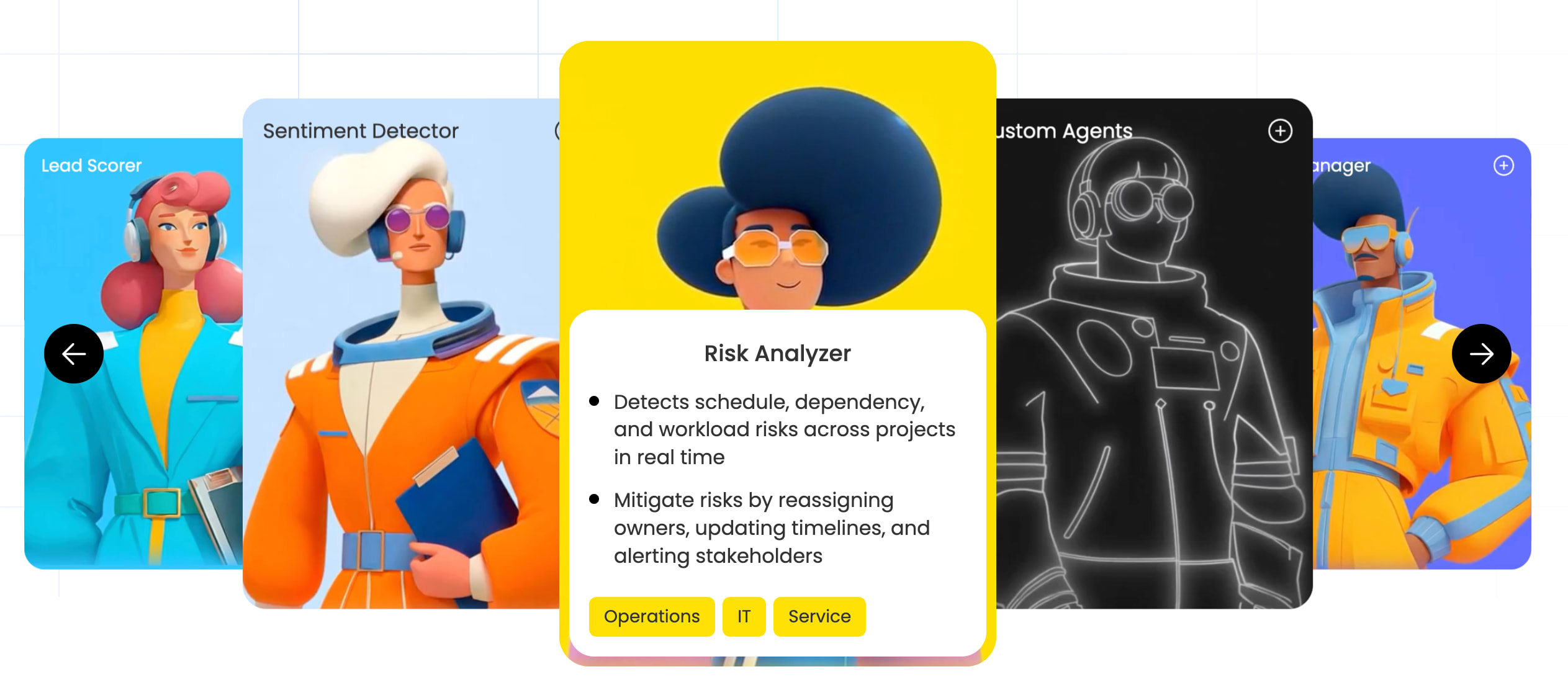
- Graduate high-volume work to monday agents: when the same prompt runs daily or a workflow needs 24/7 monitoring, monday agents handle it autonomously.
What is monday MCP and how does it work with Microsoft Copilot?
The Model Context Protocol (MCP) is an open standard that lets AI assistants securely understand and act on data from software platforms. There are 3 components that make this work between Microsoft Copilot and monday AI Workspace.
- monday MCP acts as the secure bridge between your monday AI Workspace and Copilot. It translates Copilot’s conversational language requests into structured actions your workspace understands, and returns results back to the conversation.
- Copilot sends regular language requests through MCP to your workspace. When you type a prompt like “What’s overdue on my launch board?” Copilot routes that request through the MCP server, which queries your monday AI Workspace data and delivers the answer.
- MCP executes actions within your existing monday AI Workspace permissions. Every action respects the same access controls you already, so no new permissions are created, and no existing ones are bypassed.
The monday MCP server works with multiple AI clients, including Claude, ChatGPT, Cursor, Copilot Studio, le Chat, Figma Make, and Gemini CLI. This guide focuses on the Microsoft Copilot path, including setup, configuration, and real examples for revenue and project teams.

Copilot Studio MCP connector vs. Microsoft 365 Graph connector
Choosing the right connection method will save you time and prevent rework. There are 2 distinct ways to connect monday AI Workspace data to the Microsoft Copilot ecosystem, and picking the wrong one means redoing your configuration later.
| Feature | Copilot Studio MCP connector | Microsoft 365 Graph connector |
|---|---|---|
| Direction of data flow | Bidirectional (read and write) | One-way (read only) |
| Real-time actions on monday AI Workspace | Yes: create, update, delete items | No: reference only |
| Search and grounding in M365 apps | Through the custom agent | Natively across Word, Teams, Outlook |
| Setup complexity | Moderate: requires Copilot Studio configuration | Moderate: requires Graph connector setup and indexing time |
| Best for | Teams that manage work through Copilot | Teams that reference monday AI Workspace data across M365 |
| License requirements | Microsoft 365 Copilot or Copilot Studio standalone | Microsoft 365 Copilot with Graph connector access |
Option 1: When to use the Copilot Studio native MCP connector
The Copilot Studio MCP connector is the direct, real-time connection path. Copilot Studio natively supports MCP servers, which means your custom agent can call monday AI Workspace actions, such as creating items, updating statuses, and querying boards, on demand through live API calls. This is the recommended path for teams that want bidirectional, real-time interaction with monday AI Workspace data from within Copilot.
Using the Copilot Studio MCP connector requires Copilot Studio access, available with Microsoft 365 Copilot licenses or standalone Copilot Studio licenses.
Choose this path when your team needs to take action and work with real-time data:
- Your team needs to take action on monday AI Workspace data from Copilot. Creating deals, updating pipeline stages, reassigning items, and logging notes all require the bidirectional MCP connection.
- Real-time accuracy matters for your workflows. The MCP connector queries live data on every request, so you always see current board statuses rather than cached snapshots.
- You want a single conversational interface for project work. Sales reps and project managers can manage their monday AI Workspace boards without switching tabs or opening a separate app.
- Your team is building custom agents with specific monday AI Workspace workflows. Copilot Studio’s agent builder lets you define exactly which monday.com actions your agent can perform and how it responds.
Option 2: When to use the Microsoft 365 Graph connector
The Graph connector takes a different approach: it indexes monday AI Workspace content into Microsoft’s search index, making board data discoverable through Microsoft 365 Copilot’s grounding layer. This is a one-way sync, meaning Copilot can reference monday AI Workspace data when answering questions, but it cannot write back to monday.
This path works when your team needs Copilot to reference monday AI Workspace data across Word, Teams, and Outlook, but doesn’t need to update anything:
- Your primary need is search and reference. If team members need to find monday AI Workspace items while working in Word or Outlook, the Graph connector surfaces that data without requiring a separate agent.
- You want monday AI Workspace data included in Copilot’s general responses. When someone asks Copilot a question in Teams, the Graph connector allows it to pull relevant monday context into its answer.
- Read-only access is sufficient for your needs. Teams that need to view project statuses or reference data, but don’t need to update it from Copilot, can use this lighter-weight approach.
- You want to complement the MCP connector with broader discoverability. Some organizations use both methods: MCP for active work management and Graph for passive data discovery across M365 apps.
How to choose the right connection path for your team
Most teams should use the Copilot Studio MCP connector which gives full read-write access to monday AI Workspace. This is the path that unlocks workflows, board management, and cross-team queries.
Some teams may benefit from using both methods together, pairing the MCP connector for active work management with the Graph connector for broader data discoverability. If your organization already uses the Graph connector for other data sources, adding monday AI Workspace to that index can provide additional value alongside the MCP connection.
Prerequisites for connecting monday MCP with Microsoft Copilot
To prevent the most common setup failures, here’s what to confirm on both the monday AI Workspace and Microsoft sides before beginning the connection process. Each item takes just a moment to verify and sets your team up for a smooth first connection.
monday AI Workspace account and admin requirements
Your monday AI Workspace account needs to meet a few conditions before MCP will work:
- Active monday AI Workspace account: monday MCP is available on all AI Workspace plans at no additional cost. Any active account qualifies, whether Free, Standard, Pro, or Enterprise.
- Admin-installed MCP app: An account admin must install the monday MCP app from the monday marketplace. Non-admins cannot complete this step, so coordinate with your admin before starting if you don’t have admin access yourself.
- AI features enabled: AI capabilities need to be toggled on in the Administration > Customization > Features section. The default setting is “Enabled,” but some organizations disable it as a policy choice. Confirm this is active before proceeding.
- Workspace access: The connecting user must have access to the workspaces they want Microsoft Copilot to interact with. MCP inherits per-user permissions, so Copilot can only reach boards and data the authenticated user is already authorized to view or edit.
Microsoft 365 and Copilot licensing requirements
The Microsoft side has separate requirements. Confirm these now to avoid dead ends later:
- Microsoft 365 Copilot license or Copilot Studio standalone license is required for the AI connector path. The standard Microsoft 365 Business or Enterprise subscription alone does not include Copilot Studio access.
- Azure Active Directory account with permissions to create or edit agents in Copilot Studio. This is typically available to users with admin or developer roles in your Microsoft tenant.
- Copilot Studio access confirmed at copilotstudio.microsoft.com. Log in and verify you can reach the agent creation interface before starting the monday AI Workspace connection.
If your organization has a basic Microsoft 365 subscription without Copilot, you’ll need to add the Copilot license before proceeding with this guide.

How to connect monday MCP with Microsoft Copilot Studio
These 4 steps cover the complete connection process, which typically takes 10-15 minutes start to finish.
Step 1: Create or open an agent in Copilot Studio
An “agent” in Copilot Studio is a custom AI assistant that can be configured with specific knowledge sources and actions. It holds your monday AI Workspace connection and defines how Copilot interacts with your workspace.
- Navigate to copilotstudio.microsoft.com and sign in with your Microsoft 365 account.
- Click “Create an agent” to start a new agent, or open an existing one you want to enhance with monday AI Workspace capabilities.
- Name the agent something descriptive — such as “AI Workspace Assistant” or a team-specific name like “Revenue Ops Agent” — so team members understand its purpose at a glance.
- In the description field, tell Copilot what the agent should do. For example: “This agent helps the sales team manage deals, update pipeline stages, and query project boards on the AI Workspace.”
Step 2: Add the monday MCP connector to your agent
Now connect your agent to monday AI Workspace through MCP. This gives Copilot read and write access to your workspace.
- Inside your agent, navigate to the “Actions” or “Tools” panel in Copilot Studio.
- Click “Add a tool” to open the tool configuration interface.
- Search for or select the MCP connector option from the available tool types.
- Enter the monday MCP server URL. Reference monday AI Workspace’s support documentation for the exact server URL, as it may be updated over time.
- Once the URL is entered, Copilot Studio’s native MCP support automatically discovers the available monday AI Workspace actions, including board queries, item creation, and status updates, without additional configuration.
Step 3: Authenticate and authorize your monday AI Workspace
The platform will redirect you to an OAuth permissions screen to authorize the connection. Review the permissions MCP requests before granting access.
Review these permissions carefully:
- MCP only accesses what you can already access. If you can’t view an AI Workspace board, Copilot won’t be able to query it through MCP either.
- Each team member authenticates individually. After granting consent, you’ll be redirected back to Copilot Studio with the connection confirmed. Every user who interacts with the agent will need to complete their own OAuth consent the first time they use it, so per-user access control is maintained throughout the team.
Step 4: Configure credential settings for your team
Copilot Studio offers 2 authentication modes: shared service account or per-user authentication. Per-user authentication is recommended, as it respects each person’s monday.com permissions individually.
When a sales rep queries the pipeline, they only see the deals they have access to, rather than the entire organization’s data. To configure this:
- Open the credential configuration panel in Copilot Studio.
- Select the per-user authentication option.
- Each team member will authenticate with their own monday AI Workspace account the first time they interact with the agent.
Admins can further scope MCP access to specific workspaces from the AI Workspace admin panel, adding an extra layer of control beyond user-level permissions. Use this to limit Copilot’s reach to specific departments or project areas.
How to install the monday AI Workspace agent from Microsoft marketplace
Microsoft’s marketplace may offer a pre-built monday.com agent or connector that simplifies setup. To find it, navigate to the Microsoft commercial marketplace or Copilot Studio’s agent gallery and search for “monday.com.”
The marketplace agent, if available, comes pre-configured with common monday.com actions like item creation, status updates, and board queries. Here’s how it compares to the manual MCP setup:
- Marketplace agent: Faster starting point, pre-configured with common actions, less flexibility over which workspaces and actions are accessible.
- Manual MCP setup: More customization over which actions and workspaces are accessible, same capabilities with more granular control.
Availability may vary by region and Microsoft 365 plan. If the marketplace agent isn’t available in your tenant, use the manual Copilot Studio MCP connector setup outlined above.
Get startedHow to test your monday MCP connection in Copilot
Run these 4 test prompts to confirm everything works: each test validates a different capability, from basic connectivity to write operations.
- Read test: “What monday AI Workspace boards do I have access to?” This confirms basic connectivity and permission inheritance. If Copilot returns a list of your boards, the MCP connection is active and your OAuth authentication is working.
- Query test: “Show me all items with status ‘Stuck’ on my board.” This confirms data retrieval works and that Copilot can filter items based on column values.
- Write test: “Create a new item called ‘Test item from Copilot’ on my board.” This confirms write access. If the item appears on your monday AI Workspace board, Copilot can create new work items on your behalf.
- Update test: “Change the status of ‘Test item from Copilot’ to ‘Done’.” This confirms update capability. Check your AI Workspace board to verify the status change was applied.
If a test fails:
- Re-authenticate by disconnecting and reconnecting the MCP tool in Copilot Studio.
- Verify the user still has access to the referenced board on monday AI Workspace.
- Confirm the MCP app is still installed and active in the AI Workspace admin panel.
How to publish and deploy your monday MCP agent across Microsoft 365
Once testing confirms the connection works, publish the agent to make it available to your team. Here’s where the agent can appear and how to roll it out safely.
Supported Microsoft 365 surfaces for the monday agent
The published agent can appear across several Microsoft 365 surfaces (depending on your licensing and admin policies). Know these options before choosing your deployment strategy:
- Microsoft Teams: The agent appears as a chat-based assistant that team members can message directly. This is the most common deployment for collaborative teams who already communicate in Teams.
- Microsoft 365 Copilot chat: The agent is accessible from the Copilot sidebar across Microsoft 365 apps, making it available wherever team members are working, whether in Outlook, Word, or the browser.
- Copilot Studio web: The agent remains available through the Copilot Studio testing and deployment interface for admins and builders who need to monitor or refine its behavior.
- SharePoint and other Microsoft 365 surfaces: Depending on deployment configuration, the agent can be embedded in SharePoint pages or other M365 entry points your organization uses.
Rolling out to a limited pilot audience first
Start with a small pilot of 5-10 people from one team. It’s the most reliable way to validate the agent before rolling it out organization-wide. Copilot Studio’s audience targeting lets you limit initial access to specific users or security groups.
The pilot group should include at least one monday AI Workspace admin and several regular board team members. This mix tests different permission levels and confirms the agent works correctly for people with varying access. A sales manager and two reps, for example, will interact with the same CRM boards but may have different visibility into certain workspaces.
Run the pilot for 1-2 weeks. Collect feedback on prompt accuracy and action reliability. Common pilot findings include:
- Prompts that need refinement
- Boards that need to be added to the MCP scope
- Authentication flows that need documentation for the broader team
Fix these issues before expanding access.

What Microsoft Copilot can do once connected to monday AI Workspace
Each of the following capabilities uses conversational AI inside Copilot, keeping your team focused within Microsoft 365.
Board and item management through conversational language
Copilot can create, read, update, and organize items across any board the user has access to. These prompts work immediately:
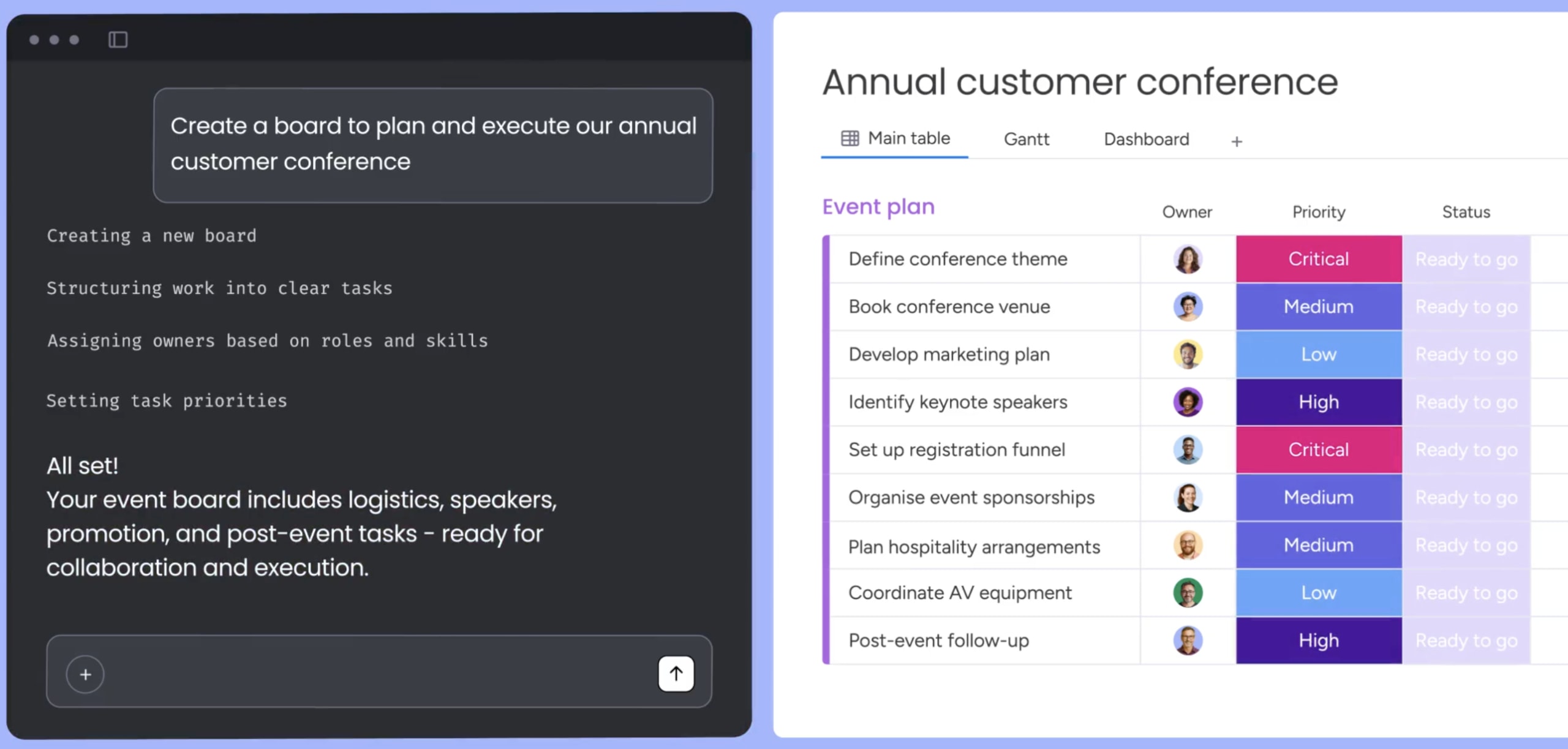
- “Create a board called ‘Q3 Product Launch’ with columns for status, assignee, priority, and due date”
- “Add a new item called ‘Update homepage content’ to the Marketing board”
- “Find all items assigned to me that are due this week”
- “Change the status of ‘Homepage redesign’ to ‘Done’ and add a note about the findings”
Board management extends beyond individual items. Copilot can add columns, create groups, set up new boards with custom structures, and organize existing work, all from conversation.
Cross-board queries and multi-team rollups
MCP can query across multiple boards simultaneously, delivering insights that previously required custom dashboards on monday AI Workspace. This is where its structured data layer delivers real value. Copilot can query:
- “What’s overdue across all launch boards?”
- “Which team has the most blocked items right now?”
- “Show me a summary of what changed across the marketing and sales boards this week”
These queries give managers real-time visibility across the organization — every board and dashboard becomes accessible from a single conversation.
Document and dashboard creation from Copilot
Copilot can create monday docs (specs, SOPs, retros) and build dashboards with widgets directly from conversation. This extends the connection beyond item management into knowledge work and reporting:
- “Create a project specification document attached to the client onboarding item with sections for overview, requirements, timeline, and deliverables”
- “Build a dashboard showing status distribution and workload across my Development board”
- “Generate a weekly activity report for my Development board showing what happened in the last 7 days”
Real-time updates and status changes via conversation
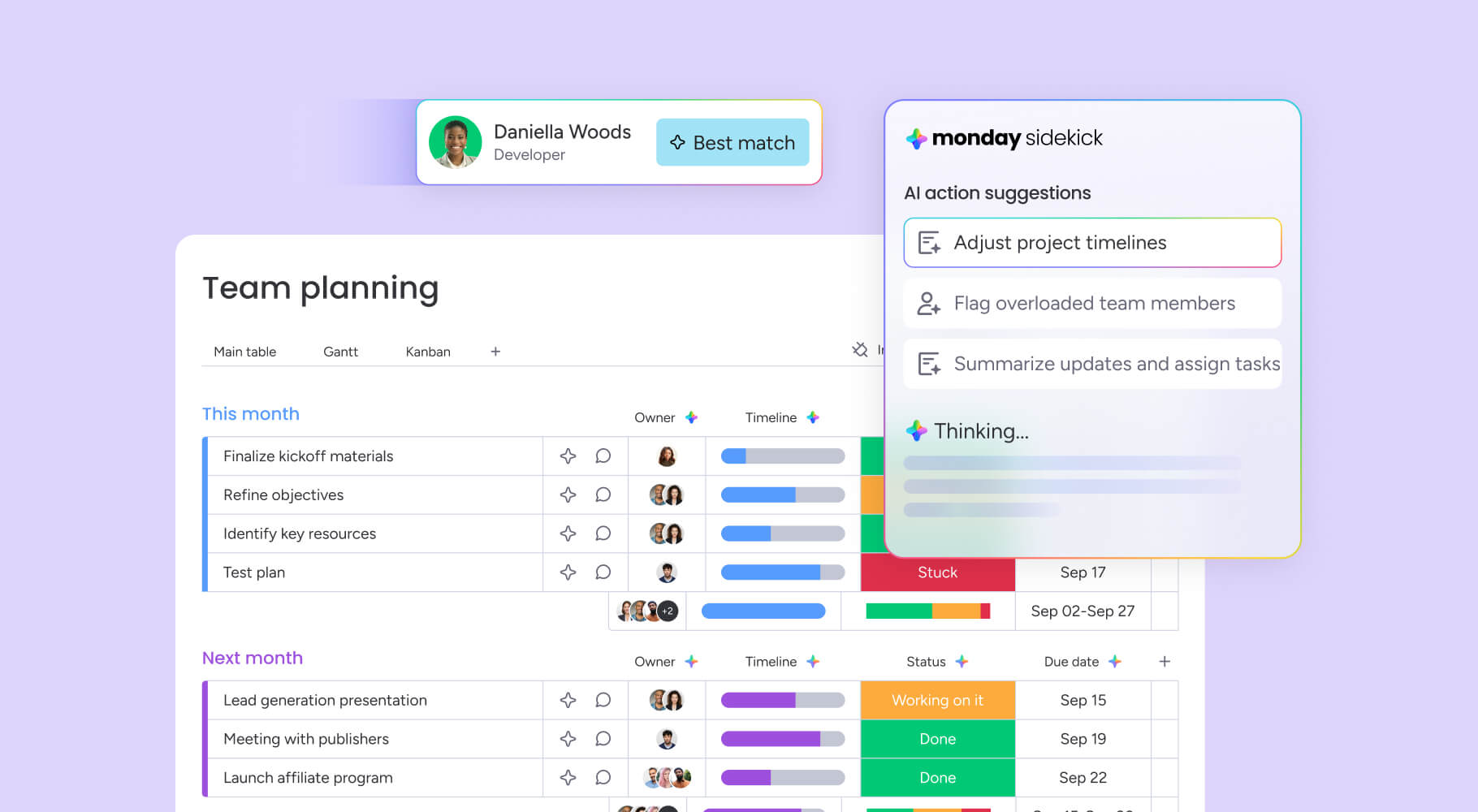
Copilot can update statuses, reassign people, change dates, and add comments to items through language. This makes it possible to manage work without context-switching away from your current Microsoft 365 app:
- “Reassign all items assigned to John in the ‘Customer Onboarding’ board to Alice”
- “For all items due this week in the ‘Launch plan’ board, set status to ‘In Progress’ and add an update asking owners for blockers”
- “Add a comment to the blog post creation item: ‘Waiting for final copy from the content team'”
Review before confirming: Always review AI-suggested changes before confirming actions that modify your workspace. This is especially important for bulk updates that affect multiple items at once.
How permissions and security work with monday MCP
Data security is the top concern teams raise before connecting AI to their work data. The monday MCP server was built with security at its core.
OAuth 2.0 authentication and per-user access
Every MCP connection uses OAuth 2.0 — the same authentication standard Google and Microsoft use. Each user individually authorizes MCP, and Copilot can only see and do what the authenticated user can already do on monday AI Workspace. A marketing team member’s Copilot session will have different access than a sales manager’s session, even though they’re using the same agent.
Permission inheritance from monday AI Workspace to Copilot
MCP doesn’t create new permissions or bypass existing ones. If you can’t view a board on monday AI Workspace, Copilot can’t access it through MCP either. The MCP server checks permissions on every request.
Admins can further scope MCP access to specific workspaces from the monday AI Workspace admin panel, adding granular control beyond user-level permissions.
Data encryption and privacy controls
All data transfers between Copilot, the MCP server, and monday.com use TLS encryption. Data at rest uses AES-256 encryption. The platform does not use customer data to train AI models, and you retain full ownership of all content you provide and content generated by AI.
For deeper security documentation, explore the monday.com AI Trust Center.
Troubleshooting common monday MCP and Copilot connection issues
Connection issues can surface after deployment. Here are the three most common problems and how to fix them:
Issue 1: Copilot retrieves data but never returns results
This usually means the OAuth token expired or the user’s monday.com permissions changed since initial connection. Work through these steps in order:
- Re-authenticate by disconnecting and reconnecting the MCP tool in Copilot Studio. This generates a fresh OAuth token.
- Verify the user still has access to the target boards on monday.com by logging into the platform directly and confirming board visibility.
- Check that the MCP app is still installed and active in the monday.com admin panel. An admin may have uninstalled or disabled it without notifying the team.
Issue 2: MCP actions fail to load in Copilot Studio
This usually indicates a server URL misconfiguration or a network issue preventing Copilot Studio from reaching the MCP server. Work through these steps in order:
- Verify the MCP server URL is entered correctly in Copilot Studio. Even a trailing slash or missing character will prevent the connection from initializing.
- Check that your organization’s firewall or proxy settings allow outbound connections to monday’s MCP server. IT teams with strict egress rules may need to allowlist the MCP endpoint.
- Confirm the monday MCP app hasn’t been uninstalled or disabled by an admin. Standard API rate limits also apply, and high-volume queries may be throttled during peak usage.
Issue 3: Incomplete user indexing with the Graph connector
This issue applies only to teams using the Microsoft 365 Graph connector, not the MCP connector. Graph connector indexing can take time and may not capture all board data immediately after setup. Work through these steps in order:
- Allow 24-48 hours for initial indexing to complete. The Graph connector crawls monday.com data on a schedule, not in real time.
- Verify the connector’s crawl schedule in the Microsoft 365 admin center and adjust frequency if needed.
- Check that the service account used for the Graph connector has sufficient AI Workspace permissions to access the boards you want indexed.
The MCP connector provides real-time access and does not have this indexing delay, which is another reason it’s the recommended path for teams that need current data.
How to build a connected AI operating model with monday AI Workspace and Microsoft Copilot
Linking your workspace to Microsoft Copilot through MCP takes 10-15 minutes, works within your existing permissions, and delivers immediate value for teams managing boards and cross-functional projects.
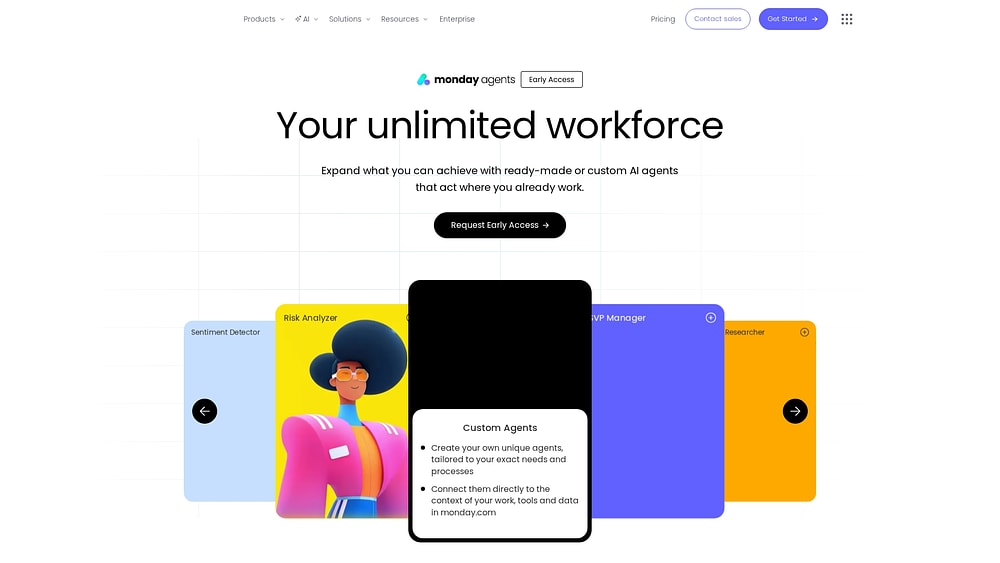
The organizations that get the most from AI build operating models where people and agents work together on shared context. Copilot gives you conversational access to your work, while monday agents handle autonomous execution of repeatable workflows, 24/7, under your control.
Get startedFrequently asked questions
Is monday MCP included in all monday AI Workspace plans?
Yes, monday MCP is available on all monday AI Workspace plans at no additional cost. You may incur costs from Microsoft for Copilot Studio or Microsoft 365 Copilot licensing.
What are the API rate limits for the monday MCP connector?
Standard monday AI Workspace API rate limits apply to all MCP interactions, and high-volume queries are managed through platform throttling to maintain performance. Check monday AI Workspace's developer documentation for current rate limit specifications.
Can monday MCP connect to AI assistants other than Microsoft Copilot?
Yes, monday MCP works with any MCP-compatible AI assistant, including Claude, ChatGPT, Cursor, le Chat, Figma Make, and Gemini CLI, using the same installation and OAuth authentication process.
Does monday AI Workspace use workspace data to train AI models?
No, The platform does not use customer data or content to train AI models and doesn't allow third parties to do so. You retain full ownership of all content you provide and content generated by AI.

 Get started