


Sending invoices is an essential part of business management — after all, it allows you to get paid. But invoice creation can get pretty complicated or time-consuming if you don’t have a process in place. If you don’t have time to make an invoice from scratch every time, an online invoice template for Google Docs is a good place to start. But of course, it’s not your only option.
This article talks about invoice templates and covers some examples, so you have some ideas for which to use. We’ll also explore how platforms like monday.com’s AI Work Platform help by offering AI-powered invoice processing and workflow automation that pick up where Google Docs leaves off.
Get startedKey takeaways
- Google Docs offers free, customizable invoice templates that work for freelancers, consultants, and small businesses sending fewer than 10 invoices per month.
- A professional invoice must include your business details, client information, a unique invoice number, itemized services, payment terms, and accepted payment methods.
- Creating an invoice in Google Docs takes minutes: start with a blank document or template, add your details, build a line-item table, and share as a PDF.
- Google Docs templates have limits: no built-in payment tracking, automated reminders, invoice numbering, or integration with accounting software.
- monday.com’s AI Work Platform bridges those gaps with AI-powered data extraction, automated payment reminders, 200+ integrations, and real-time dashboards for tracking every invoice.
What is an invoice template for Google Docs?
An invoice template is a pre-formatted document designed to make invoice creation fast and consistent. It includes every field you’d normally need: business contact details, client information, line items for products or services, pricing, and payment terms. The biggest win of using an invoice template is you don’t have to build the layout from scratch each time you bill a client.
A blank invoice template contains fields for the name and contact information of you and your client, line items detailing the products or services sold with dollar values, payment terms, and accepted payment methods.
Google Docs is a popular option for creating these invoices because it’s free and accessible from any device with an internet connection. Hundreds of invoice templates for Google Docs are available online, ranging from simple layouts for freelancers to branded designs for agencies and studios. Unlike invoice generators (automated software that creates and tracks invoices), a Google Docs template is a static document you fill in manually, making it ideal for straightforward, low-volume invoicing.
Why use an invoice template for Google Docs?
Leaning on an invoice template for Google Docs has some obvious advantages over creating an invoice from scratch every time.
Templates save time
A free invoice template for Google Docs can save time without a massive financial investment. All the fields are there already, so there’s no need to create tables, draw up boxes, or manipulate the document’s margins. Just fill in the info you need and you’re done.
Templates are customizable by design
Google Docs invoice templates are fairly customizable, helping you design an invoice that’s visually appealing and reflective of your brand without removing the necessary payment information. Your logo and brand colors are great examples. The template itself might look good, but with just a few minutes of work, you can put your logo prominently at the top and incorporate your brand colors into the invoice to enhance its visual appeal.
Templates are cloud-based
Since Google Docs is cloud-based, you can create invoices with your template and send them to clients from anywhere you have a device and an internet connection. This also means it’s easy to share invoices with accountants, business partners, and other team members.
Templates are secure
Invoices can contain sensitive information, so you don’t want the whole world to see them. Fortunately, Google Docs has several permissions settings you can customize when you share it. You can give view, comment, and edit permissions to users.
Templates are free
It’s free to use Google Docs, so there are virtually zero barriers to using a Google Docs invoice for any parties involved. Each user just needs a Google account to access.
How to create an invoice in Google Docs
Building an invoice in Google Docs is straightforward, even if you’ve never created one before. You can start from a blank document or grab a free template from a third-party site. Either way, the process takes about 10-15 minutes once you know what to include.
Here’s a step-by-step walkthrough to get your first invoice ready to send.
- Open Google Docs and start a new document. Go to docs.google.com and select “Blank document.” If you’ve downloaded a free template, open it directly in Google Docs by uploading it to Google Drive first.
- Add your business information. At the top of the document, include your business name, logo, address, phone number, and email. This identifies you as the seller and gives your client a way to reach you with questions.
- Add your client’s details. Below your information, add the client’s name, company name (if applicable), address, and email. Double-check your spelling, because errors here can delay payment.
- Include the invoice number and dates. Assign a unique invoice number for your records. Add the invoice date (the date you’re sending it) and the due date (when payment is expected). A consistent numbering system (like INV-001, INV-002) makes bookkeeping much simpler.
- Create a table for line items. Insert a table with columns for description, quantity, rate, and amount. List each product or service on its own row. This is the core of your invoice, and it tells your client exactly what they’re paying for.
- Calculate the subtotal, tax, and total. Below the line-item table, add rows for the subtotal, applicable taxes, and the total amount due. Google Docs doesn’t calculate these automatically, so double-check your math.
- Add payment terms and methods. Specify when payment is due (e.g., Net 15, Net 30) and which payment methods you accept: bank transfer, credit card, PayPal, or other options. Include any late payment fees if applicable.
- Save and share. Download the invoice as a PDF (File > Download > PDF Document) and email it to your client. Sending a PDF prevents accidental edits and keeps the formatting intact across devices.
The entire process should take about 10 to 15 minutes the first time, and even less once you’ve saved your template with your business details pre-filled.
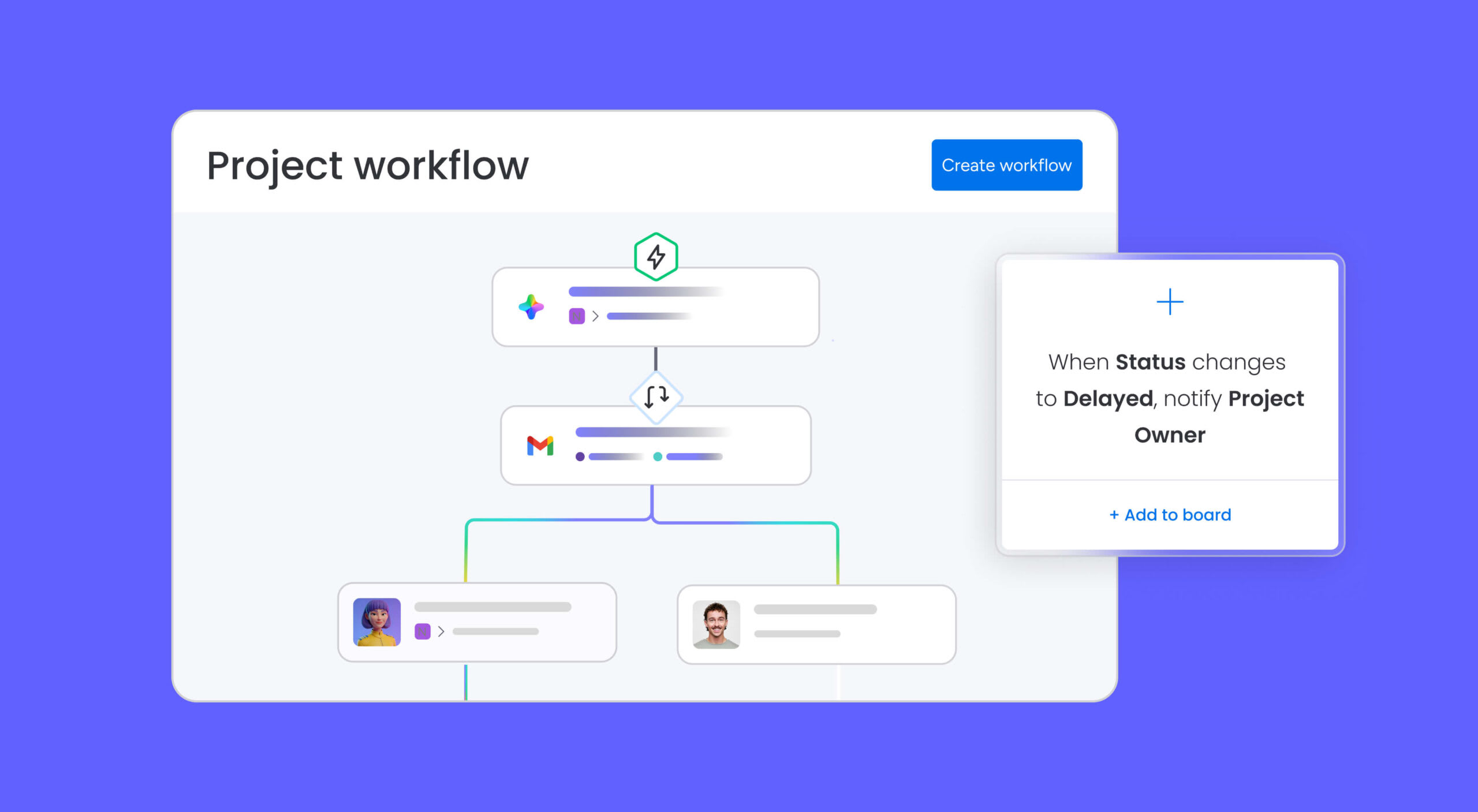
Need to send invoices regularly? Consider whether this manual process will scale as your client list grows. For occasional invoicing, Google Docs works well. For recurring billing across multiple clients, you may want to use a platform like monday’s AI Work Platform that automates the repetitive parts, like auto-populating client details, calculating taxes, and sending the invoice on a schedule.
What to include on a professional invoice
A professional invoice protects you and your client by documenting exactly what was delivered, when, and at what cost. Every invoice you send should include these elements.
- Your business name and contact information: full name or company name, address, phone number, and email.
- Client’s name and contact information: the recipient’s name, company, and billing address.
- Unique invoice number: a sequential identifier (e.g., INV-2026-001) for tracking and record-keeping.
- Invoice date and due date: the date you’re issuing the invoice and the deadline for payment.
- Itemized list of products or services: descriptions, quantities, rates, and individual line totals.
- Subtotal, tax, and total amount due: a breakdown that shows how the final number was calculated.
- Payment terms: Net 15, Net 30, or other agreed-upon terms that define when payment is expected.
- Accepted payment methods: bank transfer, credit card, PayPal, or any other options you support.
- Late payment policy (optional): any fees or interest charges for overdue invoices.
Including every field on this list keeps your invoicing process organized, reduces back-and-forth with clients, and creates a paper trail that’s useful for tax season. The U.S. Small Business Administration recommends maintaining detailed financial records, and consistent invoices are a core part of that.
If you prefer physical copies, our free printable invoice templates offer additional formats you can print and send directly. One final consideration: consistency is more important than design. A simple invoice that includes every required field will always outperform a visually impressive one that’s missing a due date or payment instructions. Build your template once with all of these elements, save it, and reuse it for every new client.
Examples of Google Docs invoice templates
Now you understand what goes into a professional invoice and how to create one in Google Docs, let’s look at some template examples. These are general templates that can be recreated or customized in Google Docs to fit your specific business needs.
Simple invoice template
This simple invoice template is a strong starting point for freelancers and small businesses. It has the name and contact info for both buyer and seller at the top. Below that is the invoice number, invoice date, payment terms, and due date. Further down is the core of the invoice: the products sold, quantities, pricing info, and amounts for each. Finally, there’s a subtotal, sales taxes, and a total balance. That’s all you need for a perfectly valid invoice, but depending on your type of business, you might find a format that fits your workflow more closely.

Design studio invoice template
This Google Docs invoice template is built for a design studio or creative agency. You can see all the relevant names and contact details at the top half, along with a logo. You’ll also notice the green accent color, which you could easily swap for your brand’s colors. Since this is a service provider, they charged hourly instead of by the number of products sold. They have columns for their rates and hours worked for calculating the totals. This one uses Net 30 payment terms, meaning payment is due 30 days from receipt of the invoice.

University invoice template
This invoice template could be used by a university or educational institution. It has the university’s logo in the top left. In the top right, you’ll also see “PO number.” As we’ll discuss in the tips section, buyers often match invoices to purchase orders to verify everything is correct before authorizing payment. This template also has a line for a discount. Some sellers give discounts for paying by a specific early deadline to incentivize faster payment.

Each of these templates can be recreated in Google Docs using tables, text formatting, and basic layout adjustments. The key is choosing a structure that matches how you bill (hourly, per-project, or per-product) and customizing it with your branding.
Tips for getting the most out of your invoice template
Having a solid invoice template is just the starting point. How you use it, and the processes you build around it, determines whether invoicing becomes a smooth, repeatable workflow or a recurring headache. if you’re spending more time managing invoices than doing the work you’re invoicing for, follow these practical tips to keep invoicing process efficient and reliable.
Understand the difference between purchase orders and invoices
Purchase orders are created by your client to request your services. You, as the seller, then send an invoice for the goods or services sold when you deliver them. As you can see, they’re complementary. The buyer generally matches your invoice to the corresponding PO they sent you before authorizing payment.
Use consistent invoice numbering
A sequential numbering system (like INV-2026-001, INV-2026-002) makes it easy to track invoices, reference them in conversations with clients, and stay organized during tax season. Google Docs doesn’t auto-increment invoice numbers, so keep a simple spreadsheet or log to track which numbers you’ve already used.
Brand your template for a polished look
Adding your logo, brand colors, and consistent fonts makes your invoices instantly recognizable and reinforces your professionalism. Clients are more likely to prioritize a polished invoice over a plain one.
Be specific about payment terms and late fees
If you offer discounts for early payment or charge clients late fees for overdue invoices, spell out those details on every invoice. Ambiguous terms lead to late payments and uncomfortable conversations.
Save invoices as PDFs before sending
Always download your completed invoice as a PDF before emailing it to a client. PDFs lock the formatting in place and prevent accidental edits. A shared Google Doc link is convenient for collaboration, but it’s not ideal for a final invoice because the recipient could accidentally change a field without realizing it.
Set up payment reminders
Late payments are one of the biggest cash flow challenges for small businesses. While Google Docs doesn’t offer automated reminders, you can set calendar reminders to follow up with clients a few days before and after the due date. For higher volume, a platform with built-in reminder automation saves significant time.
Know when to move beyond Google Docs
Google Docs templates work well for occasional invoicing. But if you’re sending more than 10 invoices per month, tracking payments across multiple clients, or spending time on repetitive data entry, it’s worth considering a dedicated invoicing platform. The time you spend manually creating, sending, and tracking invoices adds up, and that’s time you could spend on revenue-generating work.
A few signs you’ve outgrown Google Docs for invoicing:
- You’re copy-pasting the same client details into new documents every month
- You’ve lost track of which invoices have been paid
- You’re manually following up on overdue payments.
When any of those become regular occurrences, automation pays for itself quickly.
How monday.com's AI Work Platform simplifies invoicing
Google Docs templates are a practical starting point for sending professional invoices. But as your client list grows and invoicing becomes a regular part of your operations, manual processes start to slow you down. That’s where monday.com’s AI Work Platform comes in, taking invoicing from a manual, document-by-document process to an automated, trackable workflow.
Here’s what you can achieve when you trust the AI Work Platform with your invoicing.
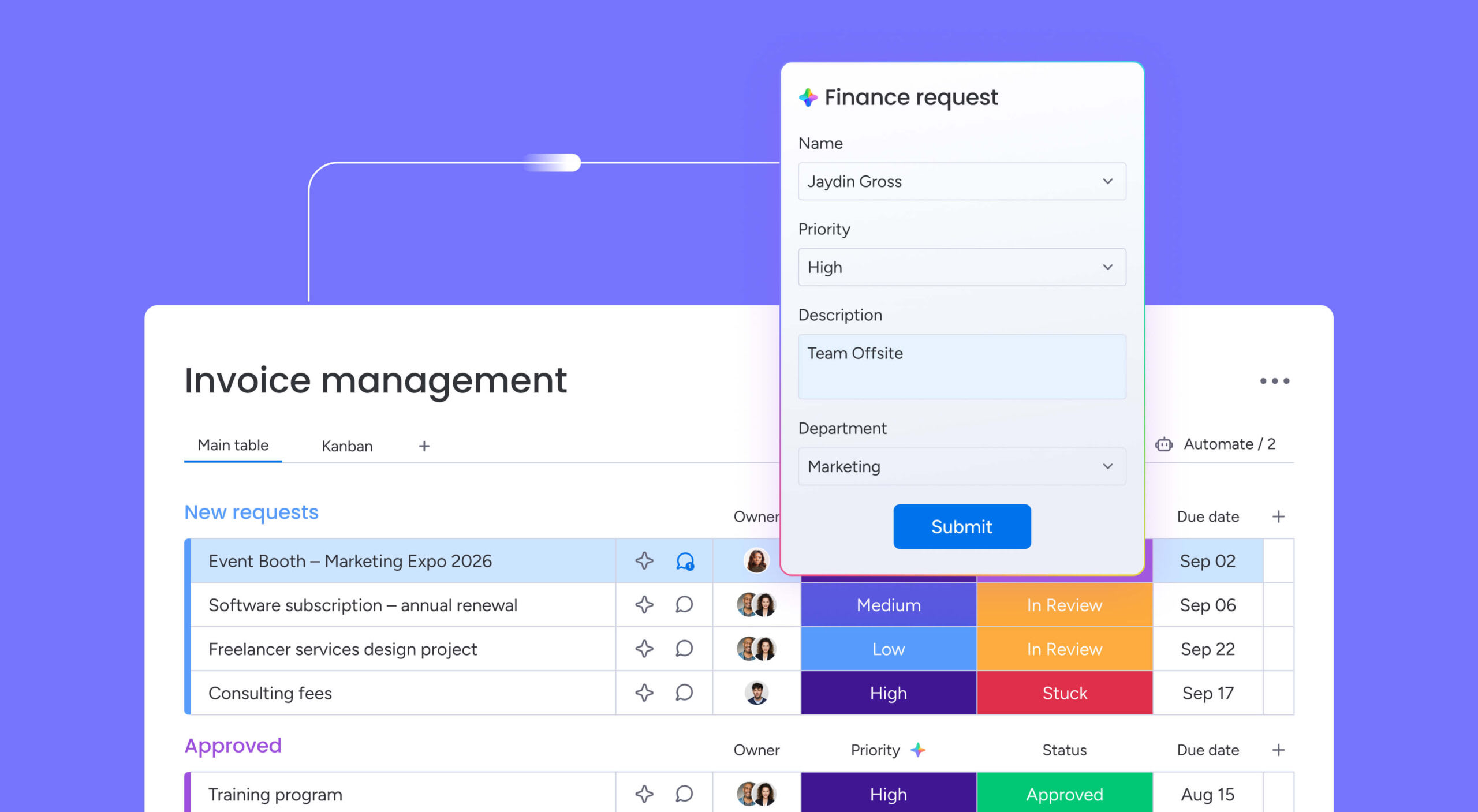
- Extract Information with AI: Upload an invoice or receipt, and monday.com’s AI Work Platform automatically pulls key data (invoice numbers, client names, amounts, and line items) so you don’t have to type any of it manually. The AI analyzes document structure and extracts relevant fields in seconds, learning from your patterns over time. This eliminates data entry errors and saves hours each month.
- AI-powered assistance with monday sidekick: Get instant help with invoice-related tasks through monday sidekick, your conversational AI assistant. Ask questions like “Which invoices are overdue?” or “Show me this month’s revenue by client,” and get immediate answers. Sidekick can also help you build automations, generate invoice summaries, and suggest workflow improvements based on your invoicing patterns.
- Automated payment reminders and recurring invoices: Set up automations that send payment reminders before and after due dates, generate recurring invoices for retainer clients, and notify your team when an invoice is overdue. No more calendar reminders or manual follow-ups.
- 200+ integrations: Connect your invoicing workflow to Stripe, QuickBooks, Gmail, Slack, and 200+ other platforms through monday.com’s integrations. Payments, notifications, and accounting data flow automatically, with no tab-switching required.
- Real-time dashboards: Track outstanding invoices, payment status, revenue by client, and average time-to-payment with drag-and-drop dashboard widgets. You get a live view of your cash flow without digging through spreadsheets.
- Collaborative approvals: Build approval workflows where invoices route through the right team members before they’re sent. Automated notifications keep everyone in the loop, and approvals happen on monday.com instead of over email chains.
- monday workdocs: Build invoice documentation directly within your workspace, link it to your invoicing boards, and keep all your financial records connected to the workflows they belong to.
How does this compare to Google Docs? Here’s a side-by-side breakdown.
| Feature | Google Docs | monday.com’s AI Work Platform |
|---|---|---|
| Cost | Free | Free plan available; paid plans for advanced features |
| Invoice templates | Basic, manual customization | Customizable with AI auto-population |
| Automation | None | Payment reminders, recurring invoices, approval workflows |
| AI data extraction | None | Automatically extracts invoice data from uploaded files |
| Payment tracking | Manual | Real-time dashboards and status tracking |
| Integrations | Google Workspace only | 200+ integrations (Stripe, QuickBooks, Gmail, Slack) |
| Collaboration | Shared editing | Shared editing + automated notifications and approvals |
Send professional invoices without the overhead
An invoice template for Google Docs gives you a fast, free way to send professional invoices without learning new software or signing up for a paid subscription. For freelancers and small businesses sending a handful of invoices each month, it’s a practical solution that gets the job done.
But as your business grows and invoicing becomes more complex (recurring clients, payment tracking, multi-step approvals), a manual template won’t keep up. monday.com’s AI Work Platform gives you customizable invoice workflows with AI-powered data extraction, automated reminders, and real-time dashboards that turn invoicing from a chore into a streamlined process.
Whether you’re starting with a free Google Docs template or scaling with automation on monday.com, the goal is the same: spend less time on invoices and more time on the work that grows your business.
Get startedFAQs
Is the Google Docs invoice template free?
Yes, Google Docs invoice templates are completely free to use. You can find free templates from third-party sources online and copy them into your Google Drive to start customizing immediately.
What should I include on a professional invoice?
A professional invoice should include your business name and contact details, the client's information, a unique invoice number, the invoice date and due date, an itemized list of services or products with quantities and rates, the total amount due, and your accepted payment methods.
Can I customize the Google Docs invoice template for my business?
Yes, you can fully customize any Google Docs invoice template by changing fonts, colors, layout, and adding your logo. Make a copy of any template to your Google Drive, then edit it to match your brand identity.
What are the limitations of using Google Docs for invoicing?
Google Docs does not offer built-in invoice numbering, payment tracking, automated reminders, or integration with payment processors. For businesses sending more than a handful of invoices per month, a dedicated platform like monday.com's AI Work Platform provides automation and tracking that Google Docs cannot.
How do I send an invoice created in Google Docs?
You can send a Google Docs invoice by downloading it as a PDF (File > Download > PDF Document) and emailing it to your client. Downloading as a PDF is recommended to prevent accidental edits and maintain consistent formatting.
What is the best invoice template for Google Docs?
The best invoice template for Google Docs depends on your industry and invoicing volume. For simple, one-time invoicing, a basic template with standard fields works well. For recurring invoices, client management, and payment tracking, platforms like monday.com's AI Work Platform offer customizable templates with built-in automation.

 Get started