AI is reshaping the way teams work. For enterprise organizations, collaboration has moved far beyond simple file sharing and chat. It’s now about intelligent systems that help teams align faster, make smarter decisions, and deliver measurable outcomes.
According to McKinsey, 78% of organizations now use AI in at least one business function. For enterprise leaders, that means moving beyond disconnected tools and manual processes — and toward platforms that automate tasks, surface insights, and keep work moving across teams.
In this guide, we’ll explore what to look for in an AI collaboration platform, share real-world use cases, and compare 12 of the top tools for 2026. Whether you’re managing distributed teams, compliance-heavy workflows, or cross-functional programs, you’ll find the right platform to help your team scale with clarity and speed.
What to look for in AI collaboration software
The best AI collaboration tools go beyond chat and file sharing. They automate actions, reduce friction, and scale with your workflows. When evaluating AI platforms, consider how well the tool fits into your day-to-day processes and how quickly it can deliver value across teams.
Here are the key features to look for and questions you should be asking:
- Task generation and automation: Can the platform automatically create or assign tasks based on past activity or inputs?
- Predictive insights: Does it forecast delays, capacity issues, or bottlenecks so you can stay proactive?
- Enterprise system integrations: Will it connect with your existing tools, like Slack, Salesforce, or Microsoft 365?
- Workflow flexibility: Can teams customize automations and processes without developer support?
- AI accessibility: Are AI features included in the base plan, or hidden behind premium tiers?
- Scalability and innovation: Is there a clear roadmap for future AI capabilities that meet enterprise demands?
- Data control and compliance: Does it offer enterprise-grade data security, such as role-based access, encryption, audit trails, and compliance with standards such as SOC 2, HIPAA, or GDPR? Does the vendor make it easy to manage permissions and oversee AI-generated content?
Whether you’re managing distributed teams, cross-functional programs, or compliance-heavy workflows, choosing the right tool comes down to impact and adaptability. The more seamlessly and securely AI fits into your processes, the faster you’ll see results.
12 top AI collaboration tools (2026 edition)
AI collaboration software is evolving quickly. From task creation to project forecasting, today’s tools go far beyond messaging or file sharing. The platforms below help enterprise teams stay aligned, reduce manual work, and move faster.
Quick comparison: How the top AI collaboration tools stack up
| Tool/Platform | Best for | Noteworthy AI feature | Starting price |
|---|---|---|---|
| monday work management | Enterprise project collaboration | Classifies and tags tasks with NLP | $9/user/month |
| ClickUp | Task automation | Suggests subtask structures based on project briefs | $7/user/month |
| Asana | Cross-functional project management | Forecasts resource constraints & due dates | $10.99/user/month |
| Notion | Content collaboration | Rewrites, edits, or generates text | $10/user/month |
| Slack | Team communication | Generates summaries of conversations | $7.25/user/month |
| Microsoft Teams | Enterprise communication and meeting management | Searches all Microsoft products using prompts | $4/user/month |
| Trello | Lightweight project tracking | Automates routine workflows | $5/user/month |
| Wrike | Complex workflow management | Predicts timeline risks based on work history | $10/user/month |
| Smartsheet | Spreadsheet-style tracking | Flags delayed items based on historical patterns | $9/user/month |
| Airtable | Custom workflows | Summarizes large datasets into action lists | $20/user/month |
| Miro | Visual brainstorming | Builds diagrams or mind maps | $8/user/month |
| Zoho Projects | Full project tracking | Recommends owners & deadlines using project history | $4/user/month |
1. monday work management
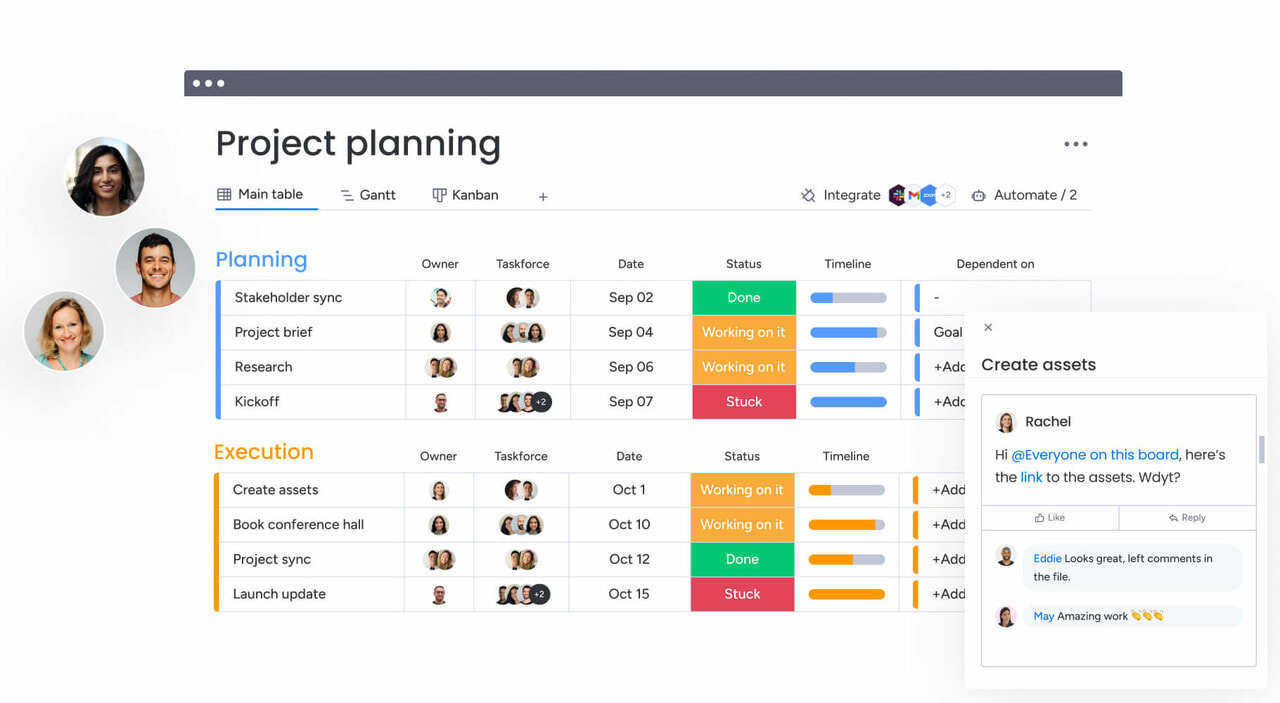
Best for: Enterprise project collaboration with embedded AI
For enterprise teams juggling multi-layered projects across departments, staying aligned and on track is a constant challenge. Tackle everything head-on with monday work management by giving teams a single project management system to coordinate execution, reduce delays, and surface risks early.
With monday.com’s AI offering, teams can eliminate repetitive updates, prioritize what matters, and take the guesswork out of planning. Whether you’re managing digital campaigns or global operations, monday work management helps structure your workflows so teams can focus on outcomes, not overhead.
Key AI features
- Automatically generates tasks and assigns owners based on past work patterns
- Predicts bottlenecks with real-time workload dashboards
- Summarizes unstructured updates into clear, actionable insights
- Classifies and tags tasks with natural language AI Blocks
- Suggests due dates and priorities based on historical trends
Pricing
- Free plan available
- Plans starting at $9 per user per month
What users think
Capterra rating: 4.6/5
G2 rating: 4.7/5
“Its visual and intuitive interface makes it incredibly easy to understand and use, even for complex projects. The ability to customize boards and workflows to fit our needs is a huge advantage, allowing us to tailor the platform to our unique processes. Collaboration features are also excellent, keeping everyone on the same page and enhancing team communication.” — Rakesh S.
2. ClickUp
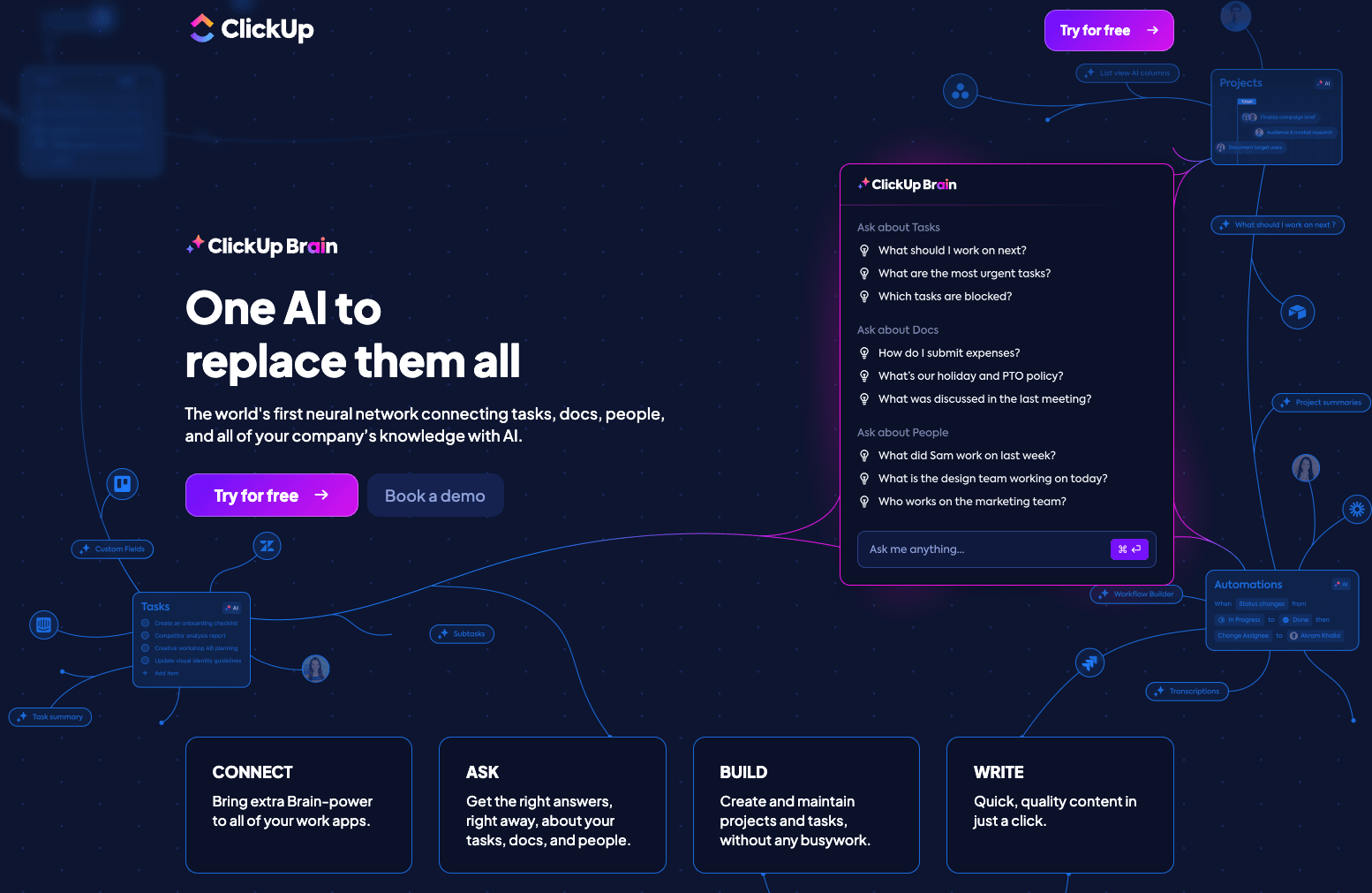
Best for: Task automation and documentation workflows
ClickUp supports fast-moving teams by automating documentation workflows, summarizing conversations, and turning notes into actionable plans. Its flexibility makes it popular across tech and creative industries where speed and customization matter.
Key AI features
- Automatically extracts action items and deadlines from meeting notes
- Suggests subtask structures based on project briefs
- Summarizes large threads and documents to aid handoffs
- Generates and rewrites task descriptions
Pricing
- Free plan available
- Plans starting at $7 per user per month
What users think
Capterra rating: 4.6/5
G2 rating: 4.7/5
“ClickUp has become my go-to platform for managing everything from project pipelines to data reporting workflows. I’ve customized templates to centralize requests, track KPIs, and integrate with tools like Looker Studio. It’s flexible, powerful, and constantly evolving. The learning curve is worth it — especially if you care about automation and team visibility.” — Luis Z.
3. Asana
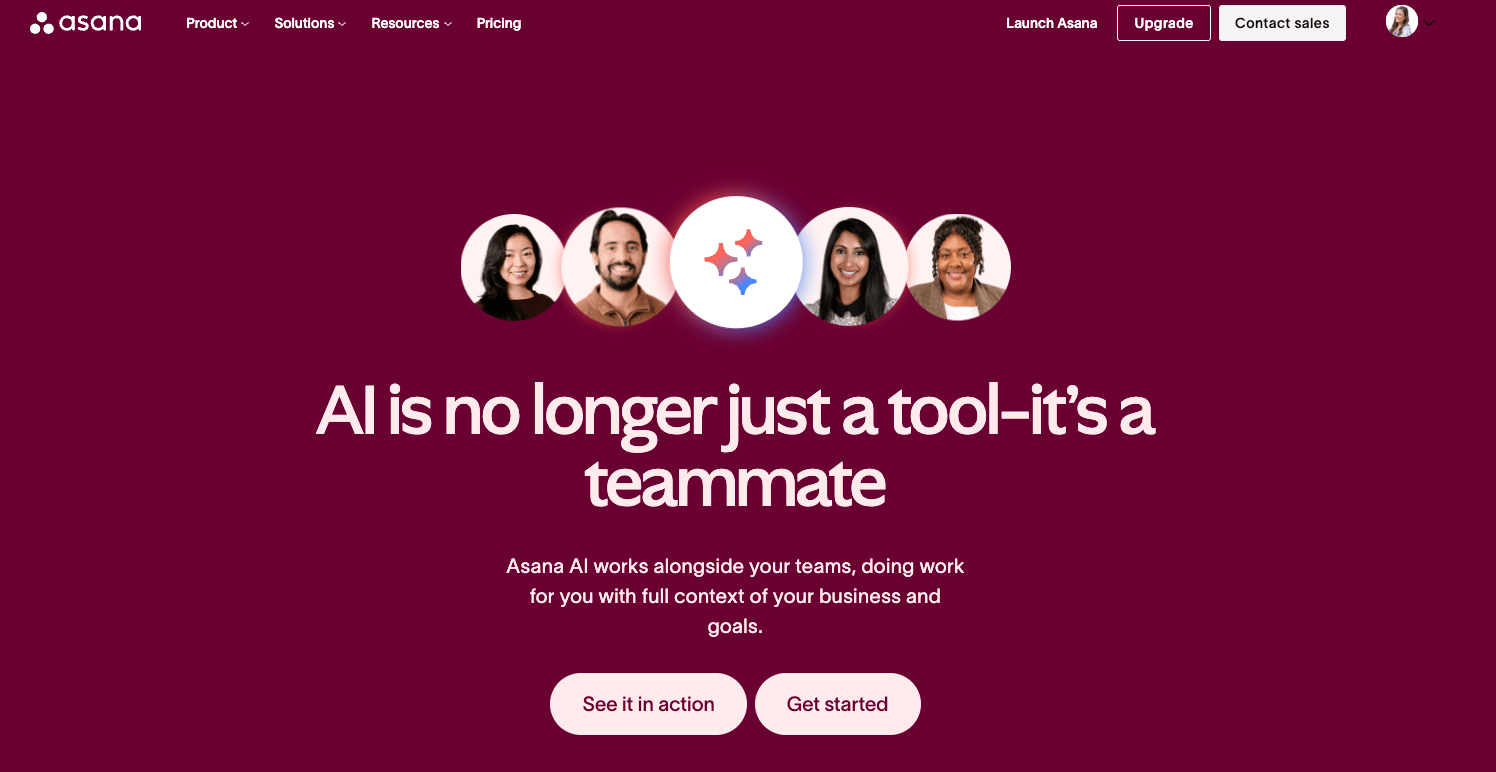
Best for: Cross-functional project management with predictive insights
Asana supports teams in managing multi-phase projects by surfacing the next steps and providing structure across departments. With AI built into its Work Graph® platform, it now provides automated updates and predictive planning, which is ideal for professional services, tech, and marketing teams.
Key AI features
- Generates status updates and next steps based on project activity
- Forecasts resource constraints and due dates with predictive insights
- Breaks down large initiatives into subtasks
- Summarizes goal progress across departments
Pricing
- Free plan available
- Plans starting at $10.99 per user per month
What users think
Capterra rating: 4.5/5
G2 rating: 4.4/5
“What I like best about Asana is how it helps me break down long-term goals into manageable tasks and subtasks. It keeps me focused day-to-day while aligning my work with broader objectives. I also appreciate how it allows for easy collaboration, so I can stay updated on my teammates’ progress and keep projects moving forward.” — Maria A.
4. Notion
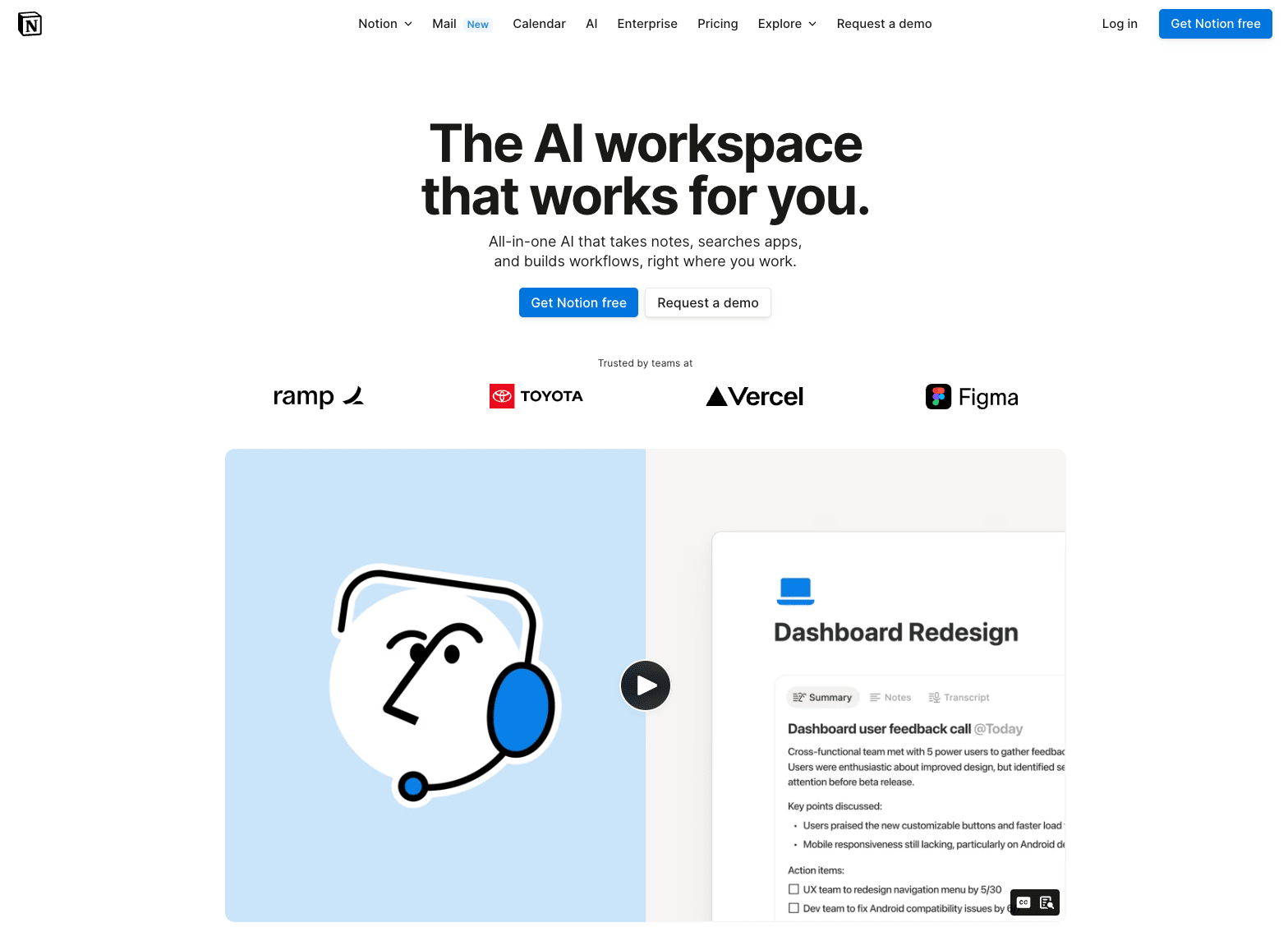
With AI support, Notion gives content-driven teams a flexible space to generate, edit, and organize ideas at scale. Its AI features are especially useful for teams that produce a high content volume, such as product, design, and knowledge management teams.
Key AI features
- Summarizes long notes and meeting pages into action items
- Rewrites, edits, or generates text using custom prompts
- Extracts structured tasks from brainstorms
- Helps standardize documentation across teams
Pricing
- Free plan available
- Plans starting at $10 per user per month
What users think
Capterra rating: 4.7/5
G2 rating: 4.7/5
“What I like best about Notion is how flexible it is. You can use it for everything, from taking simple notes to managing big projects. It’s easy to customize, so I can set it up in a way that works perfectly for me. Plus, it keeps everything in one place, so I don’t have to jump between different apps.” — Twinkle S.
5. Slack
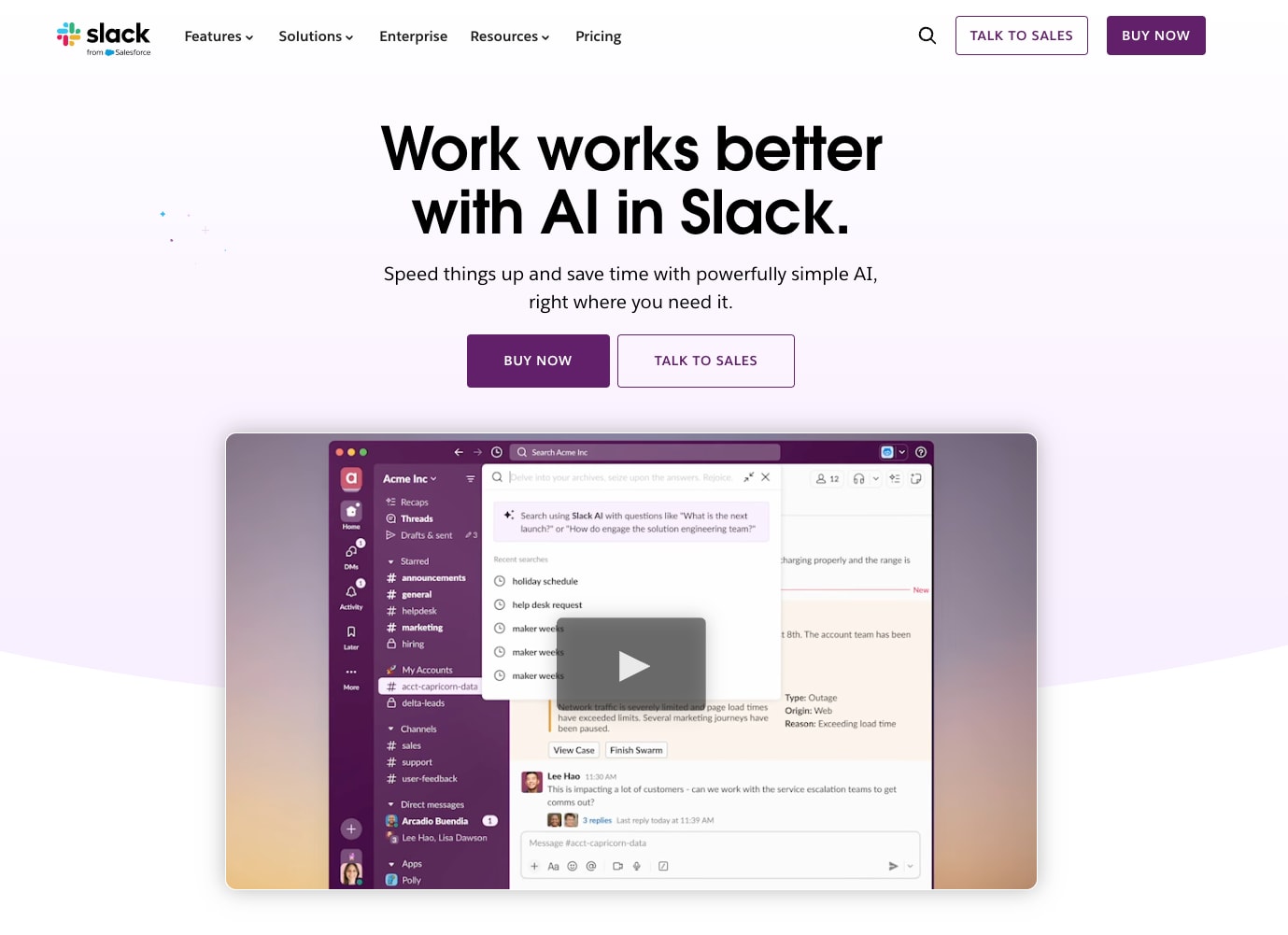
Best for: AI-powered messaging and team communication
Slack is widely adopted across tech and creative industries for real-time messaging and integrations. With Slack AI, the platform now adds intelligent summaries and improved search to reduce time spent reviewing channels and threads.
Key AI features
- Generates summaries of conversations in channels and threads
- Uses natural language to search and retrieve key messages
- Suggests follow-ups and next steps based on recent activity
- Syncs calendars and tasks using AI-powered bots
Pricing
- Free plan available
- Plans starting at $7.25 per user per month
What users think
Capterra rating: 4.7/5
G2 rating: 4.5/5
“I love how Slack keeps all my team communication organized in one place, channels make it easy to separate topics, and the mention function is a lifesaver when I need to find where I have been tagged. Integration with Jira, Datadog, Confluence, and other tools makes it easy to keep an eye on everything at a go without switching out tools.” — Joseph E.
6. Microsoft Teams
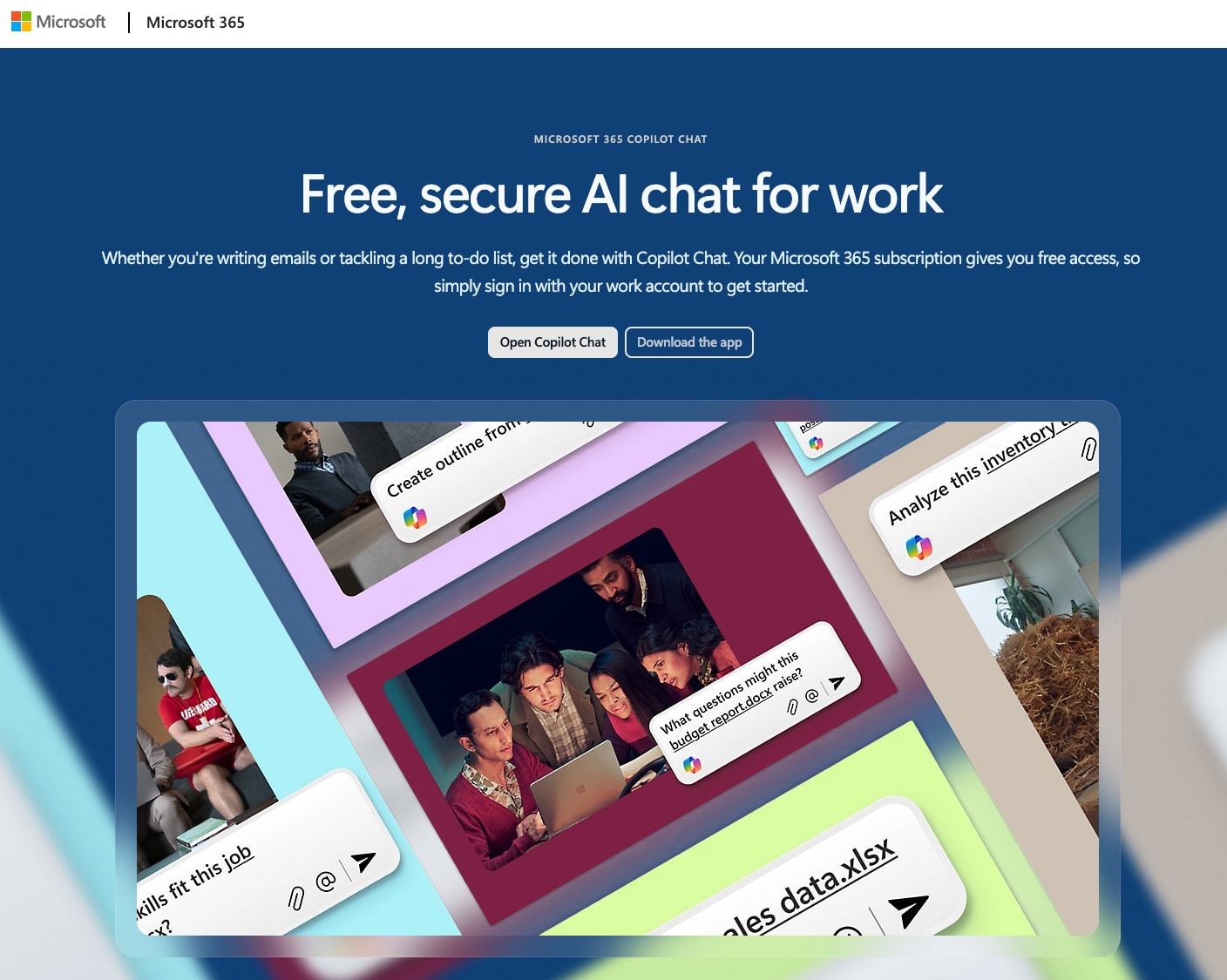
Best for: Microsoft 365 collaboration with built-in AI support
Microsoft Teams supports enterprise collaboration by generating meeting recaps, highlighting next steps, and surfacing key insights across Microsoft 365 tools using CoPilot AI. It’s a strong fit for industries with strict IT controls, such as healthcare, education, and finance.
Key AI features
- Creates meeting recaps with timelines and action items
- Summarizes chat threads and highlights open questions
- Transcribes and translates live conversations in real time
- Searches for content across OneDrive, Outlook, and Teams
Pricing
- Included with Microsoft 365 Business Plans
- Plans starting at $4 per user per month
What users think
Capterra rating: 4.5/5
G2 rating: 4.4/5
“Microsoft Teams is super helpful because it brings all your work into one place, chats, meetings, calls, files, and even tasks, without constantly jumping between different apps. It’s especially great for teams that already use Microsoft 365, because everything connects smoothly. You can collaborate on documents in real-time, set up meetings easily, and manage tasks inside Teams. Plus, it’s secure, customizable, and improving with new updates. The biggest upside is how much it boosts productivity by keeping communication and collaboration simple, even for a remote or hybrid team.” — Kasturi D.
7. Trello
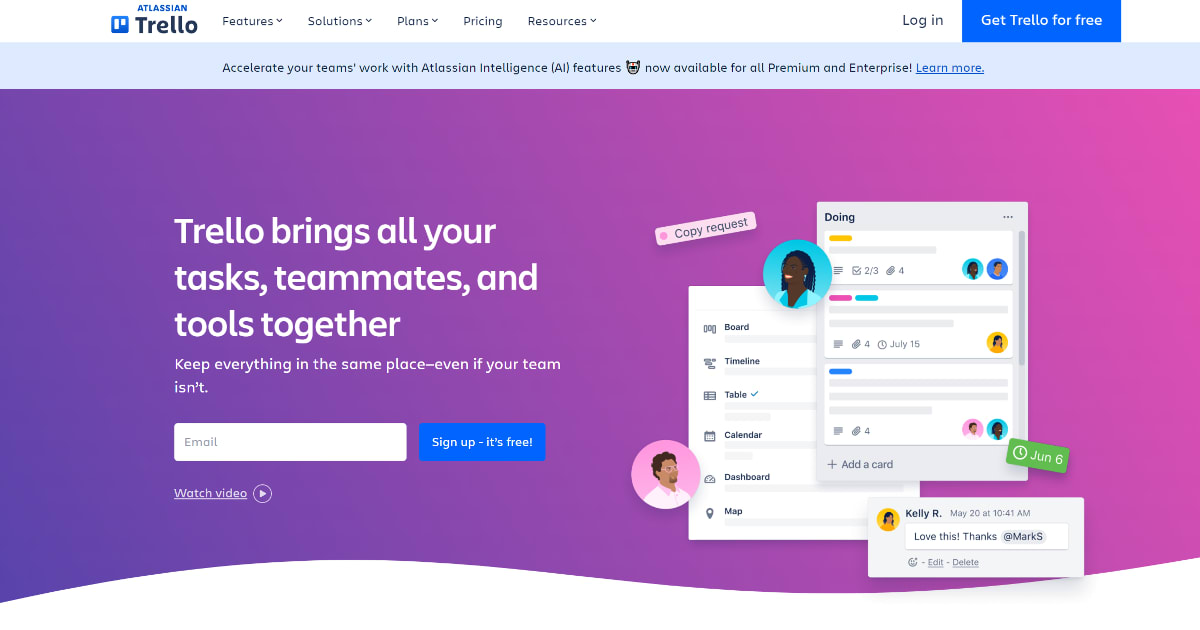
Trello helps agile teams organize fast-paced work with visual boards, now enhanced by AI-generated checklists and task prompts. With AI from Atlassian Intelligence, it now assists with task setup, summaries, and workflow rules that can be ideal for startups, agencies, and agile teams.
Key AI features
- Summarizes card content and generates checklists
- Generates tasks from natural language input
- Applies smart labels or priorities based on context
- Automates routine workflows through no-code rules
Pricing
- Free plan available
- Plans starting at $5 per user per month
What users think
Capterra rating: 4.5/5
G2 rating: 4.4/5
“After five years of use, Trello remains one of the most user-friendly and visually intuitive project management tools I’ve worked with. The drag-and-drop Kanban board style makes it effortless to organize tasks and workflows, whether for solo projects or team collaboration. I also appreciate how it has steadily improved with features like templates, calendar views, and power-ups that adapt to simple and complex workflows.” — Mohamed M.
8. Wrike
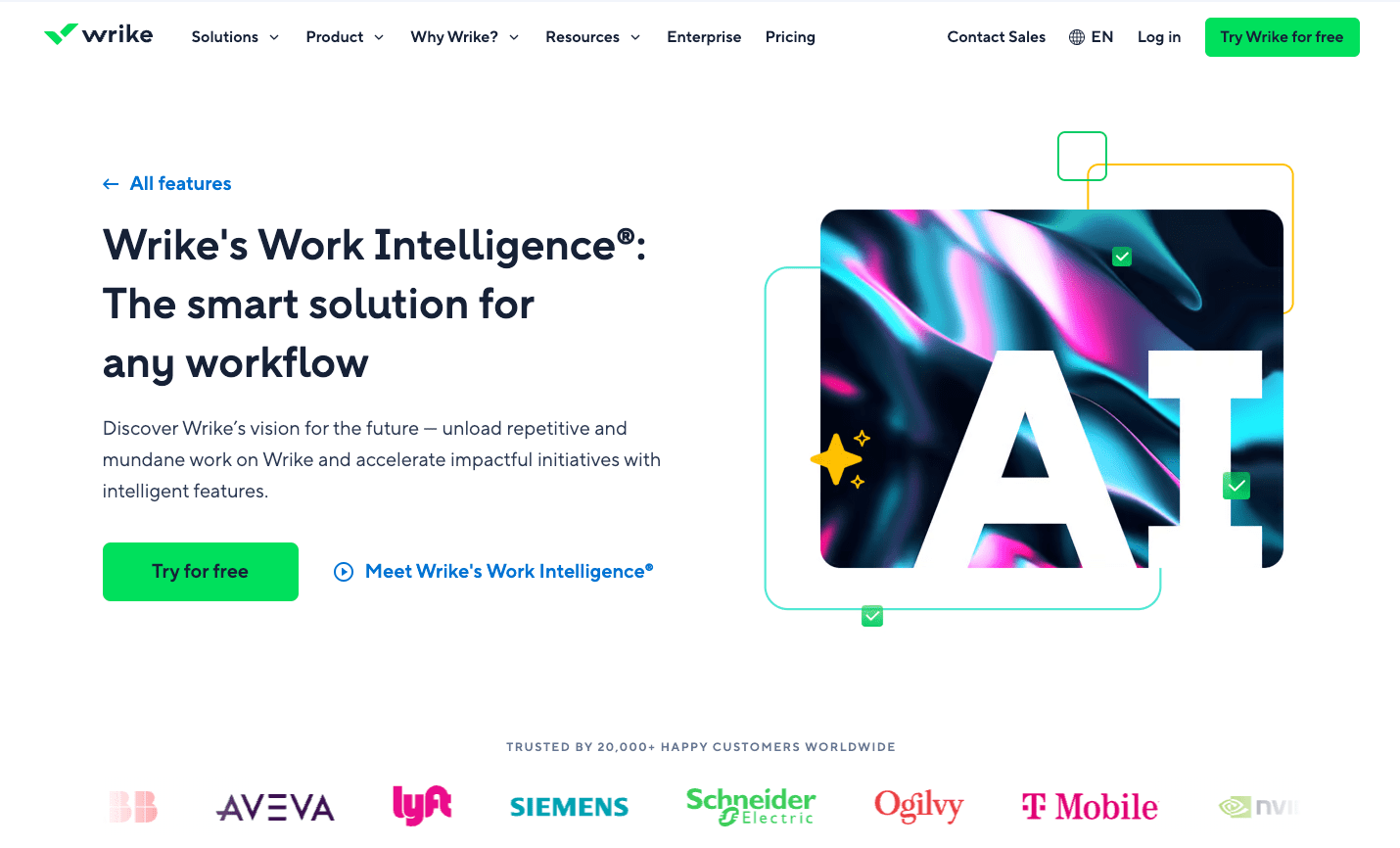
Best for: Complex workflow management and risk detection
Wrike gives operations and marketing teams insight into project health and workload balance using AI-powered risk detection and auto-prioritization. Its AI Work Intelligence™ suite helps identify risk, assign work more effectively, and manage cross-department coordination. It’s frequently used in marketing, operations, and PMO environments.
Key AI features
- Predicts timeline issues based on work history
- Uses workload data to recommend task owners
- Flags projects that deviate from baselines
- Automates recurring updates and escalations
Pricing
- Free plan available
- Plans starting at $10 per user per month
What users think
Capterra rating: 4.4/5
G2 rating: 4.2/5
“I like how Wrike helps our team stay aligned across multiple projects and deadlines. The customizable dashboards and task views make it easy to see who’s working on what, and the built-in collaboration tools (like comments and file sharing) reduce the need for endless email threads. It’s also super helpful that we can track time and set up workflows that match how our team works — less jumping between tools, more getting things done.” — Nikita C.
9. Smartsheet
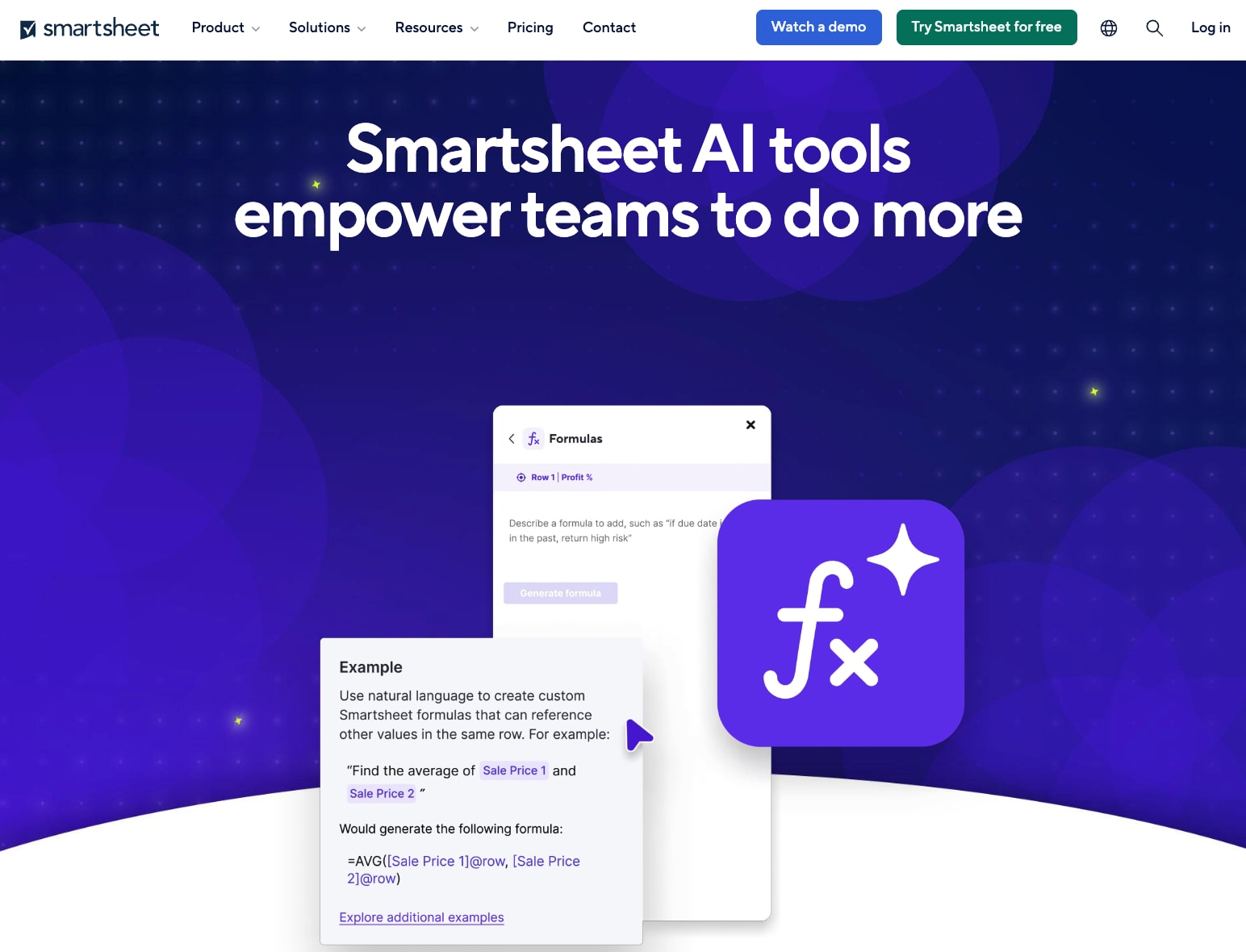
Best for: Spreadsheet-style project management with built-in AI insights
Smartsheet helps teams working in grid-based environments automate updates, monitor delays, and build logic-based workflows with AI support. It’s popular in industries like construction, education, and government for its familiar interface and compliance options.
Key AI features
- Recommends formulas and workflows based on sheet activity
- Summarizes project health and team updates
- Flags delayed items based on historical patterns
- Generates structured content for task fields
Pricing
- Free plan available
- Plans starting at $9 per user per month
What users think
Capterra rating: 4.5/5
G2 rating: 4.4/5
“My whole team uses Smartsheet for work, and it’s one of the main tools that has helped us achieve a ‘Work Smarter, not Harder’ mindset. It helps us cut down work hours with its automations and connectivity. The comment and tagging system works wonders and helps us quickly send updates to members in a large team (60+ users).” — Micaela A.
10. Airtable
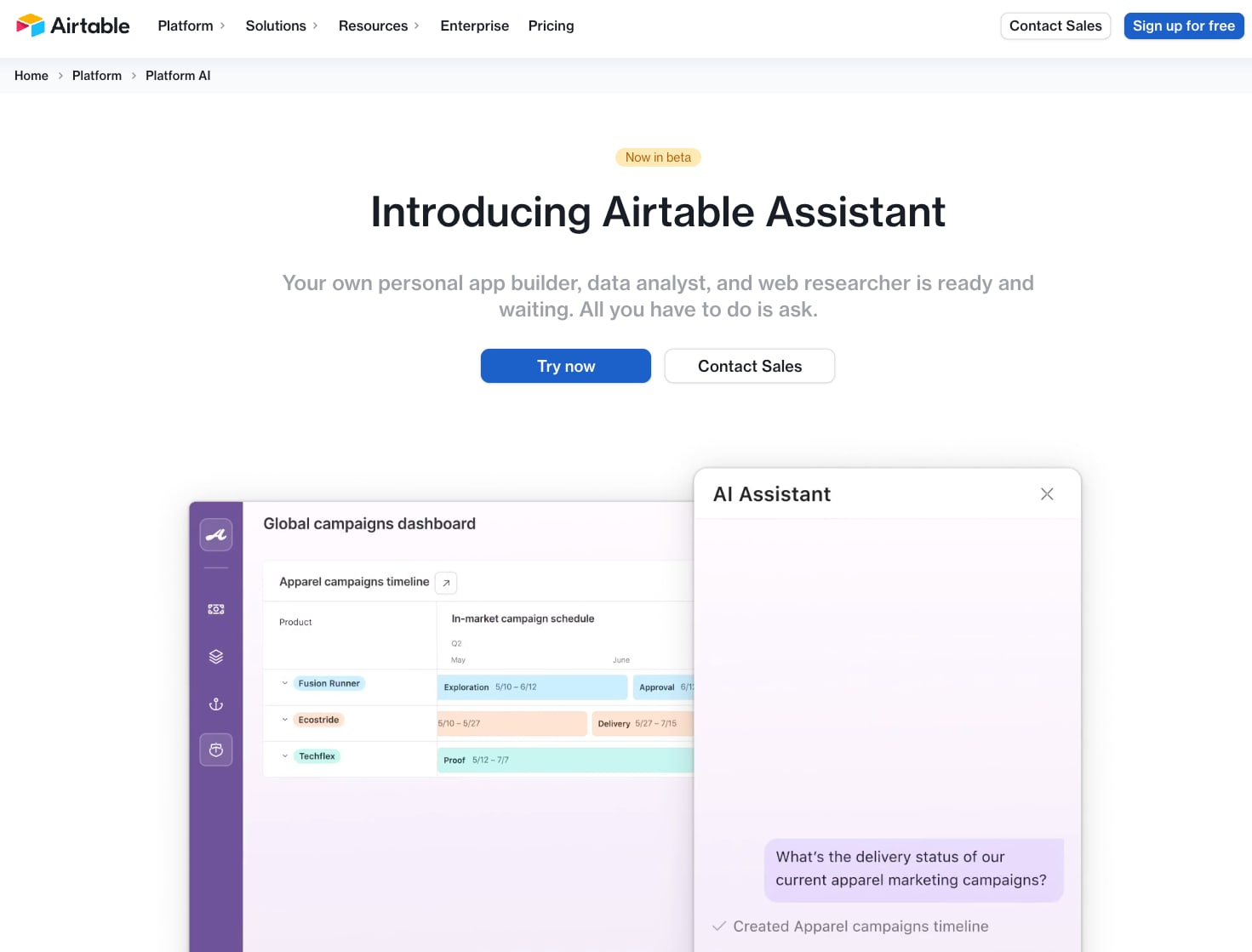
Best for: Custom workflows and AI-enhanced data management
Airtable streamlines data-heavy workflows using AI to populate fields, suggest rules, and summarize large datasets for quicker decisions. Its AI tools improve speed and consistency in data-heavy processes. The platform is commonly used by media, product, and ops teams.
Key AI features
- Generates field entries and task descriptions using prompts
- Suggests automation rules based on recurring patterns
- Summarizes large datasets into highlights or action lists
- Uses structured inputs to build workflows at scale
Pricing
- Free plan available
- Plans starting at $20 per user per month
What users think
Capterra rating: 4.7/5
G2 rating: 4.6/5
“Airtable, in many ways, is like a simplified Excel. However, the interface is intuitive and easy to use, so gleaning information out of raw data is simple. I’m impressed by its versatility, as well. Initial implementation was fast and easy; finding additional support services has been great. We use it for everything from basic office metrics, analyzing survey information, and tracking ongoing projects. The addition of some AI as well as interface support has been welcome and useful.” — Doug H.
11. Miro
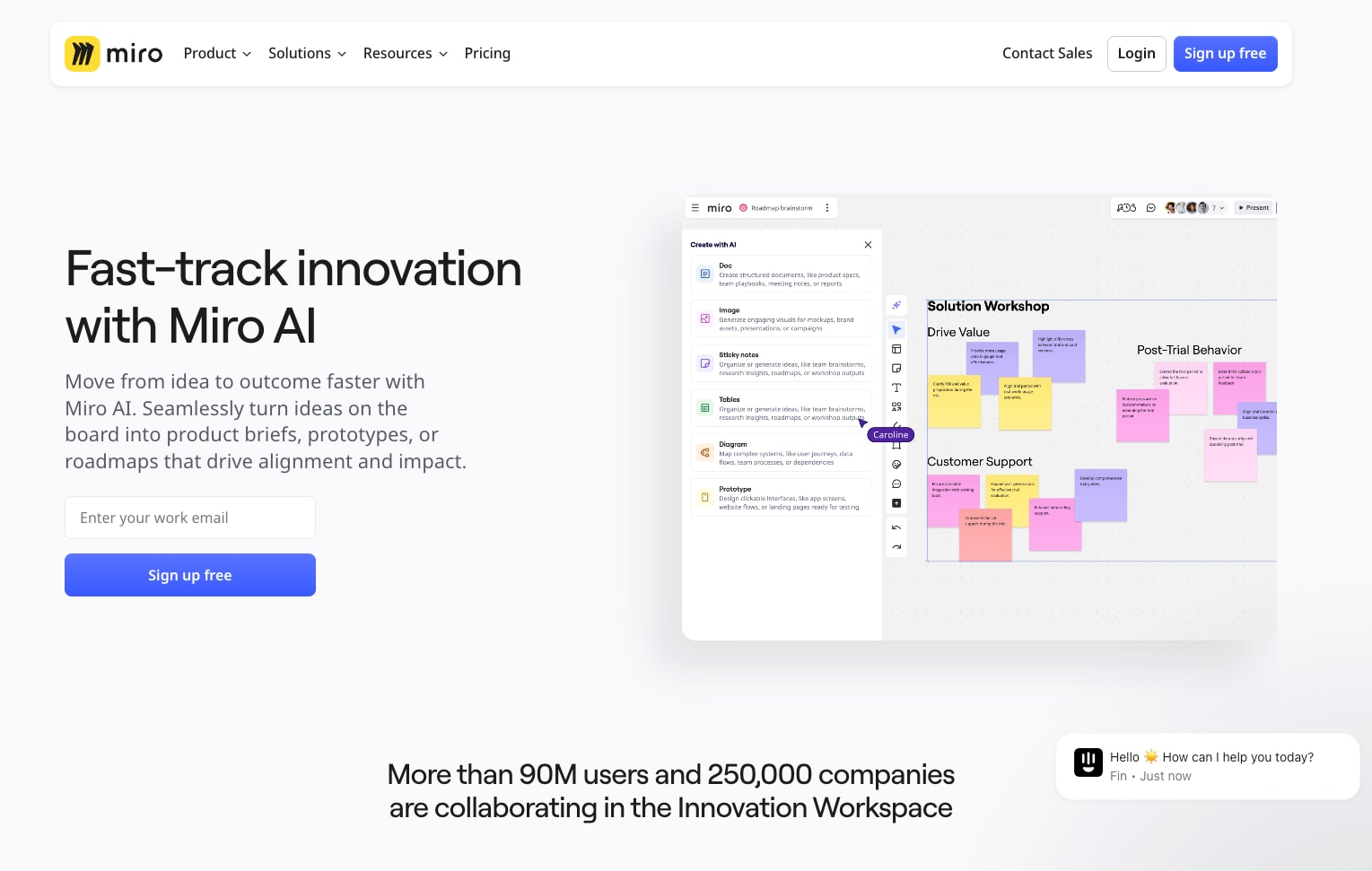
Best for: Visual brainstorming and structured planning
Miro accelerates collaborative planning with its online whiteboard using AI capabilities to span across the entire creative project. With these capabilities, teams can cluster ideas, create structure, and generate visuals, especially helpful in product design, UX research, and remote team planning sessions.
Key AI features
- Groups related sticky notes automatically
- Summarizes workshop boards into next steps
- Converts brainstorms into structured workflows
- Builds diagrams or mind maps with AI-generated structure
Pricing
- Free plan available
- Plans starting at $8 per user per month
What users think
Capterra rating: 4.7/5
G2 rating: 4.7/5
“What I love most about Miro is that it has become the heart of my daily work and even my personal projects. I love collaborating in real time with others and seeing the entire process of an idea in one place. The timer functionality for workshops is amazing and helps me facilitate dynamic sessions. I also love organizing my boards into folders by project; it gives me clarity and structure. And since Miro added AI features for clustering ideas, I feel like I work faster and more efficiently. It’s a tool that sparks both creativity and focus. I genuinely love it with all my heart!” — Laura B.
12. Zoho Projects
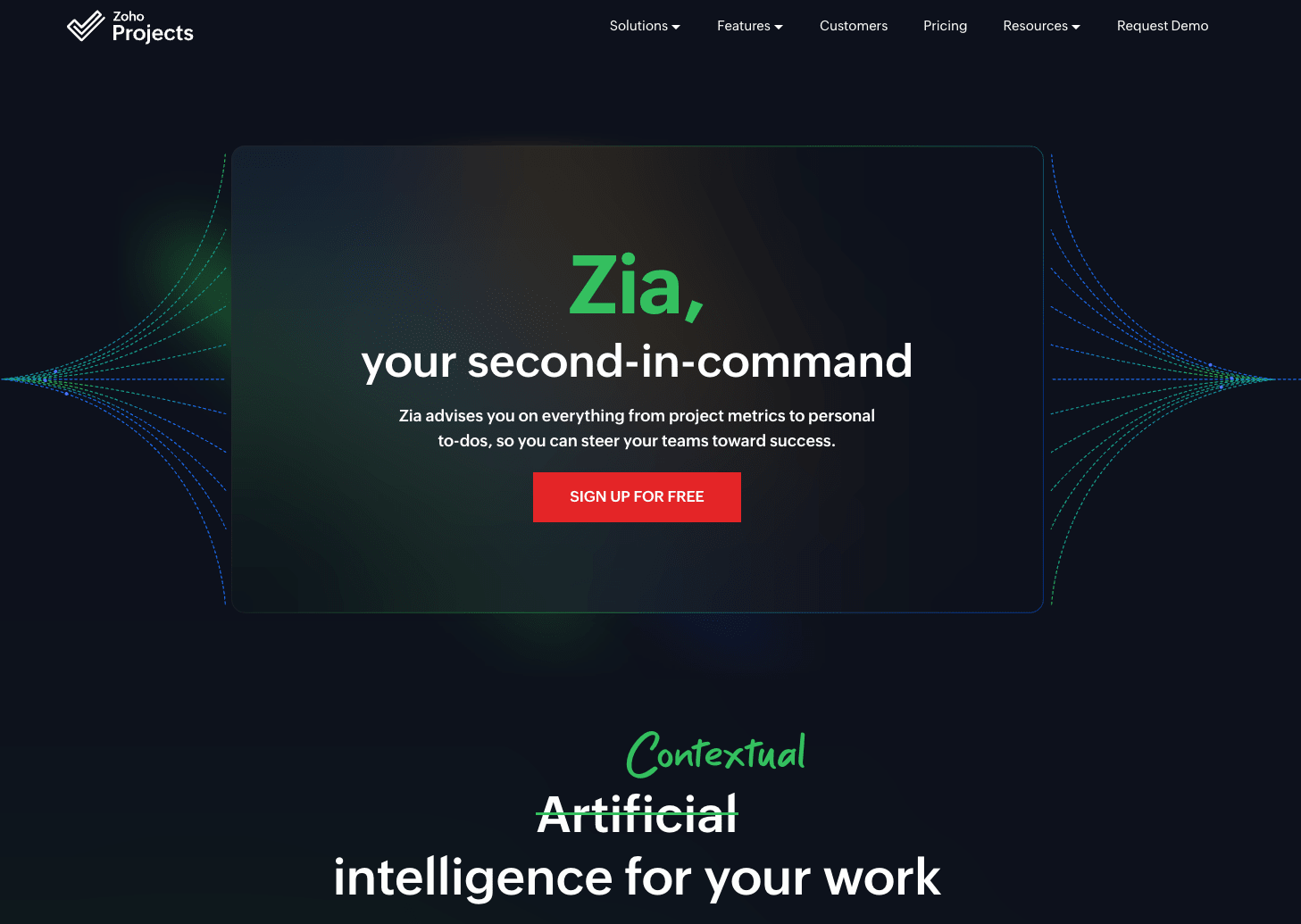
Best for: End-to-end project tracking with AI-powered alerts
Zoho Projects uses its AI assistant Zia to provide IT and service teams with predictive alerts and task recommendations. It flags risks, tracks dependencies, and supports real-time alerts. It’s a cost-effective choice for small to midsize teams in IT, services, and finance.
Key AI features
- Monitors task activity and sends automated updates
- Recommends owners and deadlines using the project history
- Alerts teams to missed milestones or blocked tasks
- Summarizes project statuses for quick review
Pricing
- Free plan available
- Plans starting at $4 per user per month
What users think
Capterra rating: 4.5/5
G2 rating: 4.3/5
“What I like most is how it integrates perfectly with the entire Zoho ecosystem, making project management smooth and efficient. The amount of detail we can handle in each project is impressive, allowing us total control over each stage and task. Without a doubt, I recommend it 100% for teams looking for a comprehensive and well-connected solution.” — Emy L.
How enterprise teams use AI collaboration tools
Remote collaboration tools with built-in AI features bring structure and speed to complex work. They connect people, information, and processes to reduce friction and accelerate execution.
Here are some practical ways enterprise teams are using AI to collaborate more effectively:
- Task routing across departments: AI assigns work based on role, capacity, or priority. As a result, tasks move automatically between stakeholders, keeping initiatives flowing, even in distributed teams.
- Meeting note summaries: AI-generated recaps highlight key takeaways, decisions, and action items. This allows teams to align faster without needing to rewatch recordings or manually transcribe conversations.
- Automated check-ins and updates: In practice, AI handles weekly progress updates, prompts task owners for input, and reduces time spent chasing status.
- Brainstorming and content generation: AI helps teams create project briefs, outline plans, or draft copy, especially useful for fast-moving marketing, product, and strategy teams.
- Forecasting deadlines and resource risk: AI can spot delays before they become bottlenecks. It flags at-risk items based on historical data, helping teams adjust timelines proactively. According to McKinsey, enterprise organizations using generative AI in planning functions are already accelerating project cycles and improving delivery consistency.
Still, there’s room to grow. According to McKinsey’s AI in the workplace report, only 1% of organizations say they’ve reached full AI maturity, where AI is embedded into day-to-day workflows and delivering real, measurable outcomes.
Integrated systems also matter. As noted in the GlobeNewswire 2024 report, enterprise teams using AI-enabled collaboration platforms with strong integrations see higher performance across planning, execution, and reporting. These tools work together to sync data, trigger updates, and reduce handoffs, so the system scales as the organization grows.
How teams feel about AI at work
According to McKinsey, employees tend to fall into four camps:
- Bloomers (39%) are excited about AI’s potential and want to collaborate with it
- Gloomers (37%) are skeptical and want more regulation
- Zoomers (20%) push for fast adoption and fewer limits
- Doomers (4%) believe AI’s risks outweigh its benefits
Understanding how your team views AI can shape rollout strategies and adoption success.
Benefits of using AI collaboration tools
AI collaboration platforms improve workflow across teams. When the right systems are in place, the impact is felt across the organization.
- Faster execution: AI surfaces the most important information in real time, helping teams move from decision to delivery in project management without unnecessary blockers. AI-powered project management helps get tasks done faster than ever before.
- Smarter resource use: Predictive insights reveal bandwidth issues and suggest reallocation, so work is distributed more effectively.
- Less manual work: Repetitive actions like updating status fields or sending reminders can be automated. As a result, teams stay focused on high-impact initiatives.
- Stronger alignment: Smart dashboards and automated workflows keep everyone on the same page. Teams gain a shared view of priorities, blockers, and next steps.
- Stronger security and compliance: Leading platforms are designed with strict access controls, audit logs, and encrypted data handling, so you can move fast without compromising compliance.
The business impact is measurable. According to McKinsey, companies leading in generative AI adoption have seen both cost savings and revenue growth, with some tying more than 10% of EBIT directly to AI gains. Meanwhile, Allwork reports that 72% of companies using AI collaboration tools saw increased productivity in 2024.
For enterprise teams juggling multiple programs, departments, and stakeholders, AI collaboration tools have become essential for maintaining clarity, speed, and control in business functions where it’s deployed.
While every platform offers unique features, monday work management stands out with enterprise-grade AI designed for scale.
Collaborate smarter and faster with AI in monday work management
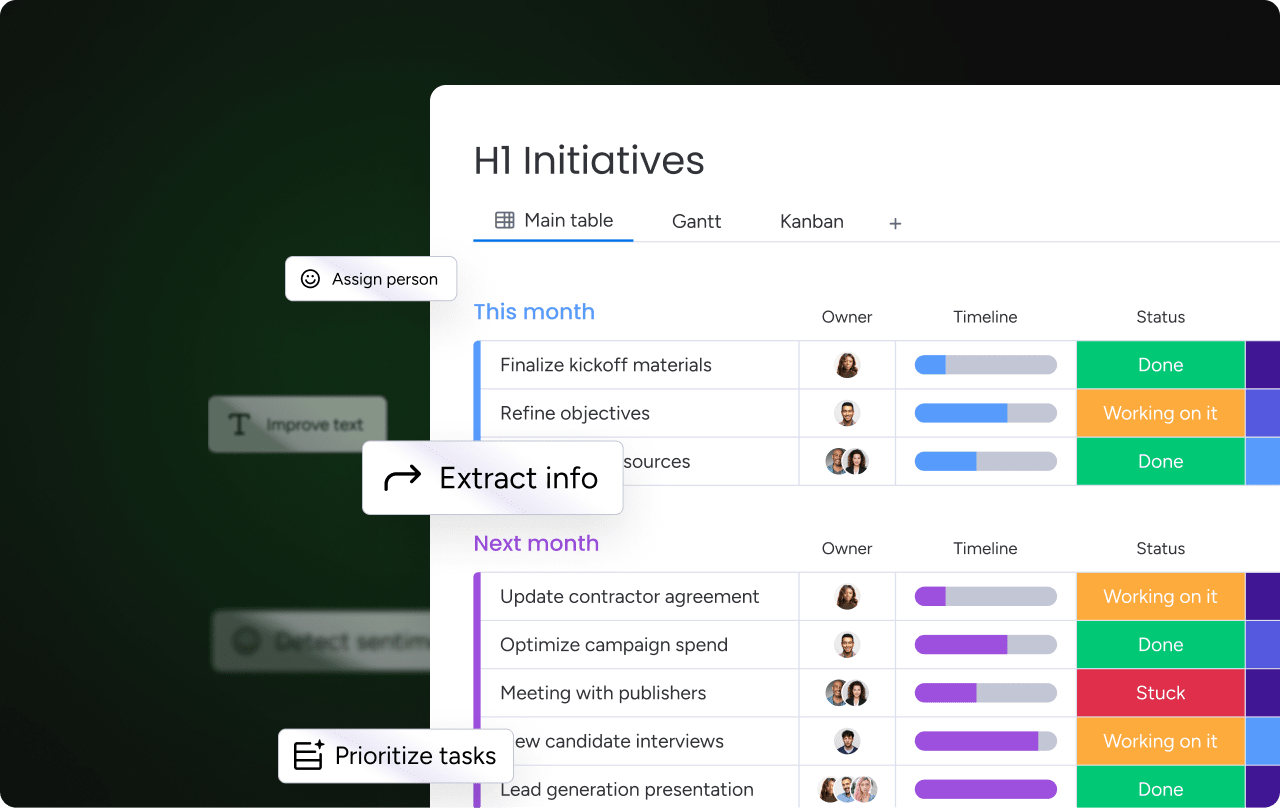
As teams become more cross-functional and distributed, the challenge goes beyond staying connected to working smarter at scale. With native AI features, monday work management supports every layer of execution, helping teams streamline work, surface insights, and move projects forward with less effort.
AI isn’t an add-on — it’s fully integrated into how work gets done.
Whether you’re generating action items from meetings, classifying incoming requests, or forecasting resource gaps, monday.com’s AI offering helps every team member, from PMOs to marketers, stay one step ahead.
How AI powers collaboration in monday work management
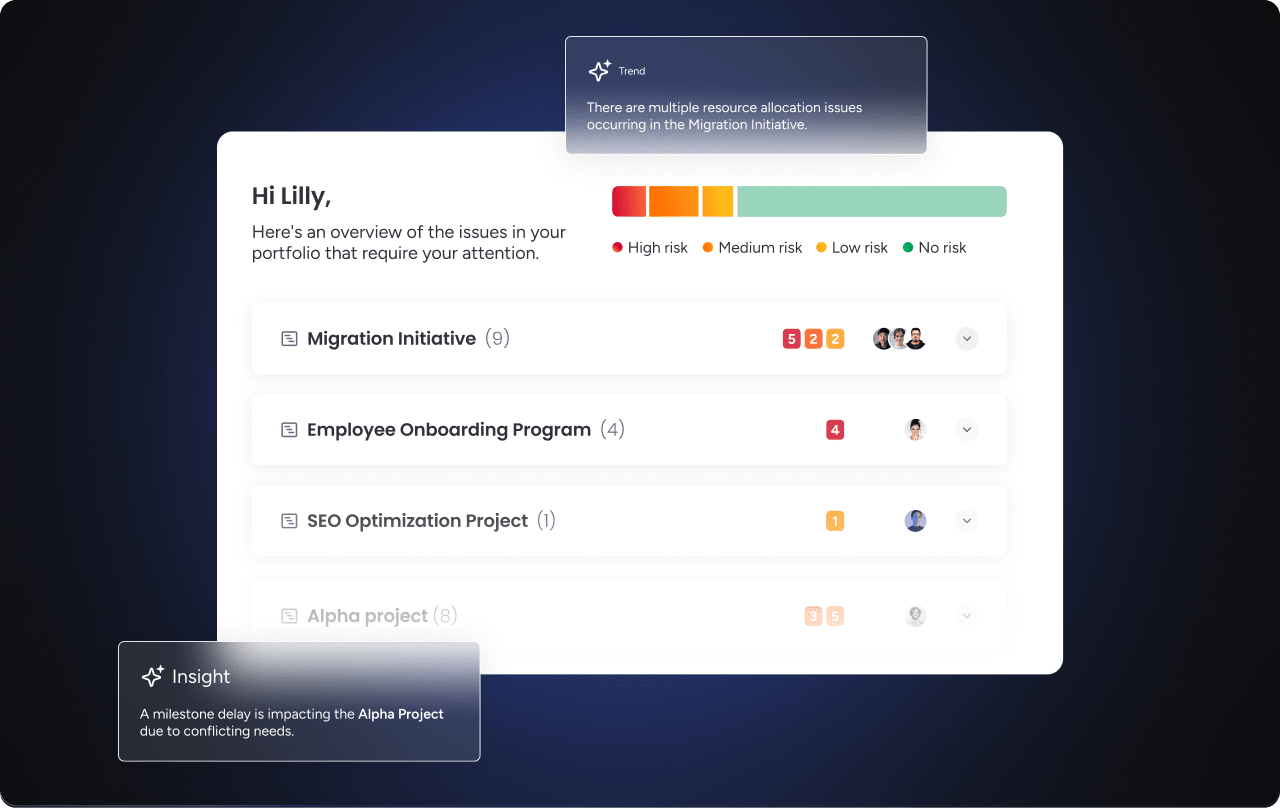
Teams using monday work management benefit from an AI system built on three layers, each tailored to handle both tactical execution and long-term strategy:
- AI Blocks: Drop-in actions like Summarize, Classify, or Extract Info can be embedded into boards, automations, or workflow builders. No prompt engineering or setup needed.
- Product Power-ups: Enterprise-grade capabilities that help teams allocate resources, detect risks, and manage project loads with AI-enhanced insights.
- Digital Workforce: Task-ready digital workers, like Project Analyzer or Deal Facilitator, proactively monitor progress, flag blockers, and recommend next steps.
Because these AI features are embedded directly into the platform and run quietly in the background, teams can start using them immediately — no technical setup or developer support required.
Use AI where it matters most
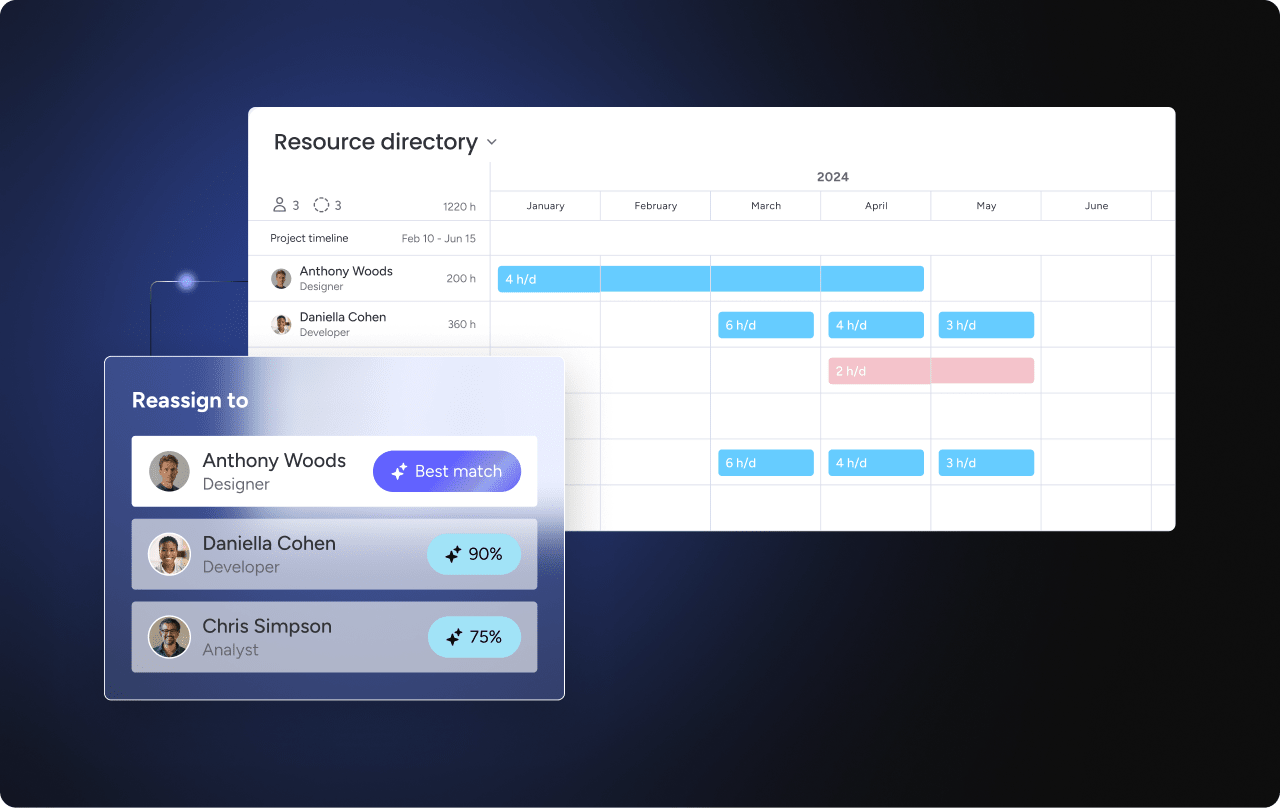
With AI embedded into every corner of monday work management, teams can automate key tasks and uncover insights without changing how they work. Here’s what that looks like in practice:
- Turn unstructured updates into shareable summaries.
- Auto-categorize tasks by urgency, priority, or owner.
- Generate action items from meeting transcripts.
- Flag risks or resource gaps based on historical performance.
- Translate customer feedback into structured sentiment insights.
Explore how monday.com’s AI offering helps enterprise teams work smarter from day one.
Collaborate smarter from day one with the best AI collaboration platform
The right AI collaboration tool not only connects teams but also cuts manual work, streamlines decisions, and adapts to the way your organization already operates. To find the right fit, look for a platform that integrates with your existing systems, automates routine tasks, and delivers insights in real time.
Built with enterprise needs in mind, the AI capabilities in monday work management bring together flexible automations, real-time visibility, and powerful infrastructure. Ready to champion smarter team collaboration? Get started with monday work management today.
FAQs
What is an AI collaboration tool?
An AI collaboration tool uses artificial intelligence to streamline how teams work together. These tools help automate repetitive tasks, suggest next steps, and provide real-time insights to boost productivity and coordination.
How is AI used in collaboration software?
In collaboration software, AI is used to automate status updates, extract action items from meetings, summarize conversations, and predict project delays. It reduces friction in teamwork and helps organizations move faster with fewer manual processes.
How does AI improve team productivity?
AI reduces the time spent on manual tasks like status updates, scheduling, and note-taking. It helps teams focus on high-value work by automating the routine and highlighting what needs attention.
Are AI collaboration tools secure?
Yes. Leading platforms comply with enterprise security standards like SOC 2, HIPAA, and GDPR. Look for tools that offer role-based permissions, data encryption, and audit trails.
What’s the best AI platform for enterprise teams?
The best AI collaboration platform depends on your team’s needs, size, and tech stack. For enterprise organizations, monday work management offers built-in AI, strong integrations, and the flexibility to support cross-functional work at scale.