


Meeting ambitious goals means knowing exactly how much your team can handle. When workloads aren’t visible, projects slip, timelines stretch, and burnout becomes inevitable. A capacity planning template turns that visibility into action by consolidating availability, assignments, and priorities into one structured view, helping managers allocate resources fairly and plan new work with confidence.
This guide explores practical capacity planning templates that help organizations align people, projects, and timelines. It outlines how to implement them effectively, avoid common pitfalls, and build a process that scales from small teams to enterprise-level planning with platforms like monday.com’s AI Workspace.
Key takeaways
- Maintain balanced utilization: Aim for 70–85% capacity to leave room for unexpected work and prevent burnout.
- Account for all work types: Include recurring tasks, meetings, and administrative duties that can consume up to 30% of the workweek.
- Match skills, not just schedules: Align assignments based on expertise and complexity, recognizing that experience levels affect output.
- Enhance visibility with monday.com’s AI Workspace: Use real-time views and AI-driven insights to replace static spreadsheets and improve forecasting accuracy.
- Start small before scaling: Pilot your approach with one team to refine processes and gather feedback before expanding organization-wide.
What is a capacity planning template?
A capacity planning template is a structured document that tracks your team’s available time against upcoming work. It shows who’s available, what they’re working on, and how much bandwidth they have for new projects, forming the backbone of effective workload planning.
This template should be considered as the visual map of your team’s workload. You can see at a glance whether someone is overloaded or has room for more assignments, which prevents the common problem of assigning work without knowing a team member’s actual capacity.
That last point is absolutely critical since employees are 70% more likely to burn out when faced with unreasonable time constraints.
The core components every capacity planning template needs include:
- Resource list: all team members with their roles and skills.
- Current commitments: active projects and time allocations.
- Available capacity: hours or percentage free for new work.
- Upcoming demand: future projects and resource needs.
5 types of capacity planning templates that drive results
Effective resource planning depends on choosing a template that aligns with how your team works and what you need to achieve. Each approach offers a different way to visualize workloads, balance priorities, and forecast capacity.
The templates below highlight how teams across departments and industries use structured planning to allocate time, prevent bottlenecks, and improve long-term efficiency.
Team capacity planning template
This template tracks a single department’s workload over one to three months. It shows each person’s assignments, skills, and available hours.
Marketing teams use these to balance campaign work across designers, writers, and strategists. IT departments track support tickets alongside project work to ensure coverage.
Project capacity planning template
Project templates outline resource needs for specific initiatives, mapping who is required, when, and where potential scheduling conflicts might occur. They help teams align people, timelines, and dependencies early to avoid last-minute reshuffling.
Construction managers use them to coordinate trades and equipment, while software teams plan sprints to match available development hours. In both cases, this structured approach mirrors a production schedule, ensuring steady progress without overcommitment or delays.
Sprint capacity planning template
Agile teams need templates that account for velocity and story points. These factor in ceremonies, code reviews, and other overhead that reduces actual development time.
The template prevents teams from committing to more work than they can realistically complete in a sprint.
Resource capacity planning template
Enterprise templates track resources across the entire organization. They provide executives with visibility into capacity constraints and hiring needs.
These comprehensive views help leadership make strategic decisions about capacity management and investment priorities.
Hybrid workforce capacity template
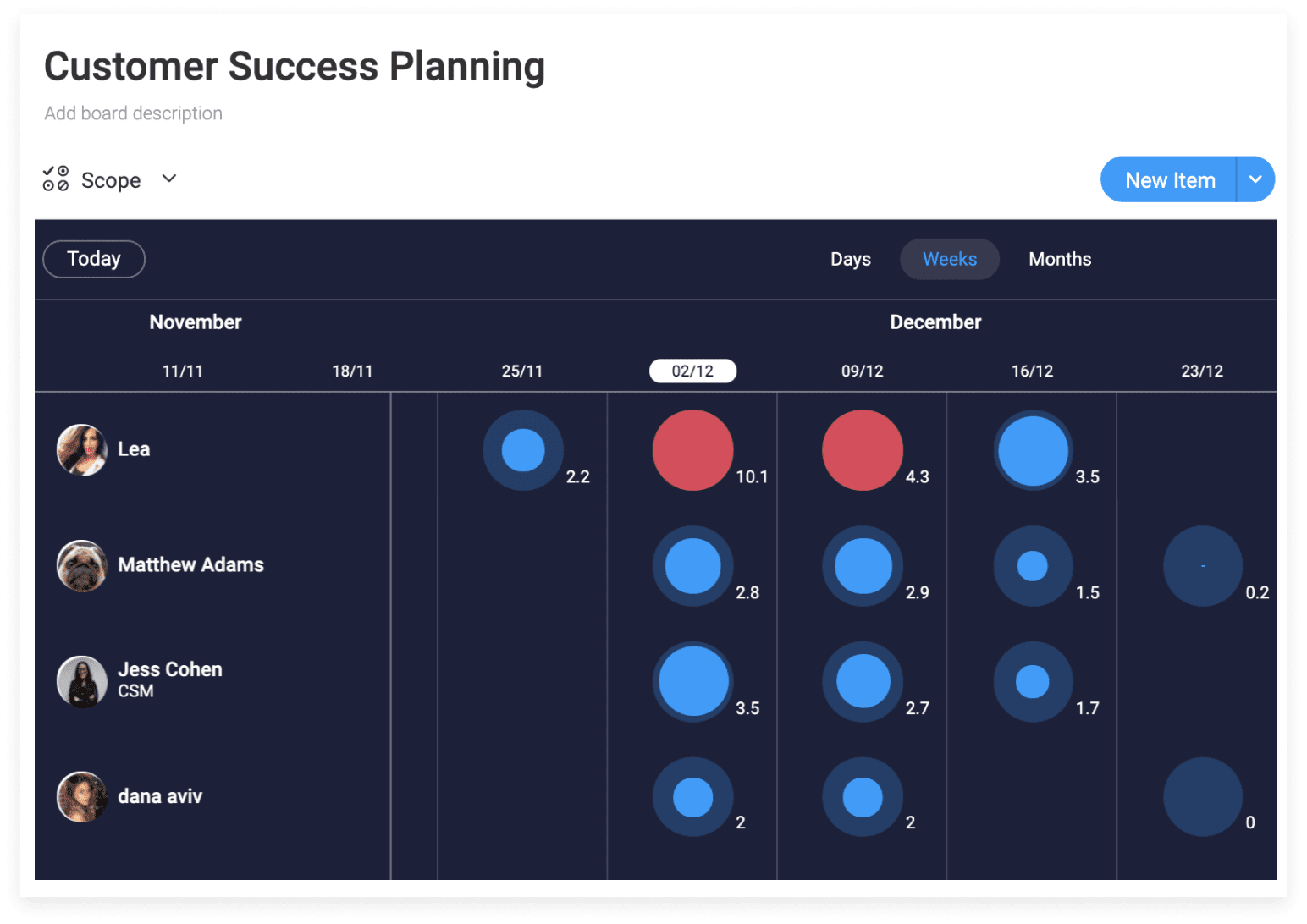
Modern teams include full-time employees, contractors, and remote workers across time zones. This template type accounts for different availability patterns and working arrangements, making workforce planning more strategic.
It’s essential for organizations managing distributed teams with varying schedules and employment types.
How to implement your capacity planning template: 7 key steps
Getting your template up and running requires more than just copying a spreadsheet unfortunately.
Follow these simple steps to create a system your team will actually use, or consult our guide on how to write a project plan for expanded details.
Step 1: Define your capacity metrics
Decide how you’ll measure capacity. Will you track hours per week, story points, or percentage availability?
Pick metrics that match how your team estimates and tracks work. Creative teams might use project counts while support teams track ticket volumes.
Step 2: Inventory your resources
List everyone on your team with their skills, experience level, and typical availability. Include contractors and part-time workers.
Don’t forget to note specialized skills. A senior developer and junior developer aren’t interchangeable even if both are “available.”
Step 3: Map current workload
Document all existing commitments including projects, recurring meetings, and administrative work. Most teams underestimate how much time goes to non-project activities.
Include time for email, status updates, and informal collaboration. Research shows that managers can spend as many as three to four hours per day on these ‘invisible’ administrative tasks.
Step 4: Set capacity thresholds
Plan for 70-85% utilization, not 100%. People need buffer time for unexpected requests, thinking, and problem-solving.
Teams that plan for full utilization quickly burn out and can’t respond to urgent needs, highlighting the importance of having a business continuity plan template in place.
Step 5: Create your template structure
Design a layout that’s scannable and easy to maintain. Include essential fields such as team member names, skills, current allocation, and remaining capacity to keep information consistent.
Work management platforms like monday.com’s AI Workspace make this process easier with visual workload charts that display capacity through color coding, helping teams spot and correct overallocation before it impacts delivery.
Step 6: Test with a pilot team
Start small with one department. Gather feedback on what works and what’s missing before rolling out broadly.
Use this phase to refine your metrics and processes based on real usage patterns.
Step 7: Scale across your organization
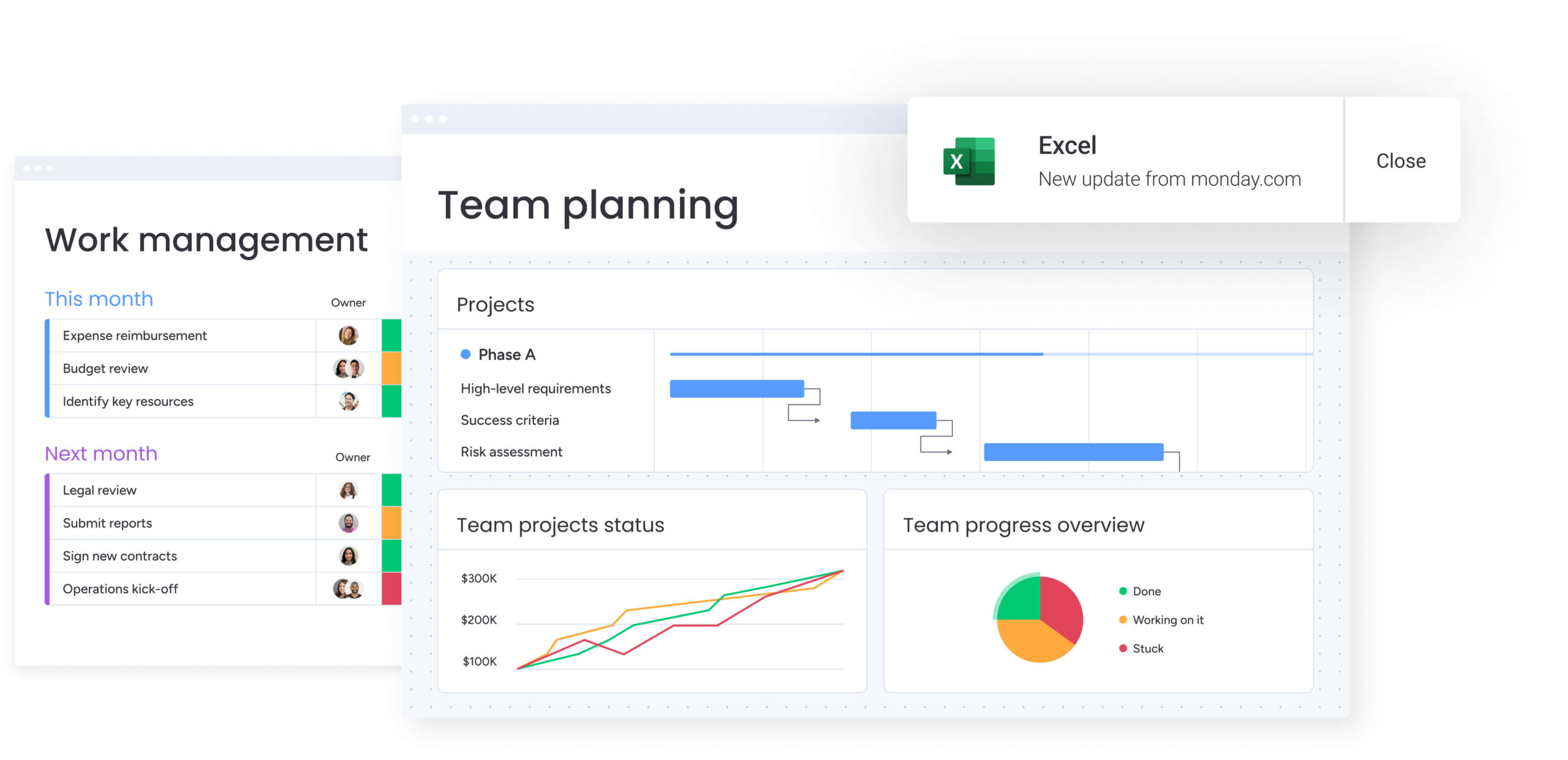
Finally, expand gradually while maintaining consistency. Provide training and support to ensure teams understand how to use the template effectively, a crucial step when 60% of employees believe training is the key to improving change management.
Balance standardization for cross-team visibility with flexibility for department-specific needs.
Essential features every capacity planning template needs
An effective capacity planning template does more than store data. It turns that data into insight. The right features help teams see workload balance in real time, forecast demand accurately, and adjust resources before issues escalate.
The capabilities below outline what separates basic templates from systems that truly improve planning, communication, and decision-making across projects.
Real-time workload visualization
Visual indicators make capacity immediately understandable. Color coding shows who’s overloaded (red), near capacity (yellow), or available (green).
Charts reveal trends over time, helping you spot recurring bottlenecks or seasonal patterns. Visual formats also make it easier to communicate resource needs to stakeholders.
Automated capacity calculations
Manual math leads to errors and outdated information. Your template should automatically calculate remaining capacity as assignments change.
When someone’s availability shifts or a project extends, the template should immediately show the impact across all affected areas.
Skill-based resource matching
Track competencies and experience levels, not just availability. This prevents assigning complex work to team members who lack the necessary skills.
Include certifications, domain expertise, and proficiency levels to enable strategic resource allocation, and use a resource matrix to keep all skill sets organized.
Integration capabilities
A capacity planning template works best when it connects with the systems your team already uses. Calendar integrations capture time off and meetings, while project management connections pull in real assignments to keep availability accurate.
Work management platforms such as monday.com’s AI Workspace streamline this process by syncing data across multiple sources automatically, reducing manual updates and ensuring plans always reflect current workloads.
AI-powered forecasting and scenario planning
Static forecasting and scenario planning templates show you where things stand today, but they can’t tell you what’s coming next. On the other hand, AI workforce planning software is designed to close that gap, using historical workload patterns to forecast demand before a shortfall hits. AI-powered forecasting layers predictive analytics on top of your capacity data, using historical workload patterns to forecast future demand and surface potential bottlenecks before they form.
What happens to your delivery dates if a senior developer gets pulled onto another project mid-sprint? Scenario modeling answers that question in seconds, not hours. By analyzing past utilization trends, team velocity, and project timelines, AI can flag risks early, giving planners time to redistribute work or adjust deadlines proactively. This shifts capacity planning from reactive to predictive, turning your template into a forward-looking decision-making engine.
Get startedBenefits of using capacity planning templates in Excel
Excel remains a practical starting point for structured capacity planning. When set up effectively, templates provide visibility into workloads, highlight resource gaps, and create a data-driven foundation for smarter decisions.
The benefits below show how this structure improves balance, efficiency, and overall project delivery.
Prevent team burnout
You can spot overallocation before it impacts morale. When workload distribution is visible, managers can rebalance assignments proactively using resource leveling as needed.
Sustainable workloads also lead to higher retention and job satisfaction. Teams perform at their peak when capacity is respected, especially since employees who understand how success is measured are more likely to feel motivated.
Optimize resource allocation
Templates reveal hidden capacity and inefficient distributions. You might discover some team members are swamped while others have bandwidth for strategic projects.
This visibility enables smarter resource decisions that improve both productivity and project outcomes.
Improve project delivery rates
Realistic capacity planning leads to achievable deadlines. When you know actual availability upfront, you can set expectations appropriately.
Projects finish on time more often when resource constraints are visible during planning, which is a key principle of aggregate planning.
Enable data-driven decisions
Replace guesswork with concrete capacity data. Leadership can see exactly where additional resources would have the most impact.
This shift to evidence-based planning helps organizations invest wisely in people and projects through resource forecasting.
How to build a more effective capacity planning process
Creating a capacity plan is one thing, maintaining one that reflects reality is another. Small oversights can distort workload data, leading to burnout, missed deadlines, and poor forecasting. Addressing these common pitfalls ensures your process stays accurate, adaptable, and effective over time.
Ignoring non-project work
Leaving out routine activities leads to inaccurate capacity planning. Tasks like meetings and admin work may seem minor individually, but together they take up a significant portion of each week.
To create realistic availability, make sure to include:
- Meetings and communication: recurring check-ins, emails, and status updates.
- Training and development: onboarding, workshops, or skill-building sessions.
- Administrative tasks: reporting, documentation, and system updates.
Accounting for this “invisible work” ensures your template reflects true workload and prevents overallocation.
Overlooking skill variations
Not everyone with the same title has the same capabilities. A junior designer can’t substitute for a senior designer on complex projects.
Build skill levels and specializations into your template for more strategic assignments.
Setting unrealistic utilization targets
Planning for 100% utilization guarantees problems. Teams need slack time for urgent requests, creative thinking, and recovery.
Aim for 70-85% utilization to maintain sustainable performance levels.
How to build a capacity planning template in Excel
Excel is still the most common starting point for workload management, and a well-structured spreadsheet can serve smaller teams effectively. Here’s how to build one from scratch.
Step 1: Set up your column structure
A practical capacity planning spreadsheet needs 13 core fields to capture the full picture of your team’s workload. Start by creating these columns:
- Team member name: the person responsible for the work.
- Role/job title: their function on the team (e.g., designer, analyst, engineer).
- Department: the business unit they belong to.
- Weekly available hours: their contracted or expected hours per week.
- Public holidays/time off: scheduled absences that reduce availability.
- Net available hours: weekly hours minus time off (calculated automatically).
- Project assignments: one column per active project, showing allocated hours.
- Hours allocated per project: the sum of time committed to each initiative.
- Total allocated hours: combined hours across all projects.
- Utilization %: total allocated hours divided by net available hours, multiplied by 100.
- Status: on track, at risk, or over capacity, based on the utilization percentage.
- Skills/expertise tags: key competencies for skill-based assignment decisions.
- Notes: context on upcoming changes, preferences, or constraints.
Step 2: Apply conditional formatting
Color-code the utilization column so capacity issues are visible at a glance. Set up 3 thresholds:
- Green (70–85%): healthy workload with room for unexpected requests.
- Yellow (85–100%): approaching full capacity. Monitor closely.
- Red (over 100%): overallocated. Immediate rebalancing needed.
This visual layer turns raw numbers into an instant health check for the entire team.
Step 3: Add a summary dashboard row
At the top or bottom of the sheet, insert a row that calculates team-wide averages. Include total available hours, total allocated hours, and overall utilization percentage. This gives managers a single-glance view of whether the team has bandwidth for incoming work.
Step 4: Commit to weekly updates
An Excel-based capacity plan is only as accurate as its last update. Block 15–20 minutes each week to refresh project allocations, mark completed work, and adjust for new assignments or time-off requests.
Here’s where the trade-off becomes real: the more people and projects you’re tracking, the more time you’ll spend maintaining the spreadsheet. For teams managing more than a handful of people or multiple simultaneous projects, the manual update cycle becomes a bottleneck. That’s the point where platforms like monday.com’s AI Workspace replace the spreadsheet with live data, pulling in real assignments, time off, and workload changes automatically so the plan stays current without the weekly maintenance overhead.
Free capacity planning template vs paid solutions
Free Excel templates are a good starting point for basic capacity planning, but they can’t always keep up as teams scale or workflows become more dynamic.
The comparison table below highlights key differences in usability, collaboration, and long-term scalability.
| Aspect | Free Excel templates | Paid templates |
|---|---|---|
| Real-time updates | Manual only | Automatic |
| Team collaboration | Email attachments | Built-in sharing |
| Data accuracy | Depends on manual updates | Always current |
| Scalability | Limited | Unlimited |
| Integration | None | Extensive |
Capacity planning with monday.com's AI Workspace
Effective capacity planning requires flexibility as priorities shift and workloads evolve. monday.com’s AI Workspace brings that adaptability to every team, supporting complex environments like capacity management for government agencies where precision and accountability are essential.
The platform replaces static spreadsheets with live workload views, automated workflows, and AI-powered insights that help teams balance resources, prevent bottlenecks, and make faster decisions. Whether you’re managing a single department or coordinating capacity across an entire organization, the monday AI Workspace scales with your needs while keeping planning simple and actionable.
Learn more: AI capacity planning software
Visualize workload in real time

The Workload View shows capacity through intuitive, color-coded charts. Green means a team member has bandwidth, yellow signals they’re approaching full capacity, and red flags overallocation, all updated in real time as assignments change. This transforms planning conversations by replacing last week’s spreadsheet with live data that shows exactly who has room for new work.
Plan and allocate with precision

Resource Planner gives managers a centralized view of who’s working on what, making it straightforward to shift allocations when priorities change. Resource Directory stores talent data like department, role, expertise, and certifications in one location, enabling skill-based matching at scale. Instead of scrolling through spreadsheets to find the right person, you can filter by competency and availability in seconds. Placeholders let you model resource needs before you’ve made a hire, so planning doesn’t wait for onboarding to finish.
Automate routine capacity work
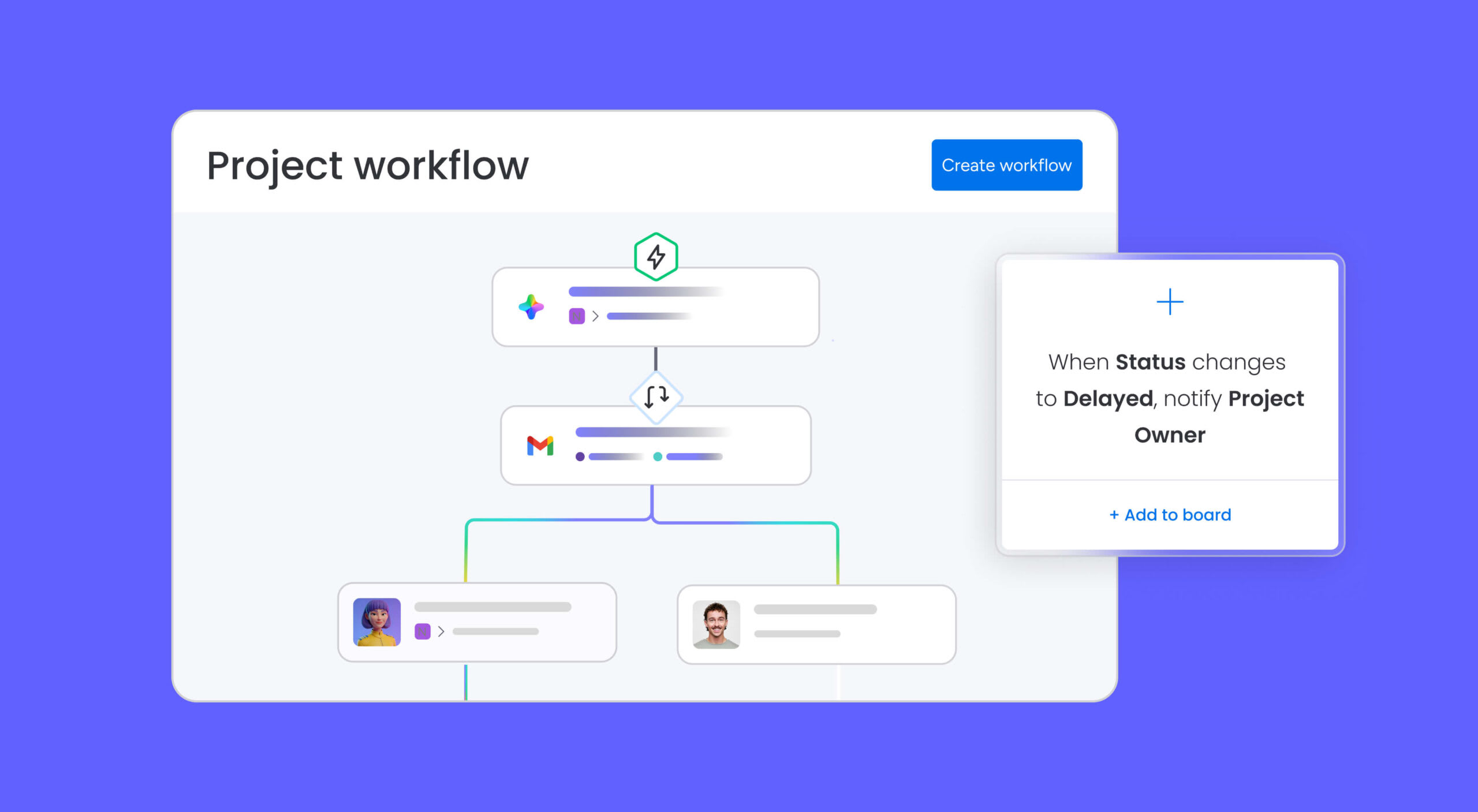
No-code automations handle the repetitive tasks that slow capacity management down. You can trigger reassignments when a team member hits their utilization threshold, send alerts when deadlines are at risk, and update statuses across boards automatically. AI Blocks add another layer by categorizing incoming requests, generating capacity summaries, and flagging risks proactively, reducing the manual review cycle that eats into planning time.
Turn reactive planning into predictive intelligence with AI

monday agents monitor work automatically and surface risks before they escalate. Project Analyzer flags capacity constraints in active projects, while Risk Analyzer surfaces portfolio-wide threats like a single overallocated team member creating delays across multiple initiatives. Process Automator eliminates manual workflow steps that drain planning time.
monday sidekick is a context-aware AI assistant that sits inside your workspace. It recommends resource rebalancing when utilization trends shift, drafts capacity summaries for stakeholder reviews, and surfaces the information you need without switching tabs. For teams that want to go further, monday vibe is an AI-powered no-code builder that lets you create custom capacity planning apps tailored to your exact workflow. monday MCP connects AI models to monday.com data, so your existing AI ecosystem can pull live capacity data directly from the platform.
Why teams choose monday.com for capacity planning
Teams evaluating their capacity planning options typically compare spreadsheets, standalone resource management apps, and full work management platforms. The decision often comes down to how much manual work you’re willing to maintain and how quickly you need to act on capacity data.
The table below shows where the practical differences show up:
| Feature | Spreadsheets / basic tools | monday.com's AI Workspace |
|---|---|---|
| Workload visibility | Manual charts | Live color-coded Workload View |
| Forecasting | Static formulas | AI-powered predictions and scenario modeling |
| Skill-based matching | Manual lookup | Resource Directory + AI matching |
| Automation | None | No-code automations + AI Blocks |
| Dashboards | Pivot tables | 10+ drag-and-drop widgets, real-time |
| AI assistance | None | monday sidekick, agents, vibe, MCP |
| Integrations | Limited (export/import) | Native integrations across tools |
The biggest shift isn’t any single feature. It’s moving from a plan you update weekly to a plan that updates itself. Teams that want to move from static templates to live capacity intelligence can get started directly on the monday AI Workspace.
Bring your capacity planning template to life
The right capacity planning approach, whether it’s a simple spreadsheet or a live platform, starts with visibility and structure. Every template in this guide exists to solve the same core problem: making sure the people doing the work have realistic, balanced workloads that set them up to deliver.
As teams grow and projects multiply, the limitations of static templates become hard to ignore. Stale data, manual updates, and disconnected systems slow down the decisions that keep work on track. Platforms like monday.com give teams the real-time insight and AI assistance needed to stay ahead, turning workload planning from a periodic exercise into a continuous, reliable process.
Get startedFAQs
How often should I update my capacity planning template?
Capacity planning templates need weekly updates to stay accurate, with comprehensive reviews monthly or when major projects change. More frequent updates prevent resource conflicts and ensure your team's workload reflects current reality. Teams using automated platforms can maintain real-time accuracy without the manual update cycle.
Can capacity planning templates work for remote teams?
Yes, capacity planning templates work well for remote teams when they account for time zones and different working schedules across locations. Include fields for working hours and regional holidays to avoid scheduling conflicts. Visual workload views become even more critical when team members aren't physically present to communicate availability.
What's the ideal team utilization rate for capacity planning?
The ideal utilization rate for capacity planning falls between 70–85%, leaving buffer time for unexpected work and professional development. Planning for 100% utilization eliminates flexibility and leads to missed deadlines when urgent requests arrive. This buffer also gives team members space for creative thinking and skill development that drives long-term performance.
How do I track capacity for different skill levels in my template?
Track different skill levels by creating separate categories for junior, mid-level, and senior resources since their productivity varies significantly. Include experience indicators in your resource list and adjust time estimates based on complexity and expertise required. This prevents assigning advanced work to team members who lack the necessary skills or experience.
Should capacity planning templates use hours or story points?
Use hours for most business teams and story points for agile development teams, matching how each group naturally estimates work. The key is consistency: pick one metric and apply it uniformly across your template. Mixed metrics create confusion and make cross-team capacity comparisons impossible.
What's the difference between capacity planning and resource planning templates?
Capacity planning templates focus on time and workload distribution, while resource planning templates cover broader management including skills, costs, and strategic allocation. Capacity planning answers "do we have enough time," while resource planning addresses "do we have the right people, budget, and tools." Many organizations use both approaches together for complete visibility into team capabilities and constraints.
Does monday.com's AI Workspace support AI-powered capacity planning?
Yes, the AI Workspace includes several AI capabilities built for capacity planning. monday agents (including the Project Analyzer and Risk Analyzer) monitor projects in real time and flag bottlenecks before they affect delivery. AI Blocks handle routine tasks like categorizing requests and generating capacity summaries, while monday sidekick acts as a context-aware AI assistant that recommends resource rebalancing and drafts briefs. Teams can also use monday vibe to build custom capacity planning apps without writing code.

 Get started