10 ways to get more from monday.com right now
- monday.com has more capability than most teams realize, and the tips in this session are all available right now, no new releases required.
- Keyboard shortcuts and customizable item views eliminate daily friction that compounds into significant time loss across teams.
- Required fields and match workflow prevent the data inconsistency that typically derails organizations as they scale.
- AI capabilities like monday sidekick and Extract Info Block deliver the most value when there’s structured, consistent data underneath them.
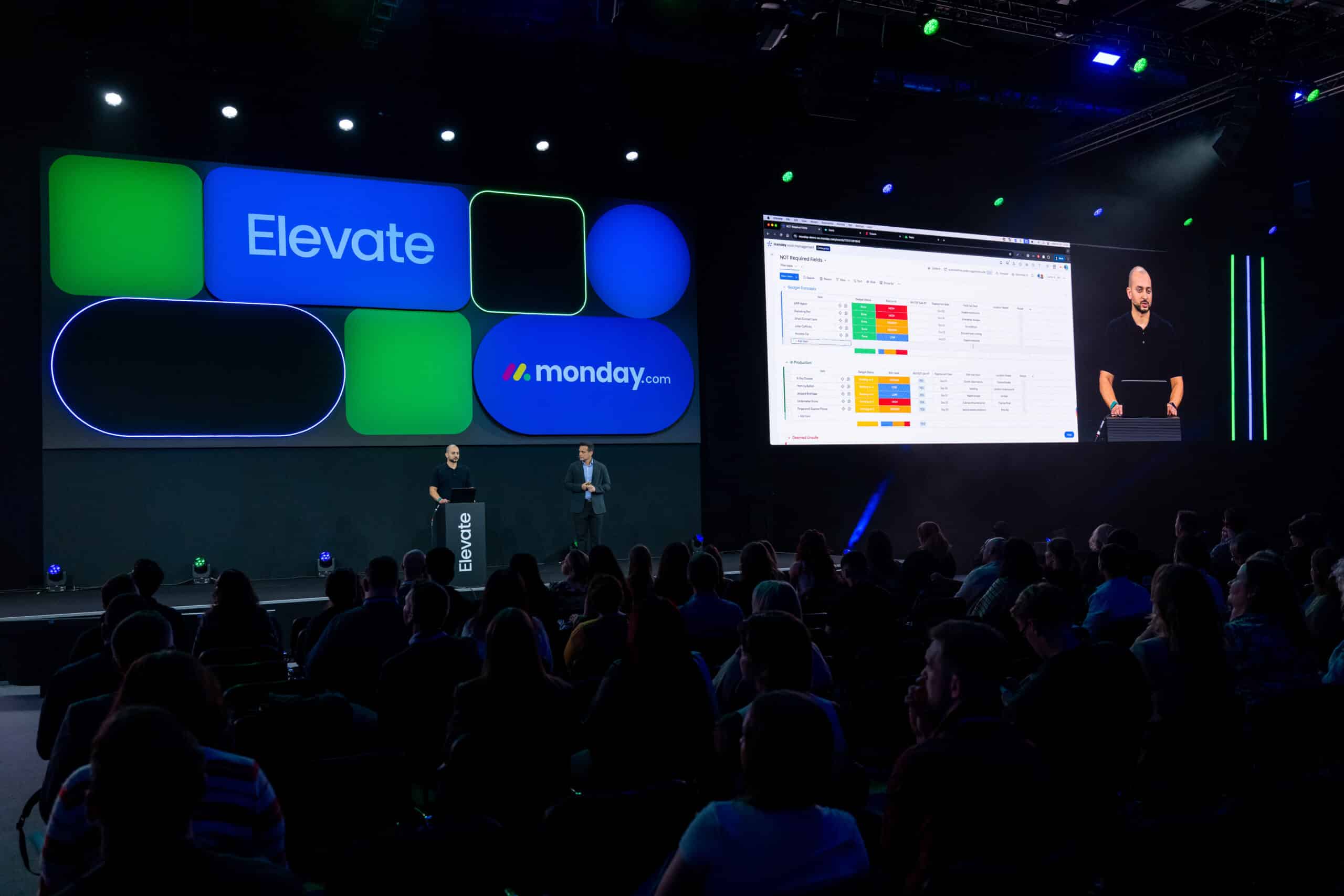
This session was one of the most attended at Elevate 2025, and it ran at both the NYC and London events. In NYC, David Conkling, Principal Customer Success Manager, and Isaiah Lee, Senior Solution Engineer, presented. In London, Ayoub Nassiri, Principal Customer Success Manager, and Shaked Hershkovitz, Solution Engineering Director, led the session. The tips, demos, and James Bond theme were consistent across both. The recording linked here is from London.
Every recommendation came from direct customer conversations, professional services engagements, and partner feedback across hundreds of implementations. Nothing requires a new release or technical expertise. All of it is available today.
The 10 tips break into three outcome areas: reducing everyday friction, building workflow structure that scales, and putting AI to work where it actually saves time.
Watch the full session below or on the Elevate On Demand library.
How do you reduce everyday friction in monday.com?
Three tips target the small annoyances that accumulate into real lost time: navigating across a large account, scrolling through column-heavy boards, and switching between apps to find information.
Tip 1: Bolt Switch
Bolt Switch is a keyboard shortcut that opens a quick search overlay for instant navigation to any board, dashboard, workspace, or document. Command+B on Mac. Control+B on Windows.
As accounts grow, navigating through menus takes time in ways that go unnoticed until they add up. The presenters called it a “life before and after” feature. Once you know it exists, you don’t navigate any other way. Attendees left the session with a laptop sticker listing this and other shortcuts to help build the habit.
Tip 2: Item cards
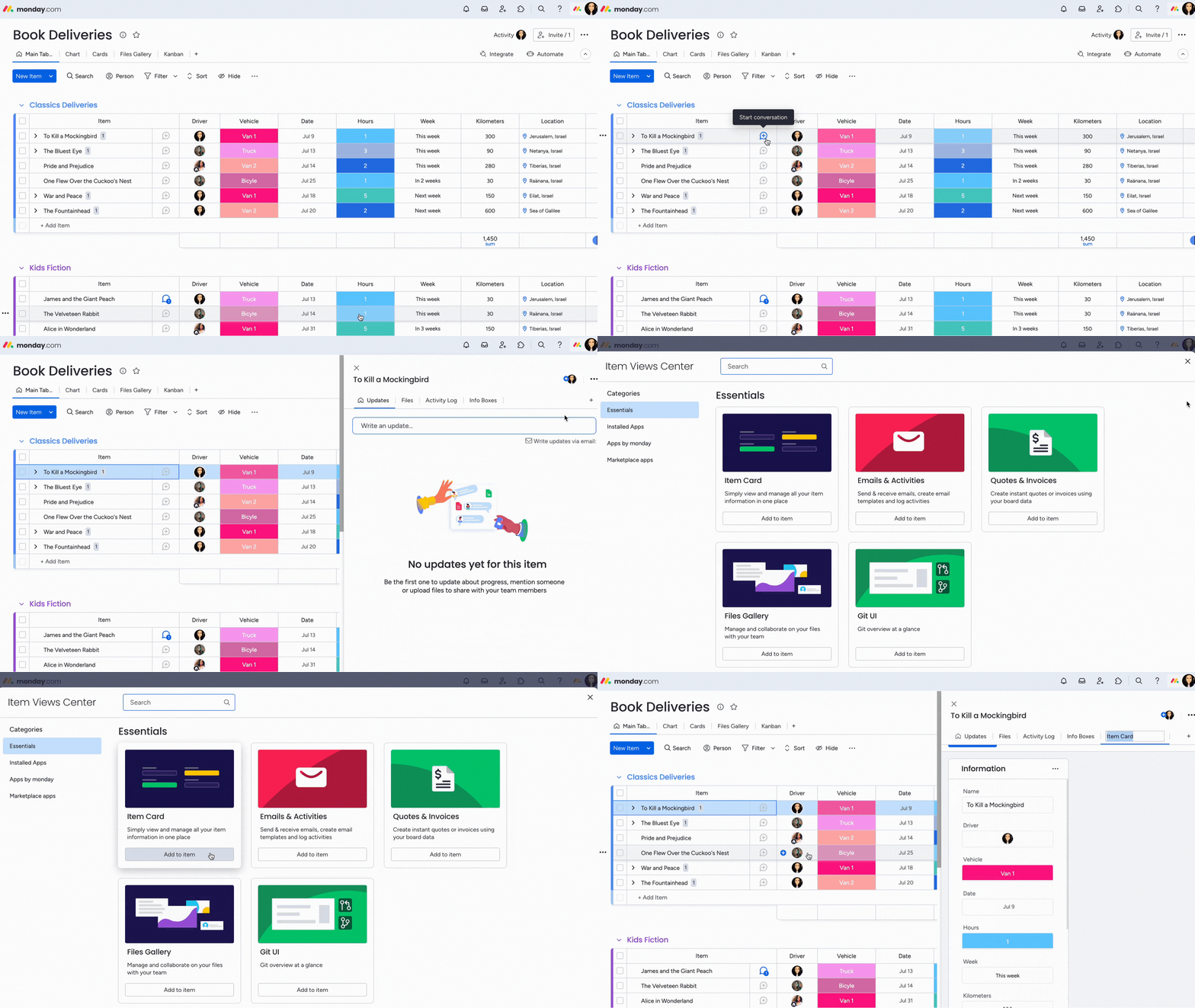
Item cards let you configure customizable views that show only the relevant columns for a specific persona when someone clicks into an item. Different stakeholders get different views; everyone works from the same board and the same data.
The demo showed three item card views on a single board: one for a person handling day-to-day operational tasks, one for the resource providing support, and one for leadership tracking milestones. No more scrolling across dozens of columns, and no need to maintain separate boards for teams with different information needs.
Tip 3: Embed everything
The embed capability lets you bring any web-based content directly into monday.com views and dashboards: videos, external dashboards, documentation, forms, reference materials. Fewer context switches; one place to work.
The session showed two examples. First, a customized onboarding-style dashboard with embedded reference content and Q&A. Second, the actual Elevate conference coordination dashboard used by monday.com’s own event team, with the agenda, feedback forms, and coordination materials all embedded so the planning team could stay focused without switching applications.
How do you build workflow structure that scales in monday.com?
Four tips address the problems that tend to appear as teams grow: inconsistent data entry, manual syncing across boards, and reporting that doesn’t reflect what’s actually happening.
Tip 4: Required fields
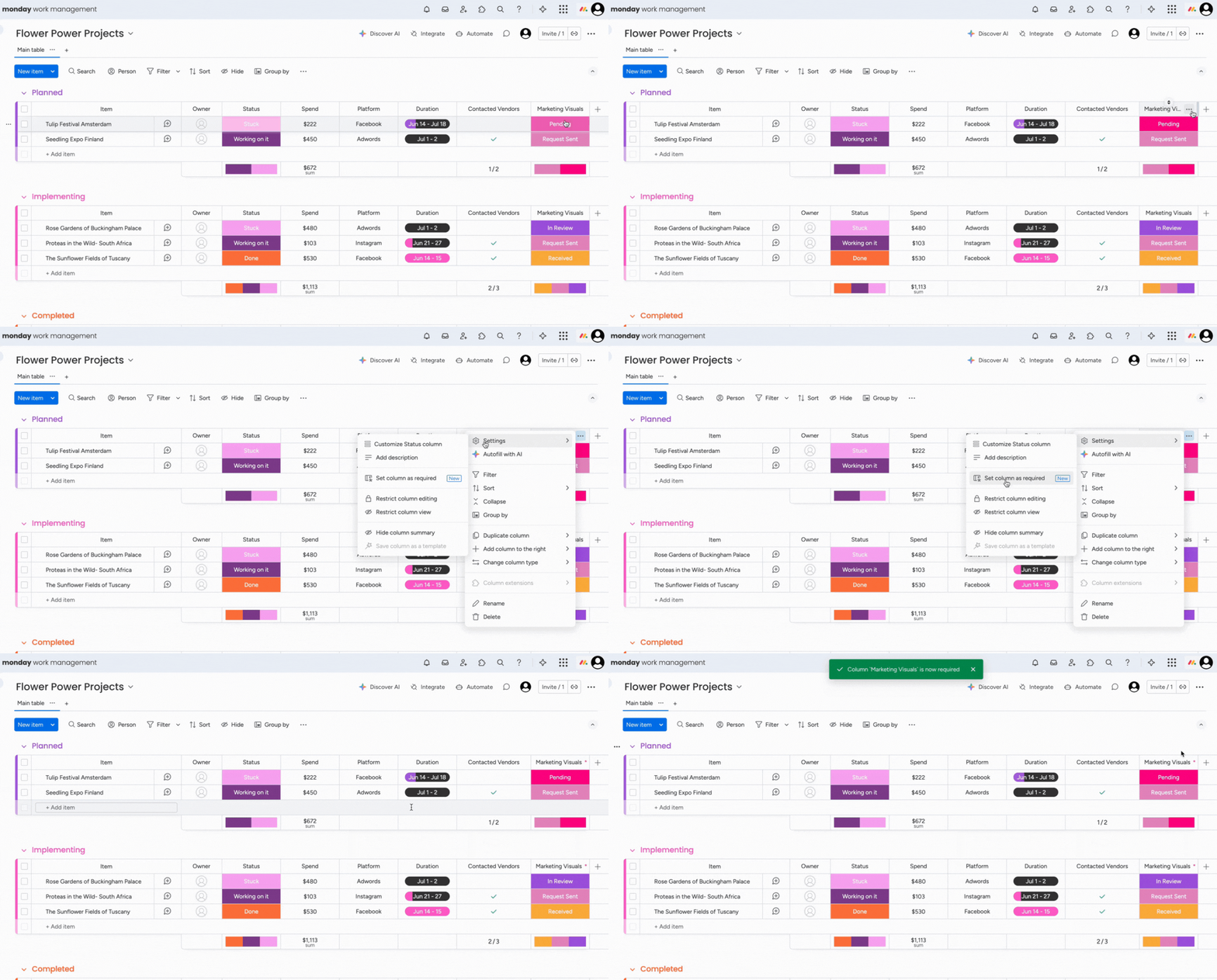
Required fields make specific columns mandatory when creating new items. You cannot save an item until every required field is completed. This is enforcement, not a suggestion.
The capability came directly from customer feedback and was one of the most requested features the team had tracked. Required fields ensure every entry follows the same structure regardless of who creates it, which means cleaner reports, fewer gaps, and consistent data at the moments that matter most.
High-value applications include:
- Onboarding workflows: Every new record includes required documentation and key details before entering the system.
- Project intake: Requests must include budget, timeline, owner, and success criteria before entering the pipeline.
- Compliance tracking: Audit items require evidence uploads and sign-off fields before being marked complete.
Tip 5: Match workflow
Match workflow creates automatic synchronization between boards. When an item is marked with a specific attribute (like “milestone”), it automatically appears in a connected board. Updates in either location reflect in both.
The demo used a portfolio of project boards connected to a leadership milestone board. When a date changed in one of the detailed project boards, the leadership board updated automatically. Nobody had to chase the update or manually copy information between systems.
Tip 6: All projects dashboard
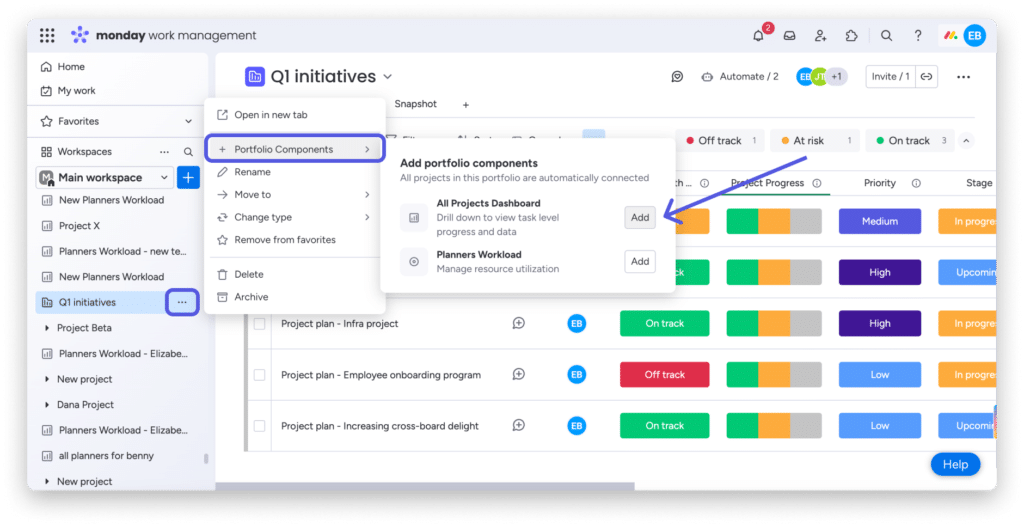
All projects dashboard is an AI-powered capability that auto-generates a portfolio-level dashboard based on connected projects. Rather than manually building and configuring widgets, the system creates a best-practice dashboard structure for you.
The presenters built this live on stage. With a few clicks on a portfolio, the system generated a complete dashboard covering completion status, incomplete items, delays, and status breakdowns by project. As the portfolio grows, new boards are added to the dashboard automatically. When projects complete, they’re removed automatically.
“The system works for you. You don’t work for the system.”
Shaked Hershkovitz, Solution Engineering Director, monday.com
Tip 7: Round robin assignment
Round robin assignment in monday service automatically distributes incoming tickets or requests evenly across a team. When a new item arrives, the system assigns it to the next person in rotation. No manual assignment, no guesswork about who’s next.
The demo ran multiple form submissions in real time. Each arrived as an unassigned ticket and then routed automatically to a different team member in sequence, with the assignment rotating each time.
How does AI in monday.com help streamline workflows?
The final three tips cover AI capabilities that save the most time when there’s structured workflow data underneath them.
Tip 8: monday sidekick
monday sidekick is an AI assistant that takes plain-language instructions and executes them directly in the platform. You describe what you want to accomplish; Sidekick does the work.
The demo was shown via video. The sequence demonstrated: assigning start dates following a waterfall methodology with five-day gaps starting on a specific date, transferring those dates to timeline columns with matching durations, assigning status labels based on group, and marking all items ready to start. Sidekick executed each instruction in sequence. As the presenters put it: “If you can define what you want to accomplish, Sidekick can do it for you.”
Tip 9: AI sprint summary
AI sprint summary automatically generates a comprehensive summary of a completed sprint, including who contributed what, what was planned versus unplanned, and recommendations for the next sprint.
After closing a sprint in the demo, a single click produced a full summary with performance highlights, workload analysis, and improvement suggestions based on actual sprint data. Retrospectives get faster, more objective, and nothing that happened during the sprint gets missed.
Tip 10: Extract Info Block
Extract Info Block scans an uploaded file and automatically pulls relevant information into the appropriate columns. Unstructured data from documents or images becomes structured workflow data without manual copying.
The session gave two examples: processing expense receipts by having AI identify amounts, dates, categories, and vendors; and an EMEA customer using it to extract pricing and quantities from RFP responses when managing competitive bids.
Deal insights is a monday CRM capability that analyzes deal-related activity (calls, meetings, emails, notes) and surfaces positive and negative signals about deal health.
The demo showed two deals side by side: one accumulating negative signals, one with strong positive indicators including multi-threaded contacts and a confirmed next step. The aim is to give sales teams something more objective than intuition, so they can see which deals need attention and build more confidence in their forecasts.
What are three monday.com changes to try this week?
Ten tips can feel like a lot. Pick one from each category and try it this week.
- Reduce friction: Start with Bolt Switch (Command+B or Control+B) for a full day. If column overload is the challenge, configure one item card view for a stakeholder who only needs a few of them.
- Build structure: Add required fields to one workflow where data quality matters. See what it surfaces.
- Try AI where repetition slows things down: If project setup takes too long, try monday sidekick. If someone on your team manually copies data out of documents, test Extract Info Block.
Want the next 10 tips live?
Work is changing faster than it ever has, and so is the platform. Elevate ’26 is where you catch up, get ahead, and put it all to work with people who are figuring out the same things you are.
Register for Elevate ’26 to see sessions like this live, get hands-on in masterclasses, and access 1:1 time with monday.com experts who can help you implement what you learn before you even get home.
Frequently asked questions
-
Will this session be at Elevate ’26?
Yes. An updated version of this session will be at Elevate ’26, incorporating the latest AI capabilities and how the platform has evolved. Register at Elevate ’26 to see the full agenda when it’s released.
-
How do I get 1:1 time with monday.com experts like the ones who presented this session?
The Expert Bar at Elevate gives you direct, 1:1 time with monday.com experts on site. It’s one of the most popular parts of the event. You can also book time once you download the Elevate app closer to the event.
-
Where can I watch the full session?
The full recording is available on the Elevate on-demand library and YouTube.
-
What else can I expect at Elevate ’26?
Two days of keynotes, masterclasses, roundtables, and hands-on labs at the Javits Center in NYC (October 28-29, 2026), with a pre-conference Certification Day on October 27. Sessions are designed to be practical and immediately applicable, not just informational. Learn more and register at Elevate ’26.