How to reserve your spot in limited-capacity sessions at Elevate EMEA
- Masterclasses and roundtables have limited capacity and require advance reservations through the Elevate EMEA agenda.
- Each attendee can reserve 1 session across Masterclasses and Roundtables.
- Registration opens on the 26th October at 10:00am GMT.
Some of the most valuable sessions at Elevate EMEA have limited capacity, and spots go fast. Masterclasses and roundtables require advance reservations through the Elevate EMEA agenda. Here’s exactly how it works so you’re not scrambling when reservation windows open.
Which sessions require a reservation?
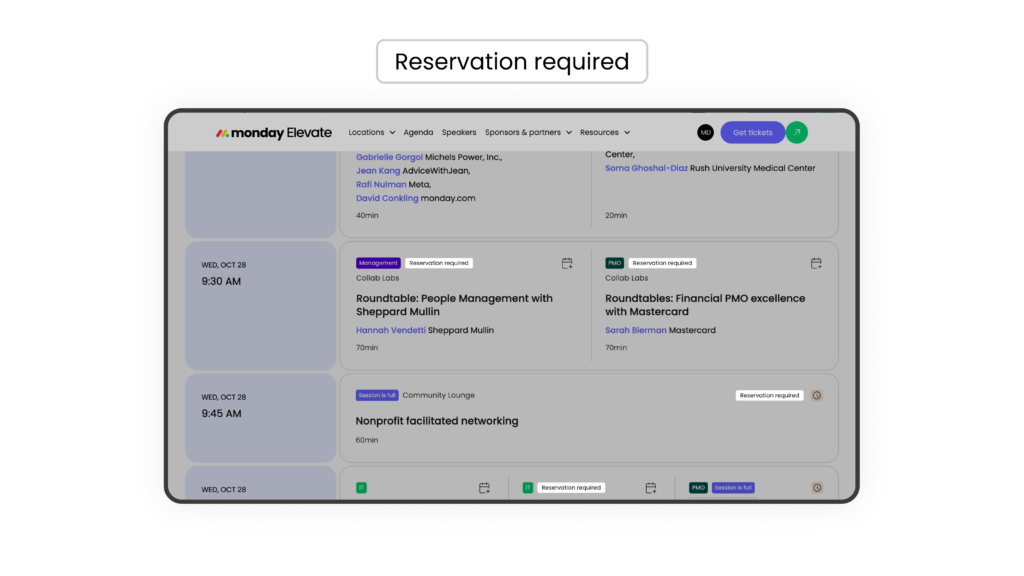
Below are the session types at Elevate EMEA that require pre-reservation. On the agenda, these are marked with a “Reservation required” tag:
Masterclasses are hands-on learning sessions where you build real skills in a smaller, classroom-style setting. They go deep on specific workflows, tools, and use cases.
Roundtables are facilitated peer discussions organized around a specific function, industry, or topic. They’re conversation-driven and intentionally small.
All other sessions at Elevate, including keynotes, product sessions, thought leadership sessions, and customer stories don’t require pre-reservations. You can add those to your agenda without reserving a seat.
How many limited-capacity sessions can you reserve?
Each attendee can reserve 1 limited-capacity session, across Masterclasses and Roundtables combined. These sessions fill quickly, so log in as soon as the reservation window opens.
How to log in and access your agenda
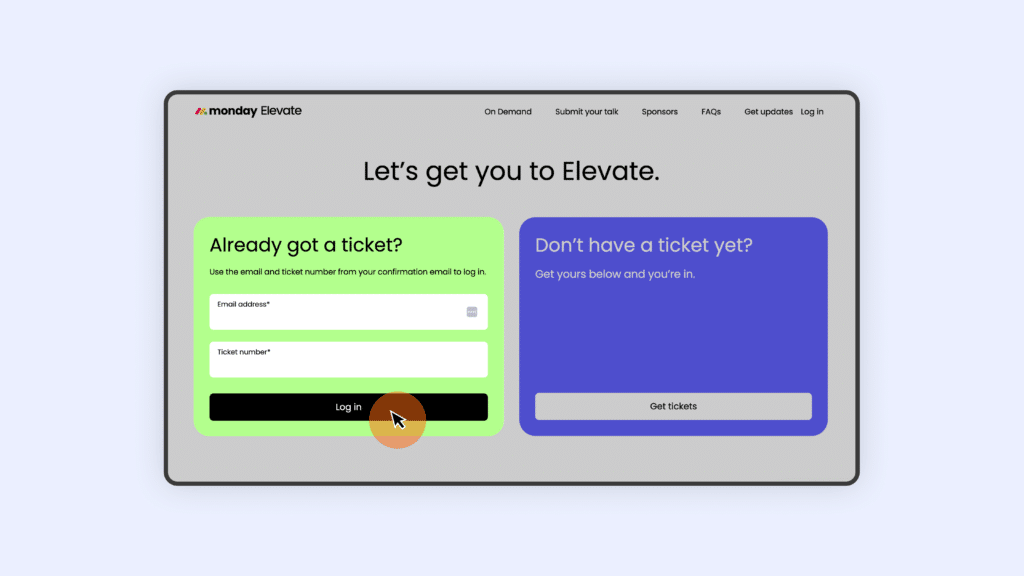
- Go to the Elevate agenda page and click log in.
- Enter your email address and ticket number (found in your registration confirmation email), then click log in.
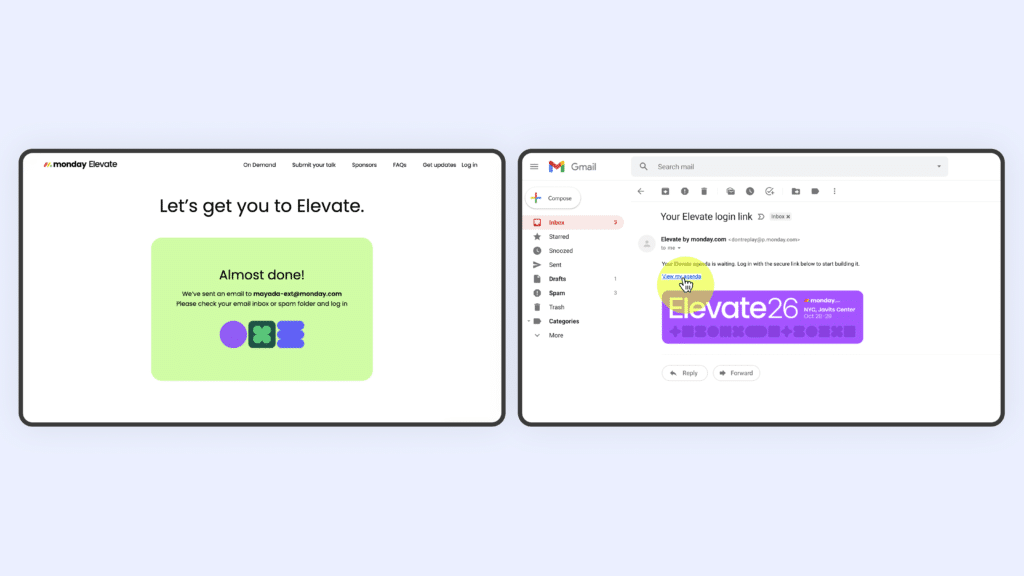
- Check your inbox for a magic link email, check spam if it doesn’t arrive within a minute or two.
- Click the link and you’re in.
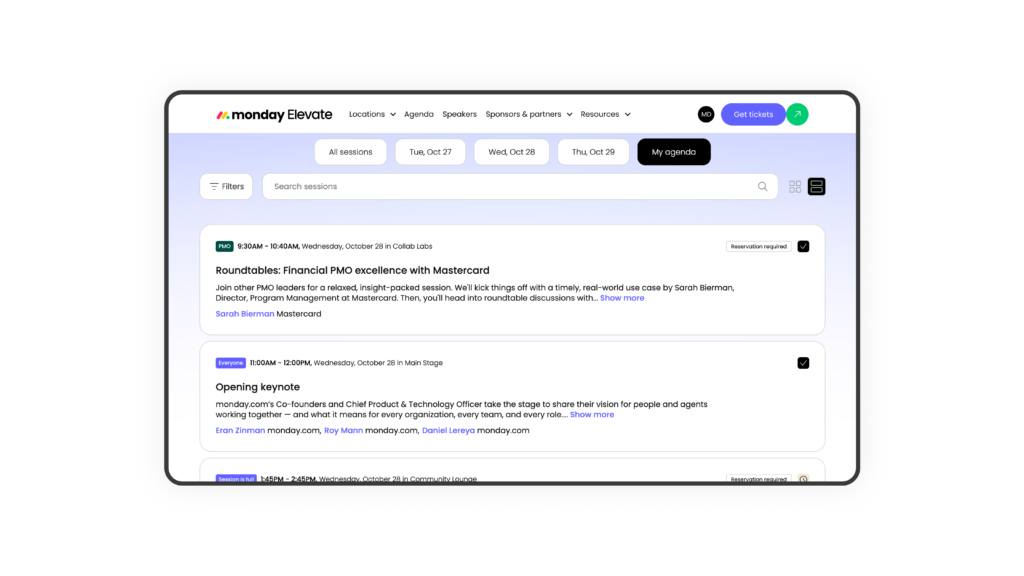
Once logged in, you’ll see the full agenda with filters by day, session format, audience, industry, and more. The “My Agenda” view shows only the sessions you’ve added or reserved.
How to reserve a session
Find the session you want using the agenda filters. Sessions that require a reservation are labeled “Reservation required”.
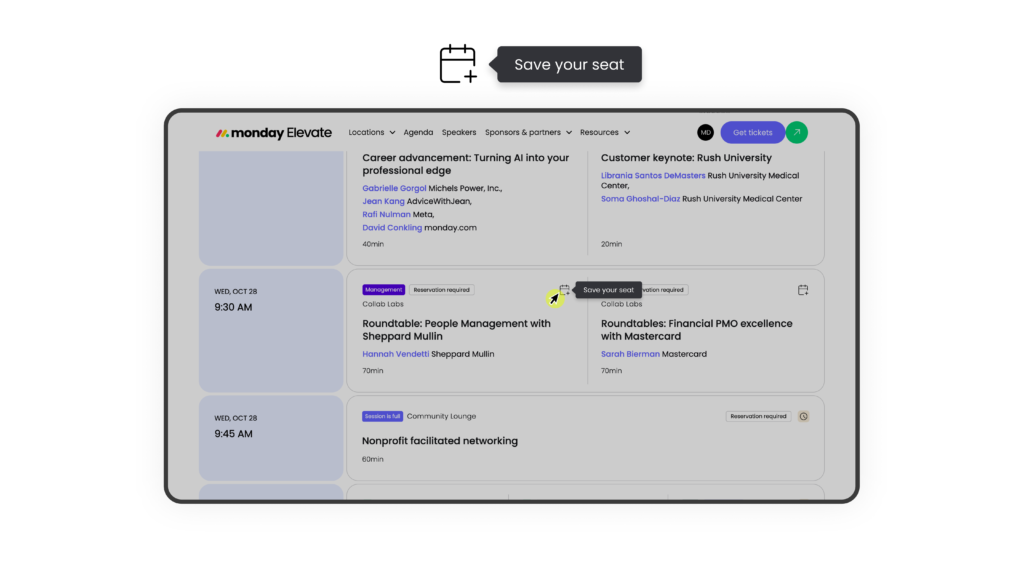
When you click on the add to agenda button, you’ll see a “Save your seat” option rather than a standard “Add to agenda” button. Clicking it counts toward your 1-reservation limit. Your reservation is confirmed immediately.
Once you’ve saved your reservations, you’ll receive a session registration summary email with the option to add your sessions to your calendar.
What if a session is full?
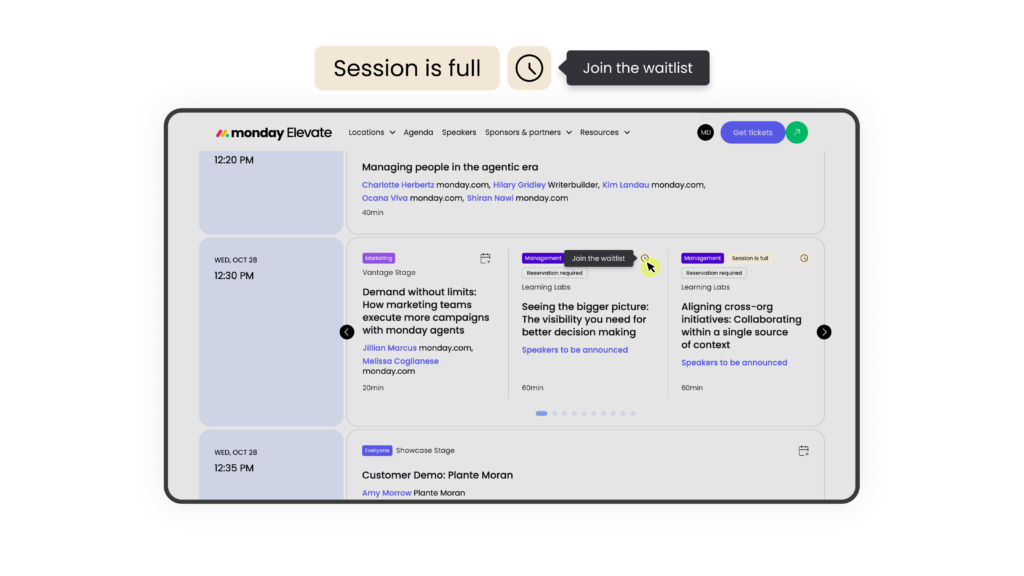
If a session is at capacity, you’ll see an option to join the waitlist. You can add yourself to as many waitlists as you’d like, with no limit. If a spot opens up, you’ll be automatically added to the session, even if you’ve already used your one reservation. You’ll receive an email when that happens.
How to cancel or change a reservation
Go to your “My Agenda” view, find the reserved session, and select “Cancel Reservation.” This frees up your seat for someone else and removes the session from your count, so you can use that reservation slot for a different session.
- 26th October at 10:00am GMT.
These sessions fill quickly once each window opens. Log in as soon as your window is live.
Frequently asked questions about limited capacity sessions
-
Do I need to reserve a spot for keynotes and main stage sessions?
No. Keynotes and main stage sessions are open to all attendees. You can add them to your agenda for scheduling purposes, but no reservation is required.
-
What if I didn’t get into a session I wanted?
We encourage you to join the waitlist ahead of the event. However, you can also join the standby line onsite for a chance to get in if seats are available.
-
What happens if I join a waitlist and get added to a session, but I already have a reservation?
Waitlist additions are automatic and can place you in a session beyond your standard 1-reservation limit. You don’t need to cancel an existing reservation to benefit from a waitlist spot.
-
Can I cancel and rebook if I change my mind?
Yes. Cancel anytime through “My Agenda.” Canceling frees up your reservation slot so you can use it for something else.
-
What’s my ticket number and where do I find it?
Your ticket number is in your registration confirmation email. You’ll need it to log in to the agenda platform.
-
Is there a conference app?
Yes. The Elevate app will be available closer to the event. All registrants will receive download instructions via email.